Key Takeaways
- The best AI image to video generator depends on your source image, the motion you need and how you plan to finish the video.
- An image anchors the composition, but generated motion can still change faces, text and product details, so review the complete clip.
- A generation model and the platform that hosts it are different things, and inputs, editing tools and export options vary by service.
- Flova's image-to-video workflow connects references, storyboards, several video models, music and a timeline in one project. Starter is $20/month, or $17/month billed annually.
- Runway offers image-led generation through its app and a separate developer API, and model controls differ by version.
- Adobe Firefly supports image and video generation alongside Adobe's editing tools, with Adobe's own Video Model and partner models available.
- Seedance 2.5 is a video model, while Flova is a production platform where it sits alongside Kling 4.0 and MiniMax H3.
At a Glance
What Does Image-to-Video AI Do?
The best image to video AI starts with your source picture and the shot you need. The image anchors the composition while the prompt directs subject and camera movement, so a product photo can become a slow reveal, a landscape a camera move and a character reference a short performance. The model generates new frames rather than sliding the original image across a canvas.
Available controls can include the prompt, duration, aspect ratio, references and start or end frames, and they vary by model and mode, so there is no universal motion-strength slider or camera preset. Clip length and resolution are model-specific: Seedance 2.5 supports up to 30 seconds per generation, while shorter modes suit individual shots. The source image removes many visual decisions, but faces, logos and labels can still drift, so inspect those details as the motion develops.
How to Compare the Best Image to Video Generators
Use one representative source image and a clearly defined action when you compare candidates, because a controlled product reveal is a different task from a moving character. Choose material that resembles your real deliverable, keep the same brief across models and change one variable at a time, so you can tell whether the image, the prompt or a generation setting causes a problem. Six factors matter in practice:
- Reference fidelity: shape, face, label and composition remain recognizable.
- Motion control: subject action and camera movement fit the shot.
- Workflow: approved references and revised takes stay organized.
- Cost: model, duration, resolution and retries fit the budget.
- Delivery: the downloaded file has the format and watermark status you need.
- Usage rights: you have permission for the source material and intended distribution.
Compare the exported result rather than a promotional demo, and inspect the beginning, middle and end for drift, flicker and changes in geometry.
Ten Image-to-Video AI Generators by Production Role
This shortlist of image to video generators mixes generation models with the platforms that host them, so compare controls, access and project organization with that distinction in mind.
1. Google Veo 3.1
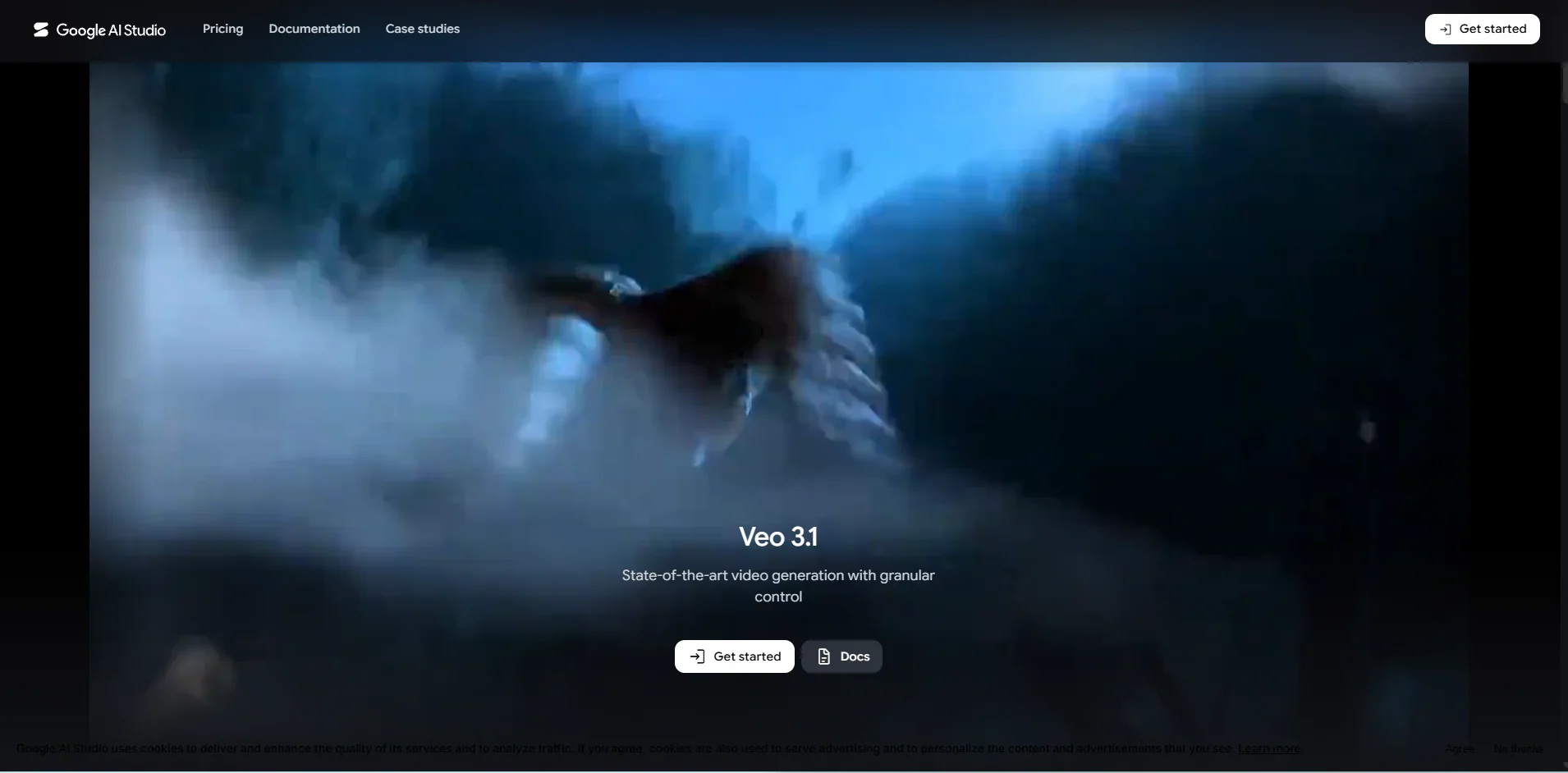
Veo 3.1 supports image-led video with generated audio, which suits a shot where dialogue, ambience or sound effects matter alongside the visuals. Google offers access through its own products and developer services, and the selected model and input mode determine duration and output options.
2. Runway Gen‑4.5
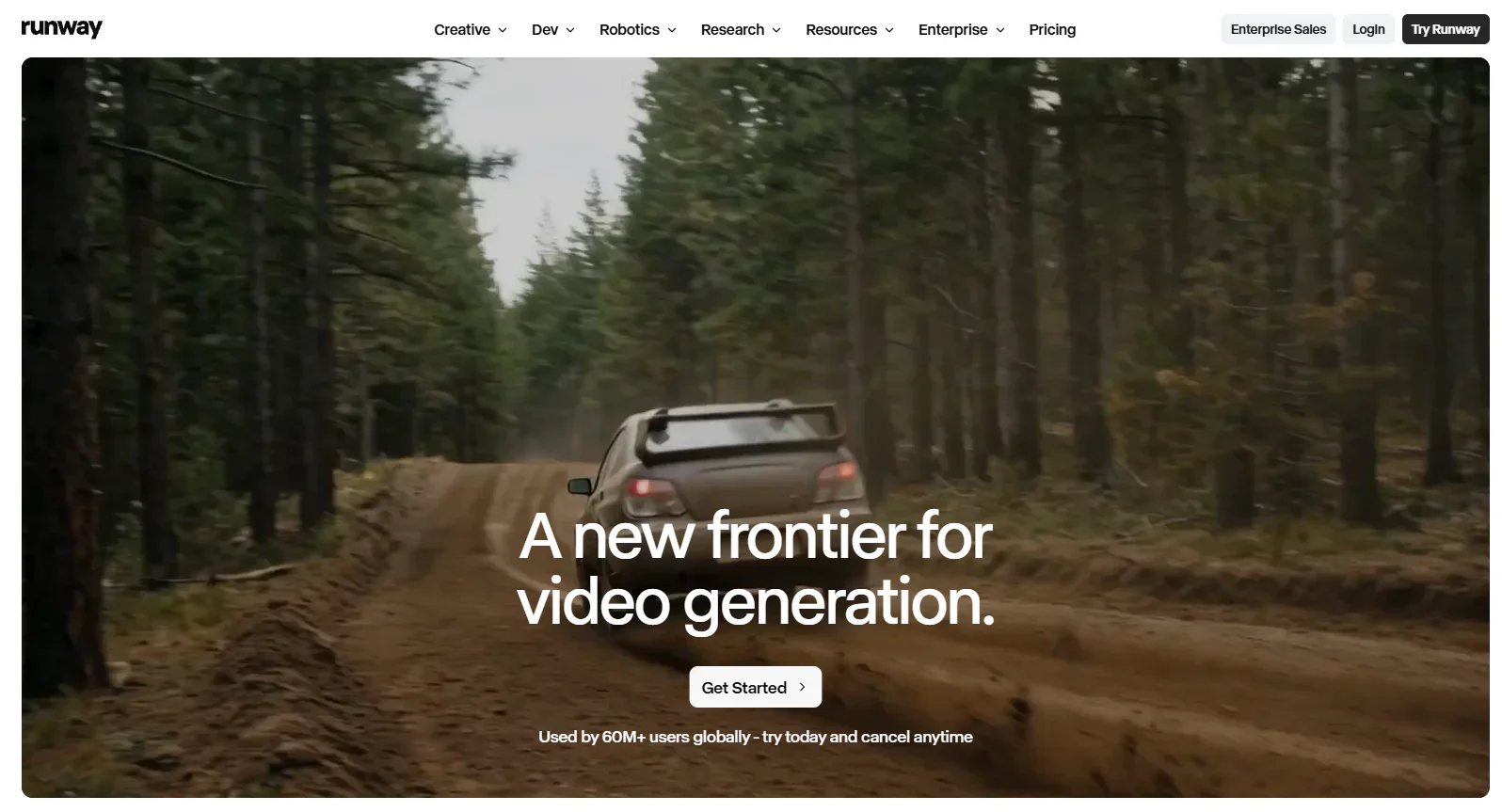
Runway Gen-4.5 supports text and image inputs for video generation, so a strong source frame and a motion description that separates subject movement from camera direction work best. Runway's Free plan includes 125 one-time credits, and Standard costs $15/person/month on monthly billing or $12/person/month billed annually with 625 credits per month; developer API billing is separate.
3. Kling 4.0
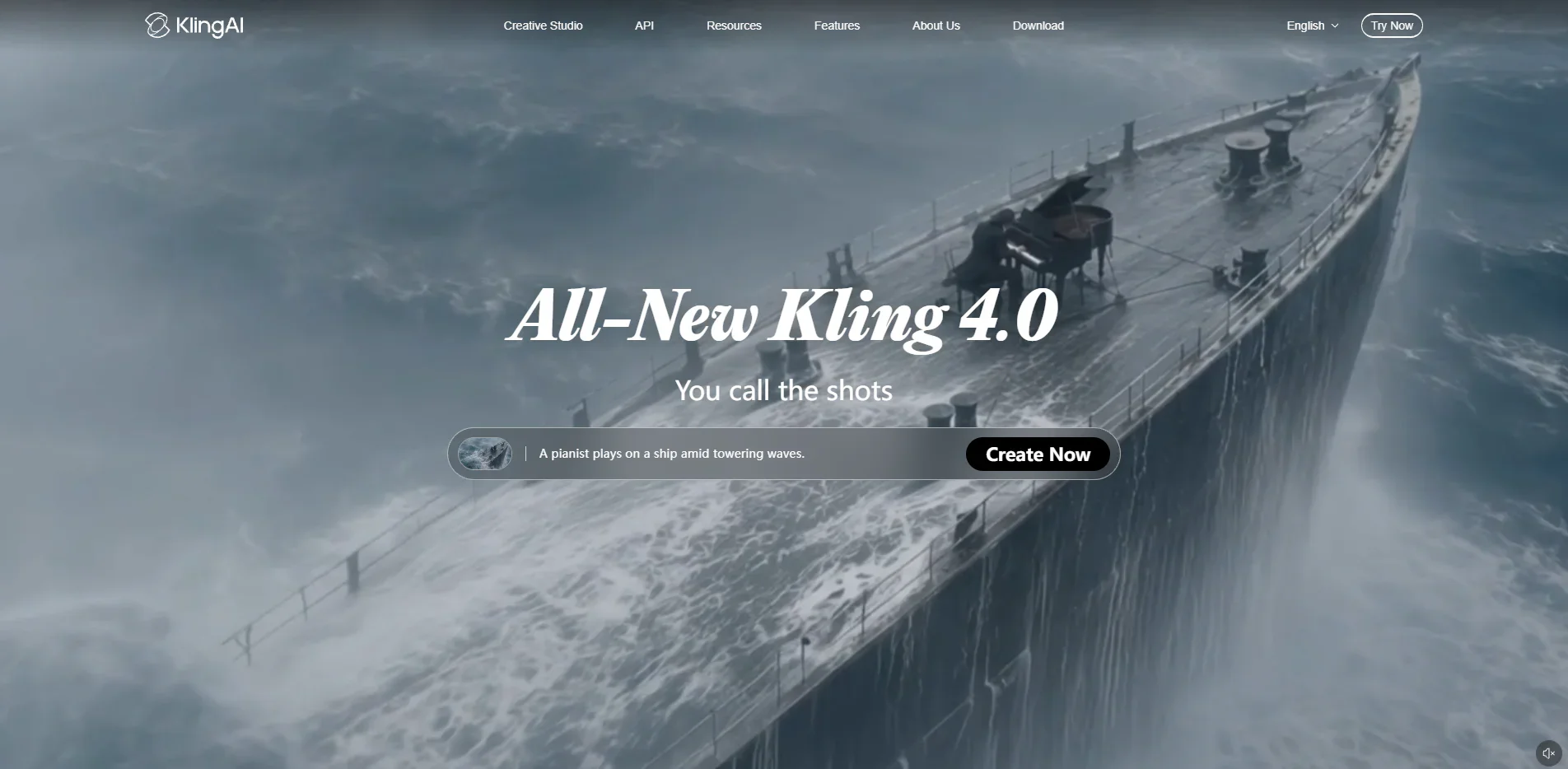
Kling 4.0 supports text, image, keyframe and reference-led video workflows, and its documented model options include native 3–30 second clips and native 4K output. For a photo-led shot, use the image and reference controls available in the selected generation mode.
4. Flova
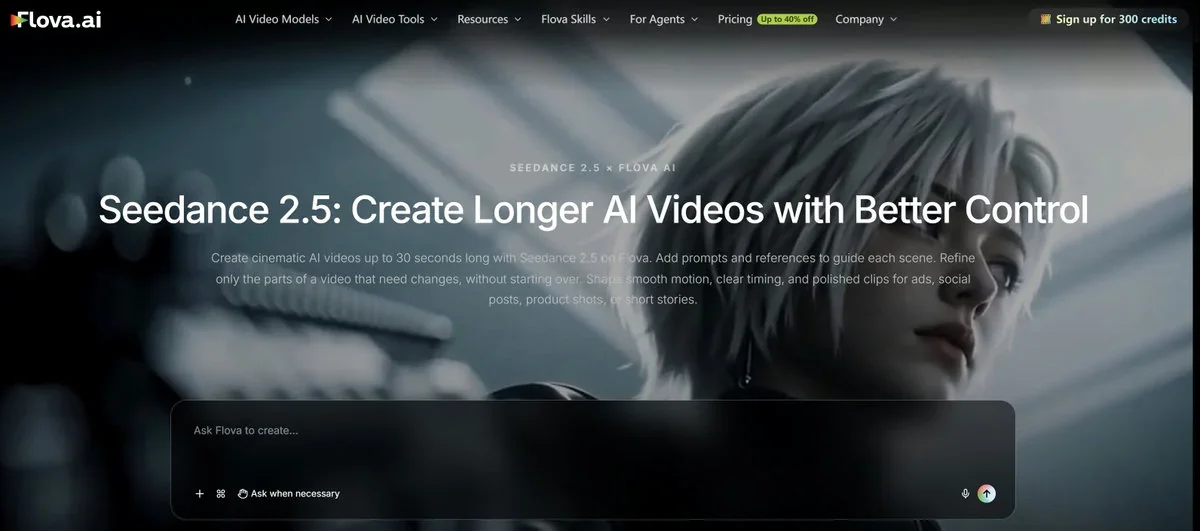
Flova is a connected project workflow rather than a single generation model: its image-to-video workflow keeps the source picture, script, storyboard, generated shots, music and timeline together, and you choose a model for each scene. Seedance 2.5, Kling 4.0 and MiniMax H3 are among its listed video models, so the same approved character or product references stay in the project while you compare generation routes.
You review the storyboard and shot instructions, then revise individual scenes while approved work stays in place. Reusable Skills carry a visual approach into the next project. Flova’s image-to-video page lists First/Last Frame to Video and Omni Reference as separate creation modes. Export a finished video or a CapCut draft with its media for continued editing, or download project media for reuse. Starter includes 2,000 credits per month, watermark-free export and commercial use, and new accounts receive 300 signup credits.
5. Luma — Creative Workspace
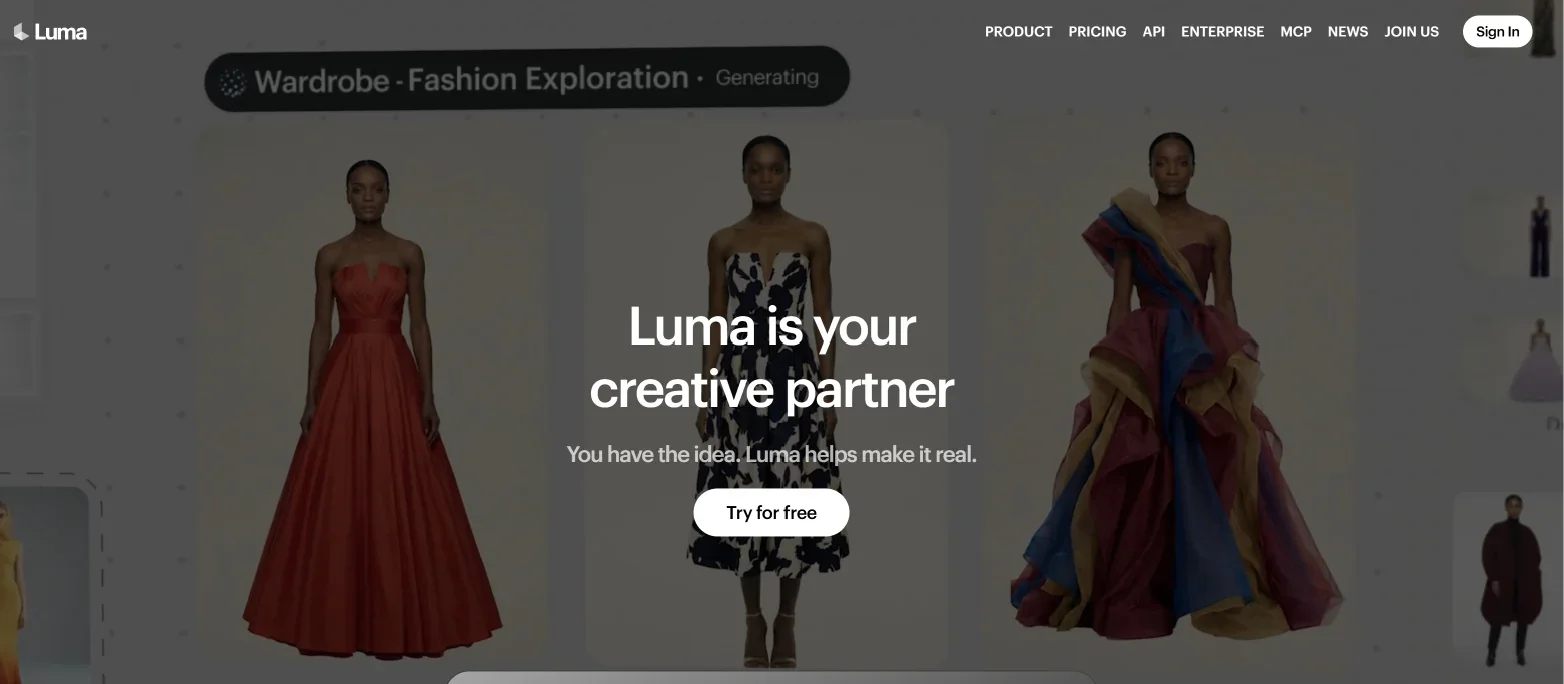
Luma offers image and video creation through its creative workspace, and its Plus plan ($30/month on monthly billing, 10,000 credits) includes Luma and third-party models with commercial use. Its tools support developing visual directions and refining generated material within a project.
6. Pollo AI
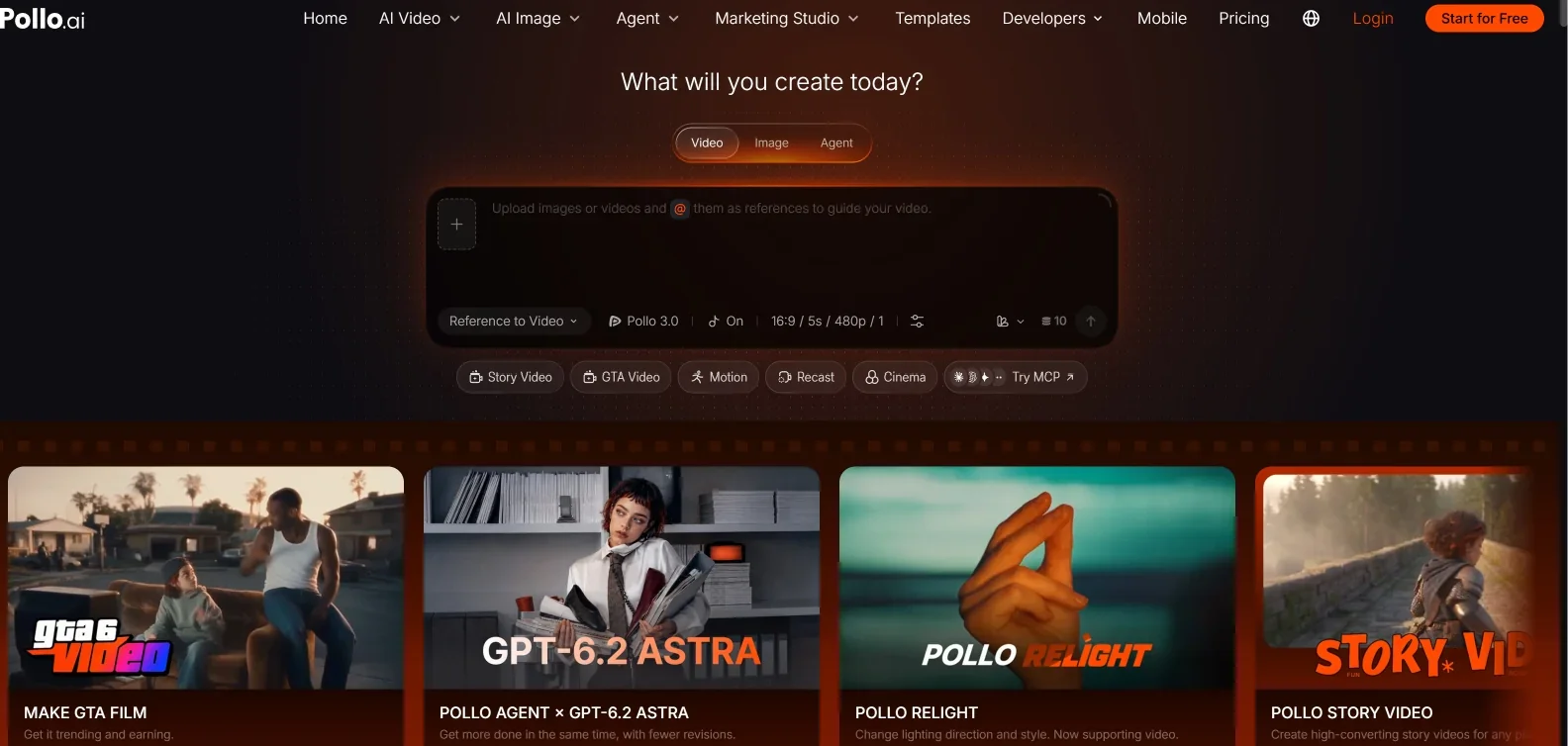
Pollo AI brings several image and video generation models into one service, which is useful for trying different engines from the same source without opening a separate provider account for each one. Input modes and credit costs follow the selected engine.
7. Pika
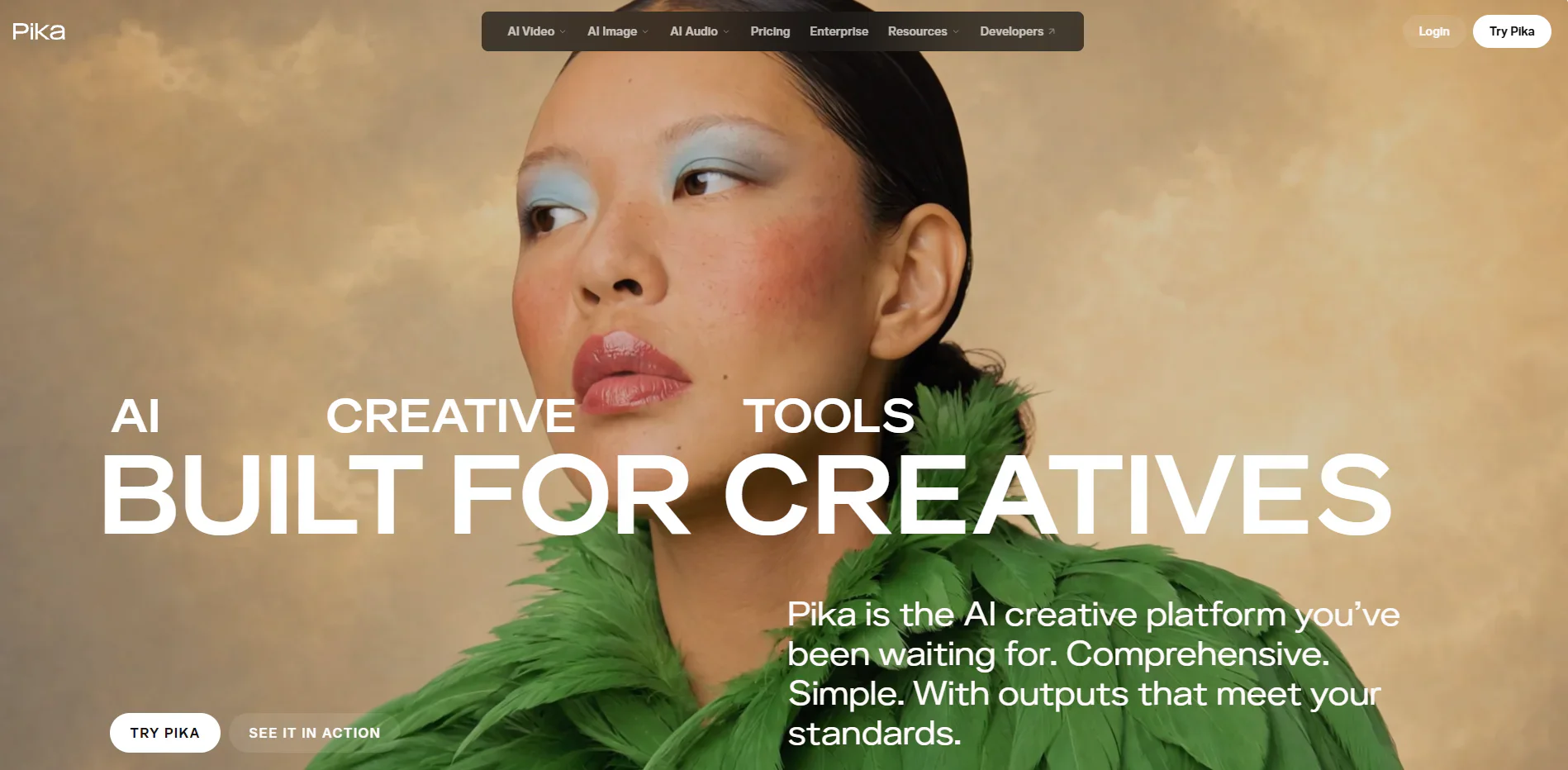
Pika offers image-to-video and effect-led creation alongside multiple hosted models, which suits short visual experiments where a transformation or performance is the central idea. Its Free plan lists no watermark and no commercial license, with generation through credit packs, while Starter costs $10/month on monthly billing and includes 600 credits and a commercial license.
8. Adobe Firefly (Video Model)
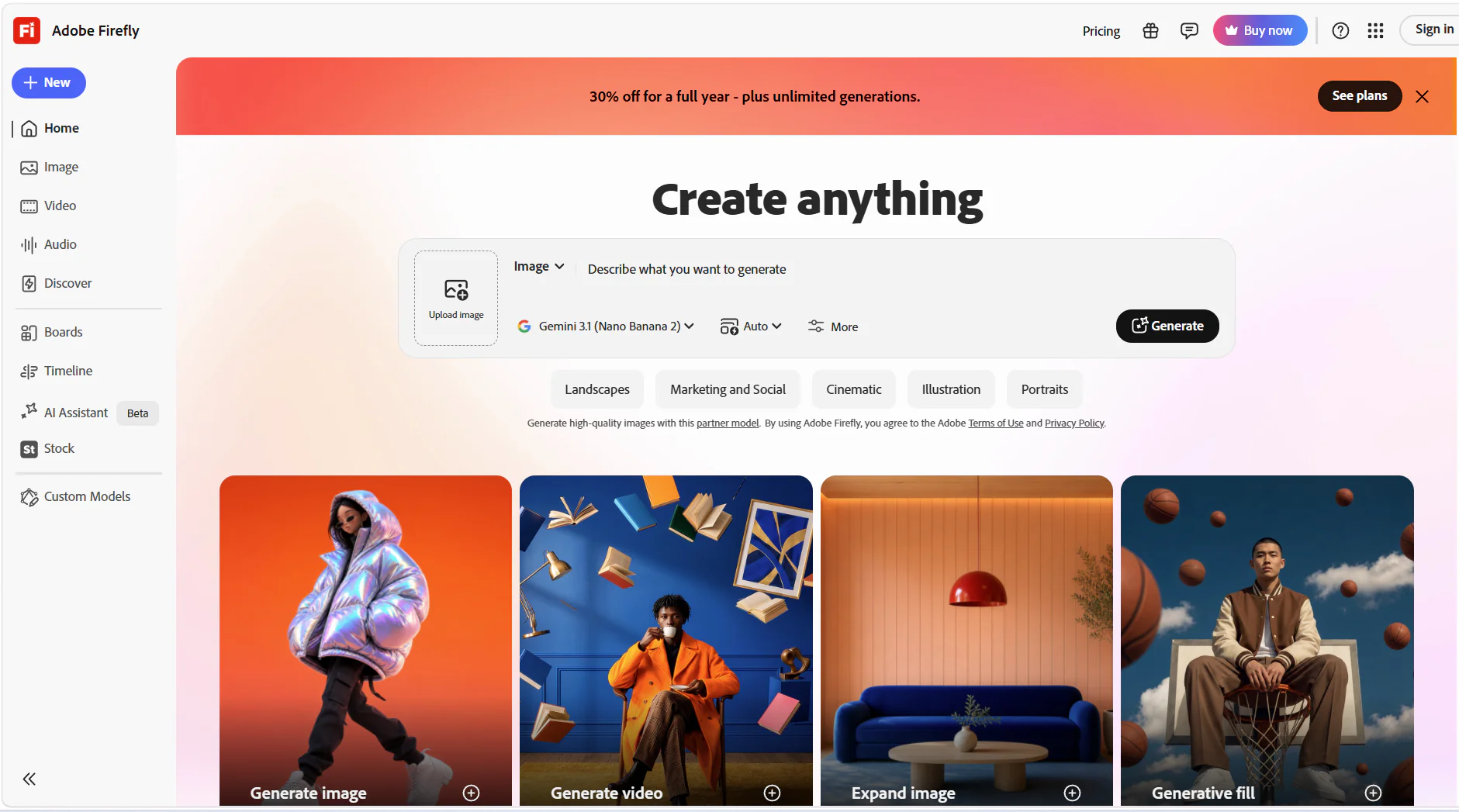
Adobe Firefly supports image-to-video generation alongside Adobe's editing workflows, which helps when the still image is already being developed in Adobe's design tools. Firefly includes Adobe's own Video Model and partner models from other providers, and rights to the images you upload remain a separate question.
9. Shhots AI
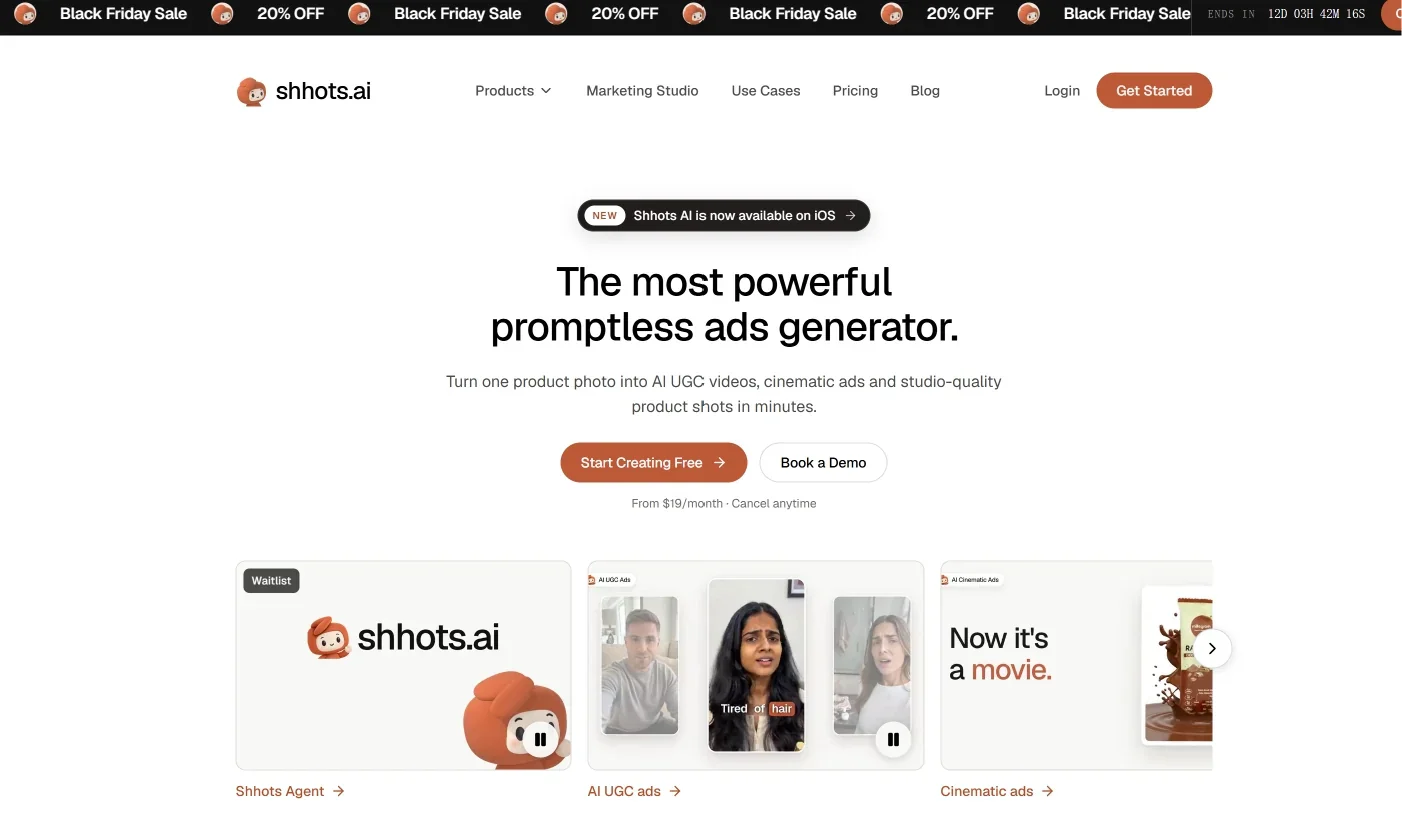
Shhots AI turns product photos into AI ad concepts, including UGC-style and cinematic formats, and its pricing page lists plans from $17/month billed annually or $19 month to month. The workflow starts with a product photo, then offers format and style choices before generation, so review labels, product geometry and claims before using an output in an advertisement.
10. Seedance 2.5
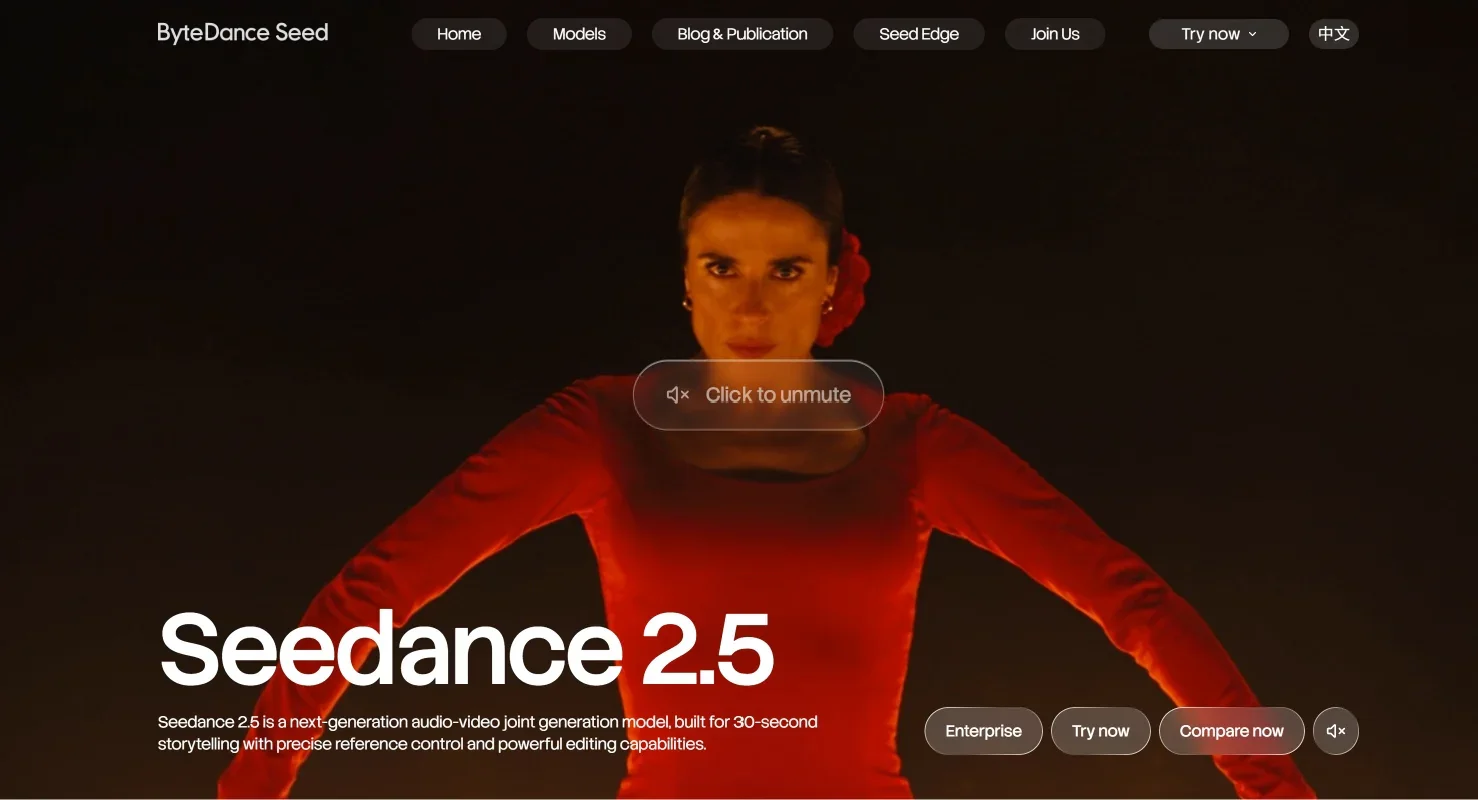
Seedance 2.5 is a ByteDance video model that supports multimodal references and up to 30 seconds of generation, using images to guide appearance and action within a scene. It is available through host platforms such as Flova and Luma rather than as a separate editor.
AI Video Model and Platform Comparison
This matrix compares access routes, starting prices and workflow fit across the options. Model access, a free account and a recurring free generation allowance are separate features.
Free Access and Credit Pricing
Free access is useful for evaluating a source image, but it does not make every model free or every generation usable commercially, so look at the allowance attached to the account and model. Three questions help:
- Can you generate? A free account can still require purchased credits.
- Can you deliver? Watermark removal and commercial permission are different conditions.
- Can you keep working? Allowance size and the credit cost of revisions affect ongoing use.
Pika shows the distinction: its Free plan lists no watermark but also no commercial license, and generation runs through credit packs, while Starter adds 600 monthly credits and commercial use. Flova gives new accounts 300 signup credits (100 free plus 200 creation bonus), and its Starter plan provides 2,000 monthly credits with watermark-free export and commercial use.
Budget from a finished sequence rather than the first successful preview, including alternate takes, reference development and the resolution you plan to deliver. In Flova, the picture, shot plan and approved takes stay together while you make those decisions, so you can revise a sequence without recreating its brief.
Reviewing Motion, Detail and Shot Control
A repeatable review gives the best AI image to video workflow its edge: judge motion, reference fidelity and editability against the same source. Watch for changes in hands, face shape, packaging, printed words and hard edges, because a shot that looks convincing at its opening can drift once the camera or subject starts moving.
Start with one principal action, since combining an orbit, a fast turn and a major lighting change makes it harder to preserve the original picture. A good motion prompt names both the action and the stable details, for example keeping the product label facing camera while the background moves slowly.
Flova's storyboard and reference workflow keeps those instructions beside each shot, so you can choose the generation mode for each scene and compare the result with the approved source. Resolution is only one part of delivery, and a larger file does not repair warped lettering or a changed product shape. For several scenes, reuse approved references and review the cuts together, because consistency depends on the sequence as well as each clip.
Choose by Use Case
Match the workflow to the final asset: a social shot, an edited story, a product ad or a recurring series. Four starting points cover most cases.
1. Social Media Shorts
Consider Pika for a short effect-led idea. For a sequence with recurring characters or product references, organize the scenes in Flova before generating.
2. YouTube and Long-Form Content
Build longer videos from several reviewed shots: Flova keeps the references and storyboard together, and you edit the sequence for pacing instead of extending every scene into one long take.
3. Marketing, Product Ads, and UGC
Use Shhots AI for guided product-ad concepts, or Flova when the campaign needs a connected shot plan, reusable references and several versions of the edit.
4. Hobby, Experimentation, and Independent Production
Start with one strong picture and a short action. Flova's Agent-led project lets you develop the scene in natural language, inspect the storyboard and reuse a Skill when the look works. Starter costs $20/month on monthly billing or $17/month billed annually, with 2,000 credits per month, and credit consumption follows the selected model.
Use Flova's image-to-video workflow to take your source picture through shot planning, generation and review.
Commercial Use, Watermarks and Source Permissions
Commercial permission depends on the service and plan, and watermark status alone does not tell you whether a clip can be used in client work. Use source images you own or have permission to animate, including consent for identifiable people and permission for any music, voices or protected artwork you add.
A paid subscription does not supply rights to someone else's product photography, likeness or soundtrack, so keep those permissions with the project. Runway states that it places no non-commercial restriction on content you create, and Pika's plan comparison lists a commercial license on Starter and above but not on Free.
Flova Starter and higher plans include commercial use and watermark-free export, while downloads from free accounts carry the Flova watermark. Choose the license and export combination your deliverable requires, and review the actual download before sending it to a client.
How to Turn a Photo Into a Video: Basic Workflow
Use this five-step workflow to turn a source picture into a directed shot, then build an edited sequence from the takes you approve.
1. Upload Your Image
Choose a sharp image with a clear subject and readable details. Set the crop for the intended frame before asking the model to add motion.
2. Write a Motion Prompt
Describe one main action, the camera move and the details that must stay stable. For a product shot, a slow push-in with a fixed label is a useful first brief.
3. Set Camera and Motion Controls
Select the duration, aspect ratio and supported reference mode. In Flova, keep the approved source and shot instructions beside the storyboard.
4. Generate and Review
Watch the full clip and pause on important details. Check the middle and ending, where identity, lettering and geometry can change.
5. Refine, Extend, or Export
Adjust the prompt or source for a failed shot, retain approved takes and assemble the sequence. Export a video, or use Flova’s CapCut draft handoff for continued editing.
Frequently Asked Questions
How do I choose the best AI image to video generator?
The best AI image to video generator is the one that matches your source image and final deliverable. For native audio, consider Veo 3.1; for keyframe or reference control, consider Kling 4.0; and for a sequence that needs a storyboard, references and a timeline together, Flova brings several of these models into one project. A single-shot generator is enough when you only need to animate one picture.
Can I try image-to-video AI for free?
Yes, several services offer free credits or a free plan. Runway's Free plan includes 125 one-time credits, Flova gives new accounts 300 signup credits to try select models, and Pika's Free plan generates through credit packs with no watermark and no commercial license. A free account is not always a recurring free-generation plan, so check what the allowance covers before you start a project.
How can I keep a product or character consistent?
Start with approved reference images and limit the motion to one clear action. Reuse the same character, costume, product shape and lighting direction across scenes, and compare each generated shot with the reference. In Flova the references stay beside the storyboard, so every shot is reviewed against the same approved source.
Can I use image-to-video output commercially without a watermark?
Yes on a plan that includes commercial use, but watermark removal and commercial rights are separate conditions. Flova Starter and higher include both watermark-free export and commercial use, while free-account downloads carry the Flova watermark. Pika's Free plan lists no watermark but no commercial license, and Pika Starter adds one.
Which workflow is suitable for a beginner?
A beginner should start with one source picture and one short action. Flova's guided project workflow helps when you want to review a storyboard and build several related shots, with 300 signup credits to try it. A single-shot generator is enough when you only need to animate one picture.
How long can a video from one image be?
It depends on the model and generation mode. Seedance 2.5 supports up to 30 seconds per generation and Kling 4.0 lists 3–30 second clips, while a longer finished video is usually edited from several shots rather than generated as one continuous clip.
Can I use more than one image-to-video model in the same project?
Yes, on platforms that host several models. In Flova you can use Seedance 2.5, Kling 4.0 and MiniMax H3 within one project, keeping the same source picture, references, storyboard and timeline while you compare results; Luma and Runway also list third-party models on paid plans.