Flova Logo

AI Script to Animation Generator for Story-Driven Videos

Turn Your Script into an Animated Story

Bring a screenplay, scene outline, dialogue draft, or approved marketing script into Flova and direct the project through conversation. Flova’s script to animation workflow turns written beats into scenes and storyboards, then helps develop animated shots, sound, and a reviewed sequence—all within one connected project. Share the audience, format, visual style, recurring characters, and purpose. Strengthen transitions, revise one scene, or adjust audio without rebuilding what works. From explainers and short stories to social series and brand narratives, you stay in control: the script provides the logic, while your references and feedback shape every beat.

Start Creating in Flova

Four Ways to Direct Script-to-Animation

In AI script to animation, a script defines what the audience learns, what each character wants, where the story changes, and why one shot follows another. Flova treats those decisions as a connected production rather than a single prompt. The AI script to animation workflow gives you review points before and after generation. Check the narrative order first, approve the visual direction second, and generate shots in manageable groups. If a scene misses the action or mood, revise that scene while keeping approved material available.

Break the Script into Scenes and Visual Beats

Begin by identifying every change in location, time, speaker, action, or idea. Each change may need a new scene or shot. Ask Flova Agent to help organize those beats into a storyboard that shows the purpose of each moment, the main subject, the setting, and the transition to the next beat. Do not treat every sentence as a separate clip. Some lines can share one sequence, while a short pause or reaction may deserve its own shot. Balance spoken information with visual storytelling instead of illustrating every word literally.

Start Creating in Flova
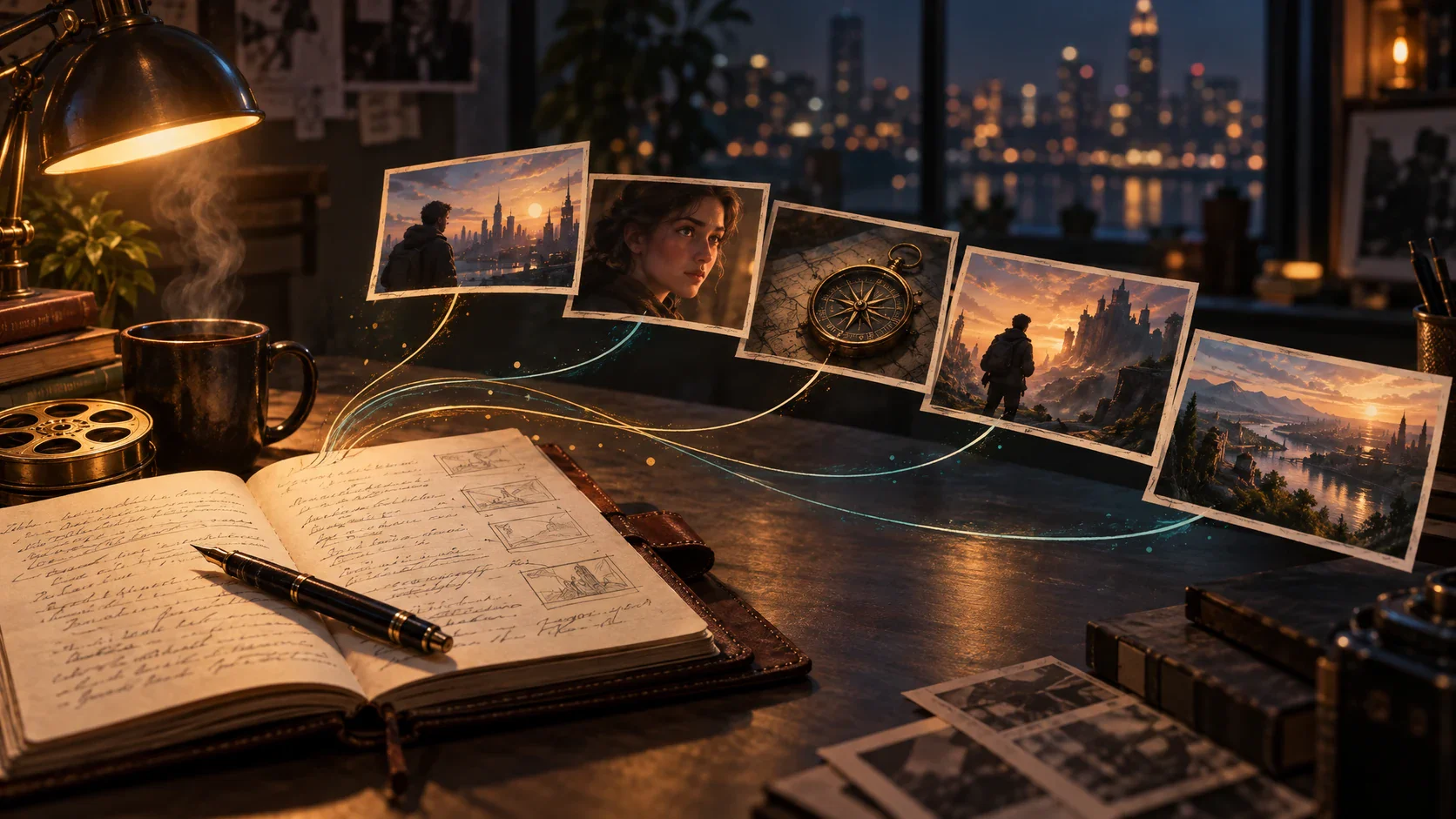
Written script divided into scene cards and storyboard beats

Keep Characters, Props, and Locations Recognizable

Prepare approved references for recurring characters, wardrobe, key props, environments, products, and visual style. Label each reference clearly and explain what must stay stable. Reuse the same material so the AI script to animation project has a stronger continuity baseline. Character consistency still requires review. Compare faces, clothing, scale, color, and important objects from shot to shot. When something drifts, update the direction or reference for that scene.

Start Creating in Flova
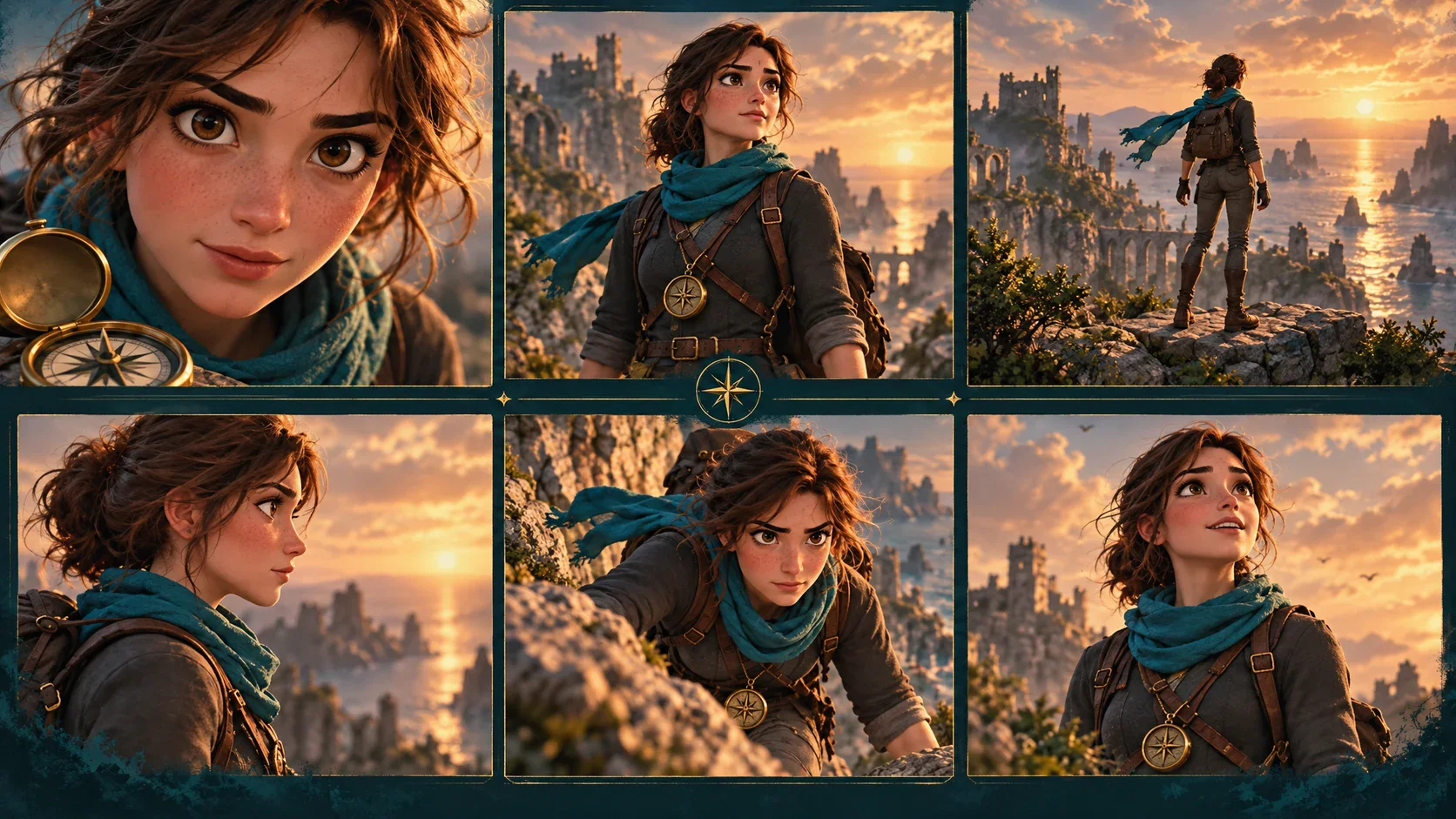
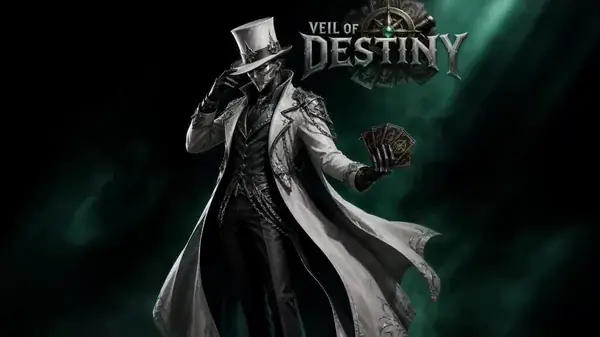
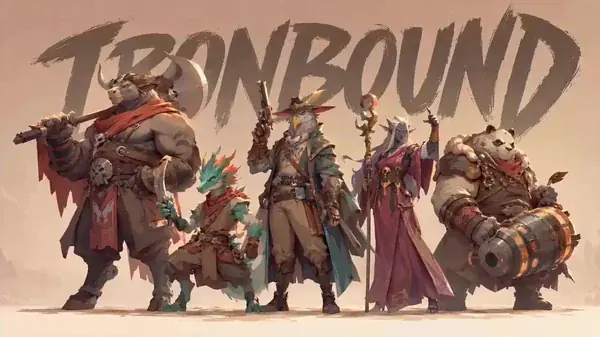
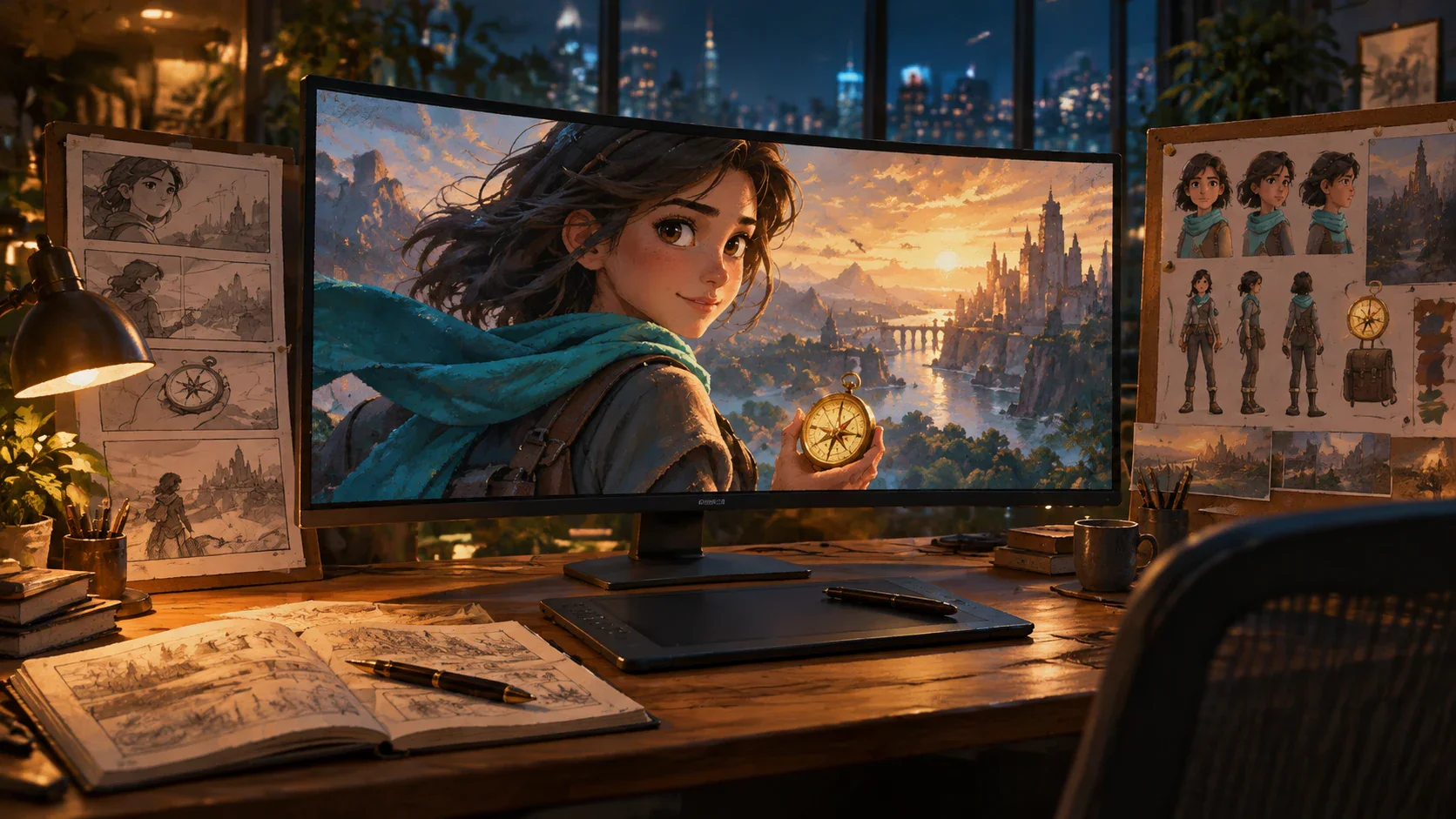
Consistent animated character, clothing, props, and locations across multiple scenes

Direct Action, Framing, and Camera Movement

For AI script to animation, translate each script beat into visible action. Define who is present, what changes, where the camera is placed, how it moves, and which emotion the audience should read. A reaction may need a close-up; a reveal may work better as a wide shot or controlled push-in. Build useful coverage instead of repeating the same composition. Establish the setting, show the action, capture reactions, and add detail shots where they clarify the story. Review shots as a sequence rather than as disconnected moments.

Start Creating in Flova
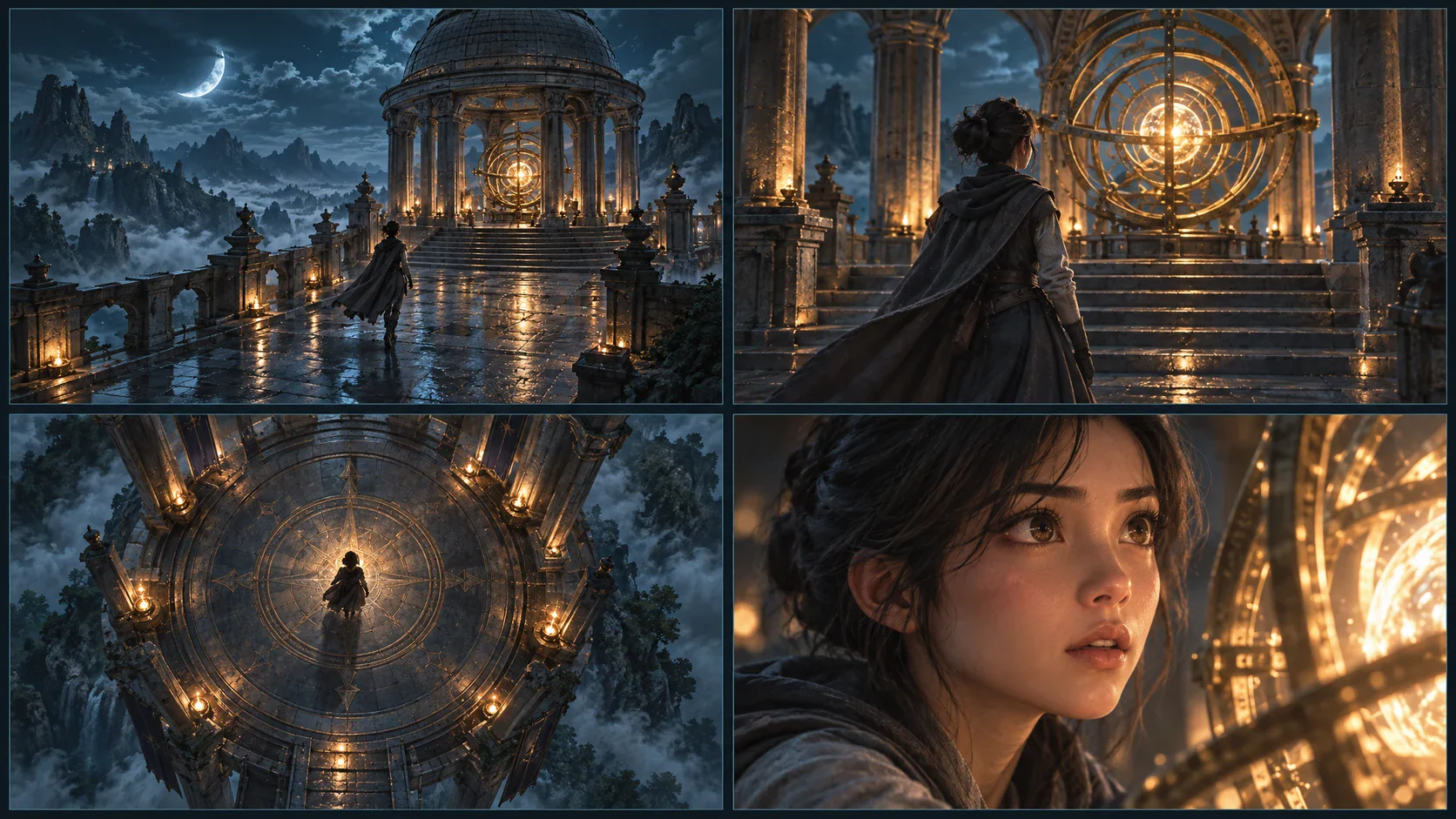
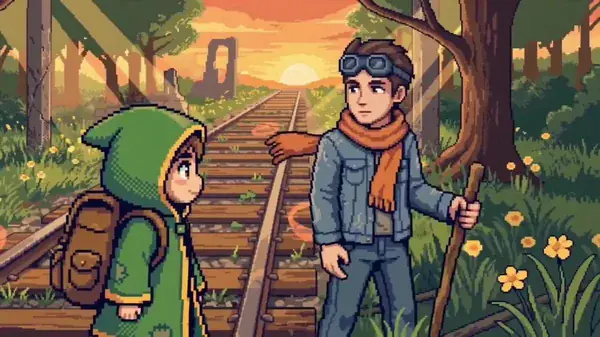
Animated shot options showing framing, action, camera movement, and lighting direction

Revise One Scene Without Rebuilding the Story

AI script to animation revisions should not restart the full project. If the opening is slow, the action is unclear, or a transition breaks continuity, focus feedback on that scene while keeping approved beats in place. A reviewer can identify the exact beat that needs a different expression, angle, setting, or pacing choice. Compare the replacement inside the sequence before approving it.

Start Creating in Flova
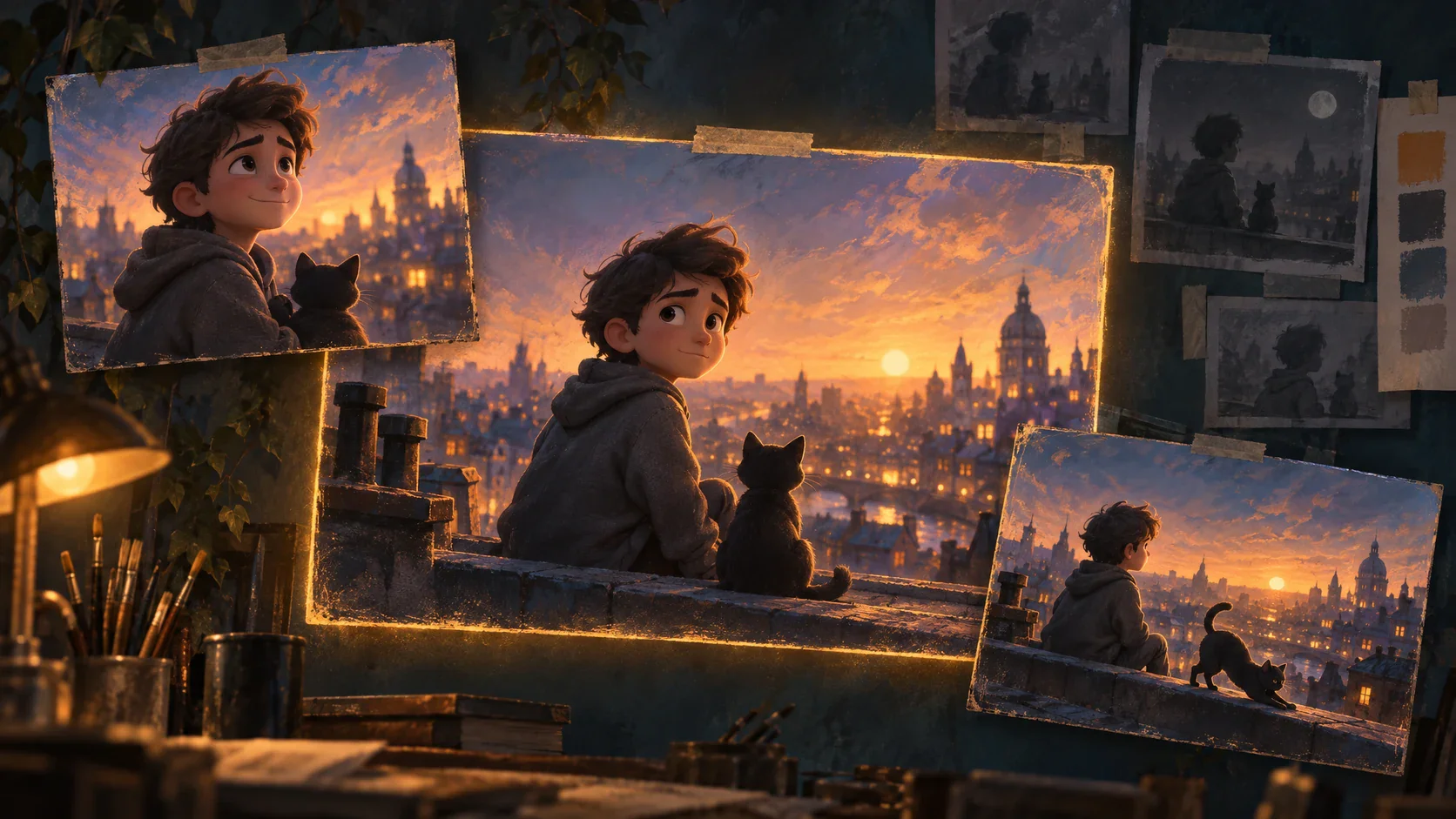
One animated storyboard scene being revised while approved scenes remain unchanged

Find a Starting Point with Flova Skills

The dedicated Flova AI Animation Generator covers broader animation creation across styles and starting points. This AI script to animation page focuses on a written script as the production backbone: scene planning, storyboard review, recurring references, shot generation, audio, and focused revisions. Flova Skills can provide reusable starting workflows for specific animation outcomes. The Agent helps you discuss the project in natural language, while the connected canvas keeps scripts, storyboards, images, video, audio, and edits available during production. The exact models, settings, and credit requirements depend on the options selected in your account.

Explore Reusable Flova Skills Explore Reusable Flova Skills

What Can You Create from a Script?

A script can become a story, explainer, brand video, or social series. Choose the format and audience first, then shape the scenes to fit.

Animated Stories and Short Films

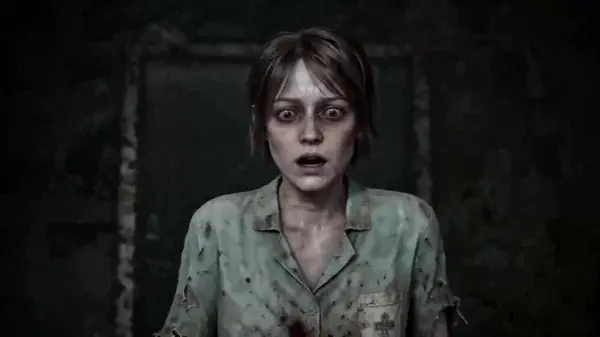
Turn a screenplay into connected scenes with clear character goals and conflict. Keep recurring characters consistent, plan reactions as well as dialogue, and leave room for important moments to breathe.

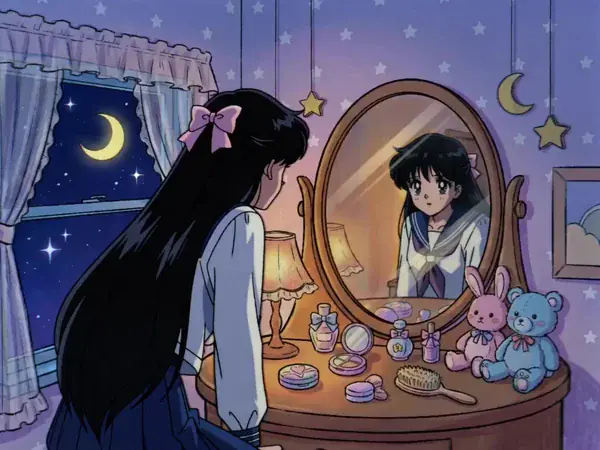
Animated short story progressing through character, conflict, and resolution scenes
Start Creating in Flova

How to Create a Script-to-Animation Video in Flova

An AI script to animation workflow works best when story decisions are separated from generation decisions. Use these four stages to create a clear review path.

  1. Step 1: Prepare the Script and Production Brief

    Start with the most stable version of the script available. Add the intended audience, platform, tone, visual format, required wording, and final action. Mark dialogue, narration, on-screen text, and production notes separately so each element has a clear role. If the script is still rough, use Flova Agent to develop the premise, characters, scene order, and pacing. Before visual generation, confirm factual claims, names, pronunciation, product details, and required wording.

  2. Step 2: Build the Storyboard and Shot Plan

    Organize the script into scenes, then give every shot a narrative job. Write a short description of what changes during the shot and why it belongs in the sequence. Define the subject, setting, framing, action, transition, and audio cue where relevant. Review the storyboard before generating final media. Remove repetition, shorten overloaded scenes, and fix confusing transitions before generation.

  3. Step 3: Add References, Generate, and Review Shots

    Upload only material you have permission to use. Create a compact reference set for characters, locations, products, wardrobe, palette, and style. Explain which elements are fixed and which can change between scenes. Keep labels specific. ‘Main character — front view, blue jacket’ is more useful than an unnamed image. When characters share a scene, clarify their relative position and action. Generate scenes in manageable groups and compare them with the storyboard and reference set. Check whether the action is readable, the framing supports the script, and the first and last moments can connect to neighboring shots. Review recurring characters and objects for visual drift. When a shot fails, diagnose the reason before regenerating. Look for unclear action, conflicting references, camera instructions that fight the scene, or too many changes in one prompt.

  4. Step 4: Add Audio, Timing, and Final Edits

    Bring narration, music, generated scenes, and timing together. Read the script against the sequence and remove words that the visuals already communicate. Protect dialogue clarity, create space for important reactions, and use music to support the emotional arc instead of covering every moment. Review the completed AI script to animation project for story logic, continuity, factual accuracy, spelling, pronunciation, asset rights, and platform requirements.

Create Your Animation

Frequently Asked Questions

What is AI script to animation?
  • AI script to animation is a workflow for turning written narrative material into planned scenes, storyboard frames, animated shots, audio, and a final edited sequence with generative tools. In Flova, you can guide the process through conversation, references, scene-level generation, and focused revision inside one connected project.
How does AI script to animation turn a screenplay into scenes?
  • Start by identifying changes in location, time, speaker, action, and narrative purpose. Organize those changes into scenes and storyboard beats, then define the subject, setting, framing, movement, and transition for each shot. Review the plan before generating animated media.
Can AI script to animation keep the same character across scenes?
  • You can reuse approved character, wardrobe, prop, location, and style references across the project. Clear labels and repeated references provide stronger guidance, but every result still needs continuity review, especially when lighting, action, camera angle, or costume changes.
Can I revise one animated scene without starting again?
  • Yes. Flova supports focused work on storyboard and timeline elements. Identify the shot that needs a new action, composition, expression, setting, or pacing choice, then review the replacement within the existing sequence while keeping approved project material available.
Can a script-to-animation generator add narration and music?
  • Flova supports connected workflows for narration, music, generated images, video, storyboards, and editing. Develop the audio alongside the visual sequence, then check timing, clarity, mood, and transitions together. Available settings and credit use vary by the selected tools and models.
What scripts work best for an animated video generator?
  • Use a script with a clear audience, purpose, scene order, visible action, and concise dialogue or narration. Separate production notes from spoken text. Mark recurring characters, required facts, on-screen wording, and transitions so the storyboard can reflect the real production requirements.
Can I use an AI-generated animation commercially?
  • Commercial use depends on your current Flova plan, selected generation models, and the rights attached to every input. Confirm the current terms and make sure you have permission to use the script, images, people, logos, voices, music, and other references in the final project.
Completed animated story reviewed as a connected sequence from script to final edit

Turn Your Next Script into an Animated Story

Bring your screenplay, scene outline, character references, and visual direction into one project. The AI script to animation workflow helps you plan the storyboard, direct each shot, keep recurring elements connected, refine individual scenes, and review sound and picture as one sequence.

Create Your Animation