Flova Logo

AI Video Smoothing for More Fluid Playback

Flova Agent: Smooth Video with Frame Interpolation

Flova AI video smoothing helps you increase motion fluidity by generating intermediate frames between existing frames. Upload a clip, open the Video Material super-resolution settings, and choose high-quality frame interpolation plus a target frame rate such as 30 or 60 fps when those choices are available. The exact controls shown on the page are the source of truth. Preview the full clip before export: frame interpolation is not camera stabilization and cannot guarantee repair of warped or malformed motion.

Try Now

Benefits of AI Video Smoothing with Flova

An AI video smoother can make low-frame-rate or uneven footage feel more continuous. Flova keeps the processed clip in the same project as your storyboard, generated scenes, music, narration, and timeline, so smoother playback remains one step in a complete creative review.

Increase Motion Fluidity with New Frames

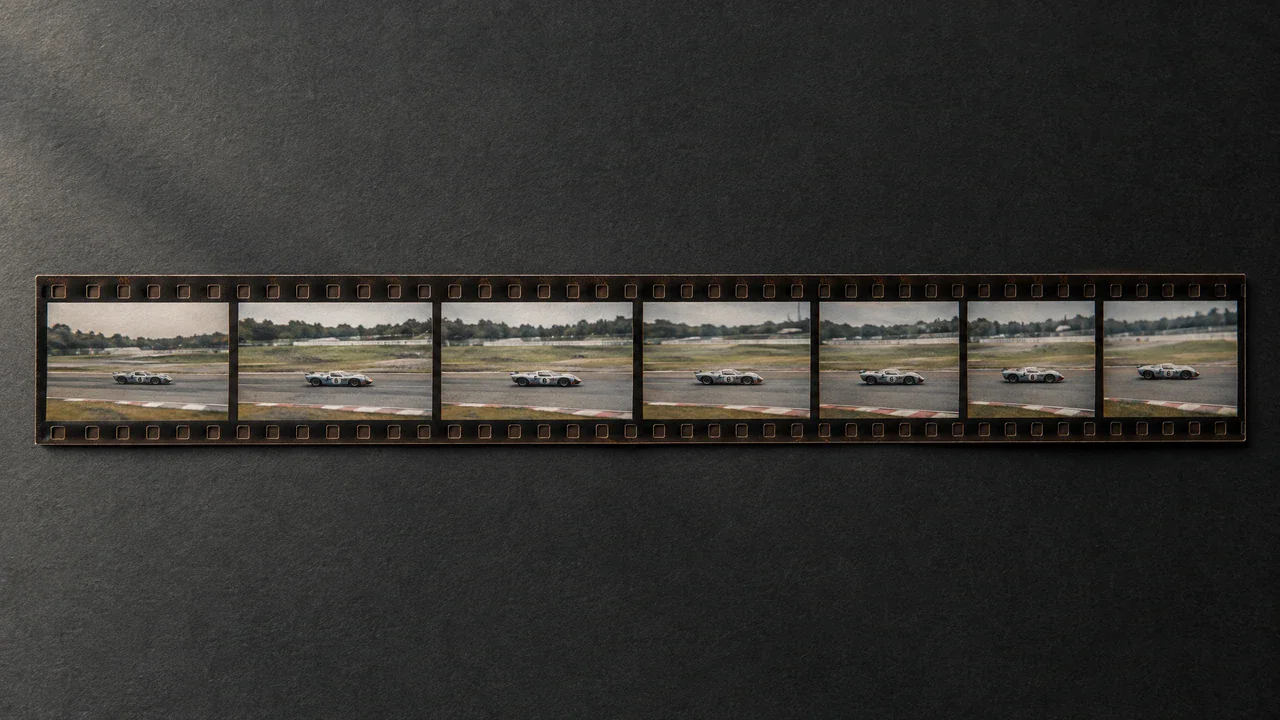
Video frame interpolation analyzes neighboring frames and creates additional in-between frames. When the source contains clear, consistent motion, those generated frames can reduce visible judder and make playback feel smoother. AI video smoothing is especially useful when the current frame rate looks too low for the intended edit or display.

Try Now
Intermediate frames generated between two video frames for smoother motion

Match Motion Cadence to the Final Format

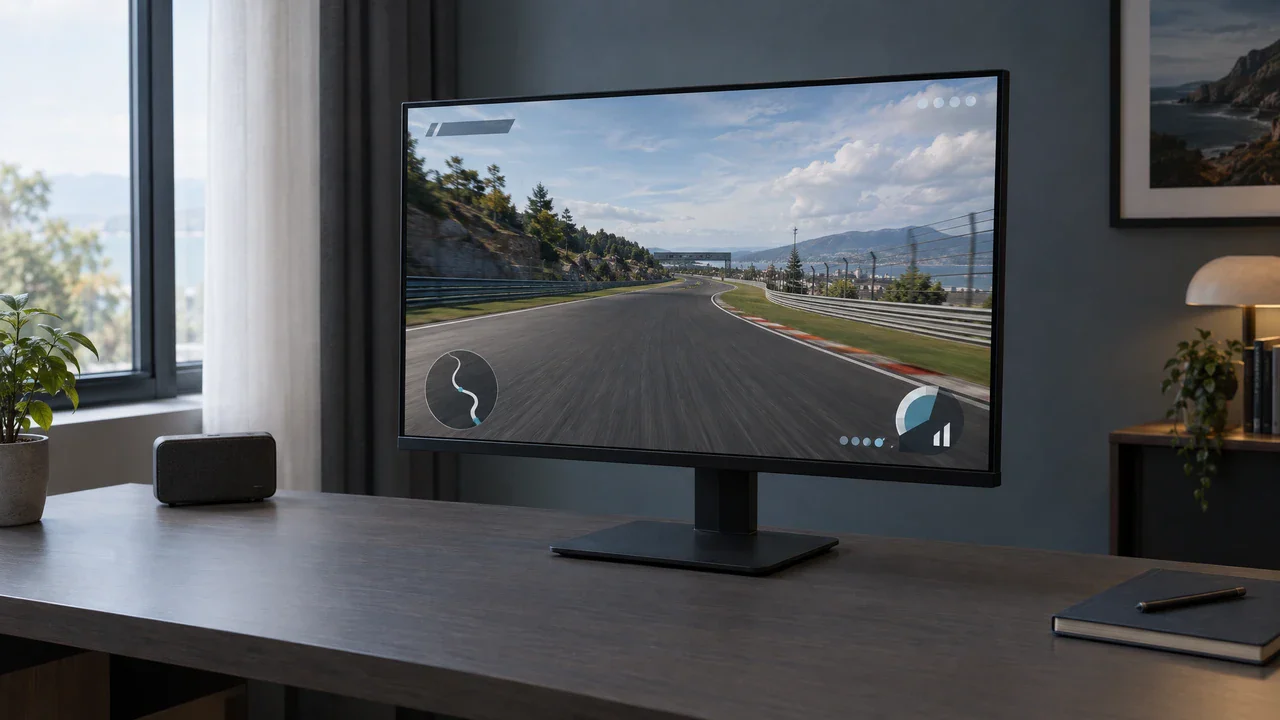
The right frame rate helps an interpolated clip fit its final edit instead of simply looking faster or more artificial. Flova lets you select from the target rates available in Video Material super-resolution settings; the interface may offer 30 or 60 fps, depending on the page, model, source, or account. This gives you a way to align motion with the delivery format while preserving the source's intended feel.

Try Now
Source video compared with available 30 fps and 60 fps motion-cadence options

Keep Smoothing Connected to the Edit

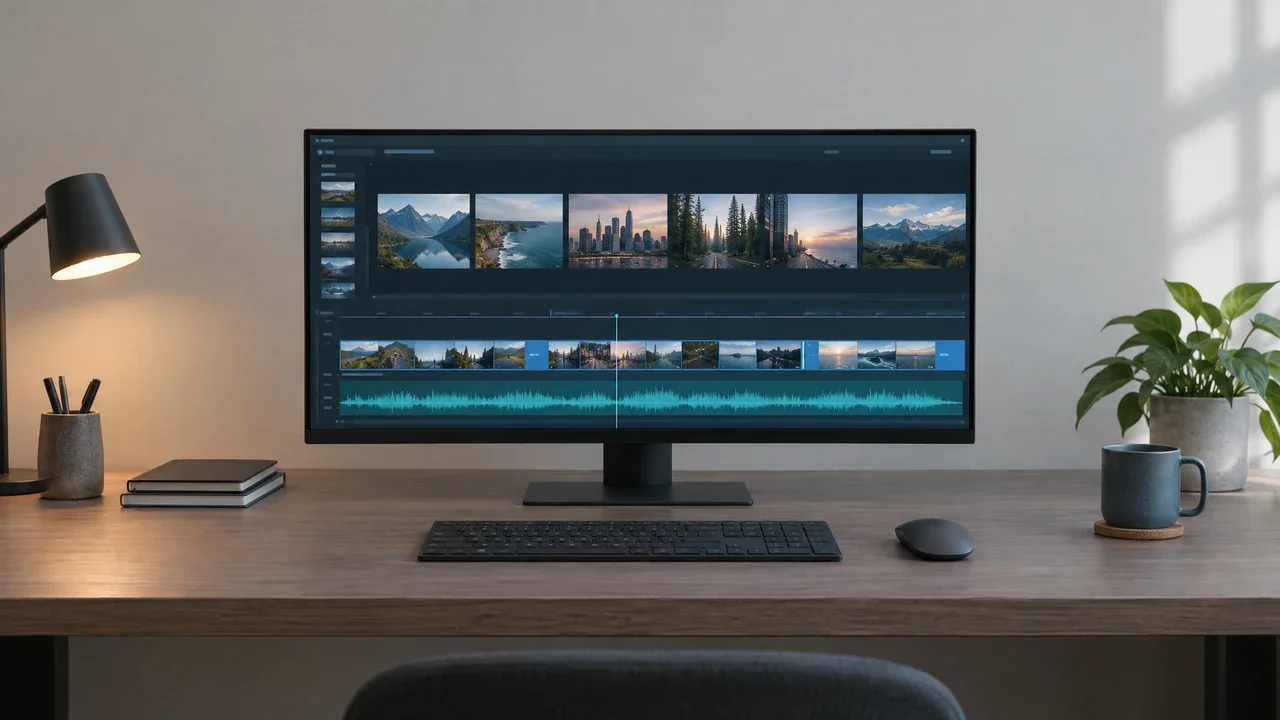
Frame interpolation can change the feel and timing of motion without changing the story. Keep the processed clip beside its source and continue working with generated scenes, audio, and timeline edits in the same Flova project. This makes it easier to judge whether smoother motion actually fits the surrounding shots and intended pace.

Try Now
Flova video timeline connecting an interpolated clip with scenes, music, and narration

Catch Motion Artifacts Before They Reach the Final Cut

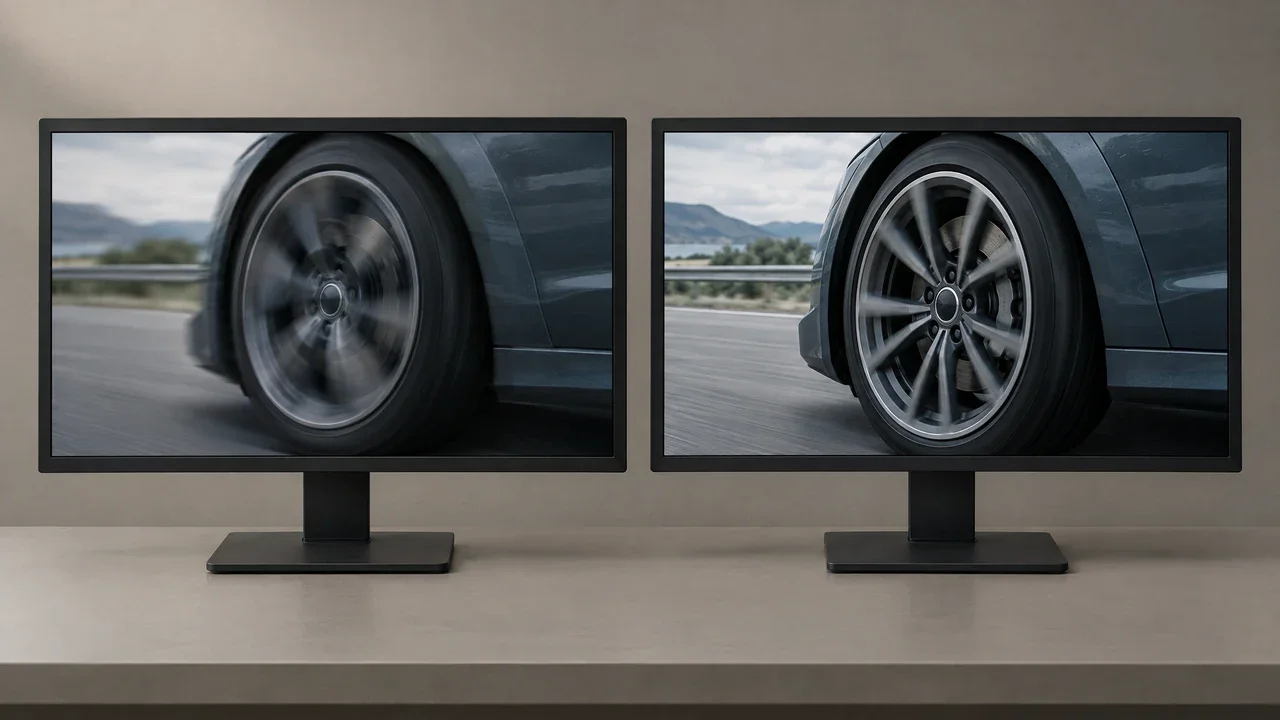
Keeping the source and processed clip together makes motion errors easier to catch before they reach the final cut. Fast limbs, overlapping subjects, flashes, reflections, and scene cuts can produce duplicate shapes, trails, or distorted in-between frames. Side-by-side review lets you keep a strong result and reject a weak one; AI video smoothing does not make every difficult shot publishable.

Try Now
Side-by-side video review revealing interpolation trails and malformed motion

Flova Skills for Smoother AI Video Workflows

Flova Skills are reusable creative workflows for specific outcomes. Choose a Skill that fits your project, then adjust the source clip, prompt, frame interpolation controls, and surrounding edit. Available Skills and settings may change, so follow the current Flova interface.

More Flova Skill More Flova Skill

Use Video Frame Interpolation Across Different Footage

Frame interpolation works best when the reason for choppy playback is clear. Review the source frame rate, motion, and camera movement before deciding that more frames are the right fix. Keep an untouched source file beside every processed version for comparison and fallback.

Smooth Low-Frame-Rate Animation

Use an AI video smoother to test more fluid playback for animation with clear poses and controlled movement. Preserve the original timing and compare carefully: some styles intentionally use fewer drawings or held frames, and aggressive interpolation can weaken that artistic rhythm or create unwanted morphing.

Animated character motion compared before and after AI frame interpolation
Try Now

How to Use Our AI Video Smoothing Tool

  1. Sign In and Open a Project

    Start a Flova project or open an existing one. Processing uses credits according to the selected model, duration, resolution, and applicable settings.

  2. Upload the Original Video

    Use the cleanest source available. Confirm its native frame rate and watch for existing dropped frames, blur, unstable camera movement, and motion deformation.

  3. Select Frame Interpolation Settings

    In the Video Material super-resolution settings, choose high-quality frame interpolation and an available target frame rate, such as 30 or 60 fps when displayed. Current page options take precedence.

  4. Preview the Motion and Export

    Watch the result at normal speed, inspect difficult sections frame by frame, and compare with the source. Export only after confirming that motion and visual details remain acceptable.

Try Now

Video Frame Interpolation: Capabilities, Limits, and Frame Rates

Video frame interpolation estimates what should appear between two captured frames. The model studies movement, shapes, and local changes, then generates one or more intermediate frames. Increasing frames per second can reduce visible stepping during pans or object motion, but generated frames are predictions. They do not contain new measurements from the original camera.

AI Video Smoothing Is Not Stabilization

Stabilization estimates camera movement and reframes or transforms the image to reduce shake. AI video smoothing changes the number and spacing of frames. A shaky 24 fps clip can become a shaky 60 fps clip with more intermediate images. If the problem is camera shake, use an appropriate stabilization workflow rather than expecting frame interpolation to correct it.

Interpolation Cannot Guarantee Motion Repair

If hands, limbs, faces, or objects are already deformed in the source, new frames may reproduce or extend the error. The process can also misread occlusion, rapid direction changes, or motion blur. AI video smoothing can improve cadence, but it cannot promise anatomical correction, object reconstruction, or perfect continuity.

Match Available Frame Rates to the Viewing Context

When 30 and 60 fps are available, use the target that matches your delivery need. Thirty frames per second can provide a smoother general-purpose result with fewer generated frames. Sixty frames per second can make fast motion feel more fluid but gives the model more intermediate content to predict. Compare both when possible and judge quality, file size, style, and platform requirements together.


Frequently Asked Questions About AI Video Smoothing

What is AI video smoothing?

AI video smoothing uses frame interpolation to generate intermediate frames and increase the output frame rate. It can make some low-frame-rate or uneven footage play more fluidly, but every generated frame should be reviewed for visual accuracy.

Can AI video smoothing convert video to 30 or 60 fps?

Flova's Video Material super-resolution settings may provide target frame rates such as 30 or 60 fps with high-quality interpolation. Choose only from the options currently displayed in your account, because availability can vary.

Is video frame interpolation the same as stabilization?

No. Interpolation generates frames between existing frames to change motion cadence. Stabilization reduces apparent camera shake through motion analysis and reframing. One process does not automatically perform the other.

Can an AI video smoother fix deformed movement?

It cannot guarantee that. If the source already contains warped hands, limbs, faces, or objects, interpolation may preserve or amplify those problems. Replace or regenerate a bad source shot when accurate motion matters.

Why do interpolated frames sometimes show artifacts?

The model must predict hidden or rapidly changing information. Occlusion, fast action, scene cuts, blur, particles, reflections, and repeated patterns can cause trails, duplicates, or malformed details in generated frames.

Does a higher frame rate always look better?

No. The right cadence depends on source quality, creative style, and delivery format. Some animation and film looks intentionally use lower frame rates. More generated frames can also create more opportunities for interpolation errors.

Smooth cinematic motion flowing across a polished Flova video project

Make Your Video Motion Smoother with Flova

Upload your clean source, choose high-quality frame interpolation and an available target frame rate in the Video Material settings, then review every difficult movement before export. Flova AI video smoothing helps increase fluidity while keeping the clip connected to the rest of your creative project. Use AI video smoothing when more frames address the real playback problem, and compare every AI video smoothing result with the untouched source.

Try Now