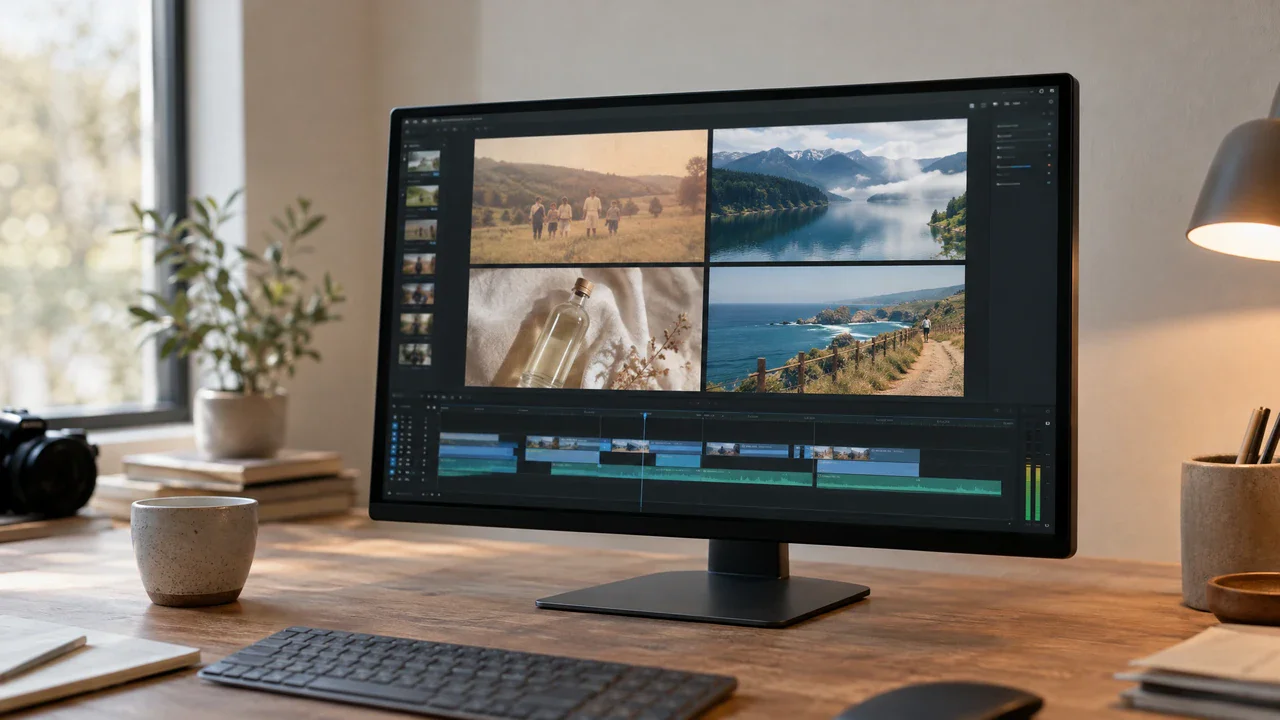
Soft colored light on a dark background
Flova Logo

Video Resolution Upscaler for Clearer, Higher-Quality Footage

Flova AI: Sharpen Your Footage Without Breaking Your Workflow

Flova's video resolution upscaler helps you improve low-resolution footage inside a connected AI video workflow. Upload your video, explain how you plan to use it, and ask Flova Agent to help prepare the enhancement. In the Video Material super-resolution settings, select from the resolution and quality options currently available on the page. Review the result, revise other scenes or assets in the same project, and export only after checking detail, motion, and artifacts at full size.

Create Now

Benefits of Using a Video Resolution Upscaler with Flova

An AI video upscaler should make existing footage more usable without hiding the limits of the source. Flova keeps enhancement within the broader creative project, so you can compare the original, inspect the processed video, and continue editing with the same references and direction.

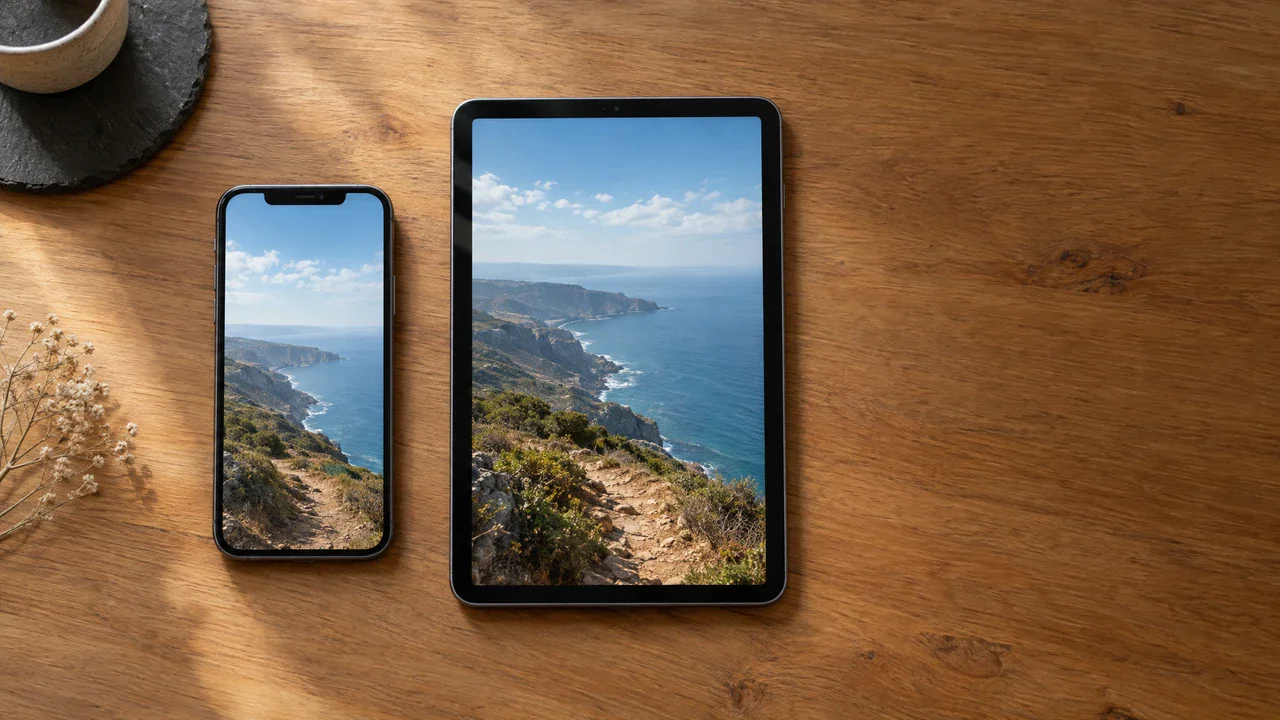
Improve Low-Resolution Video for Larger Screens

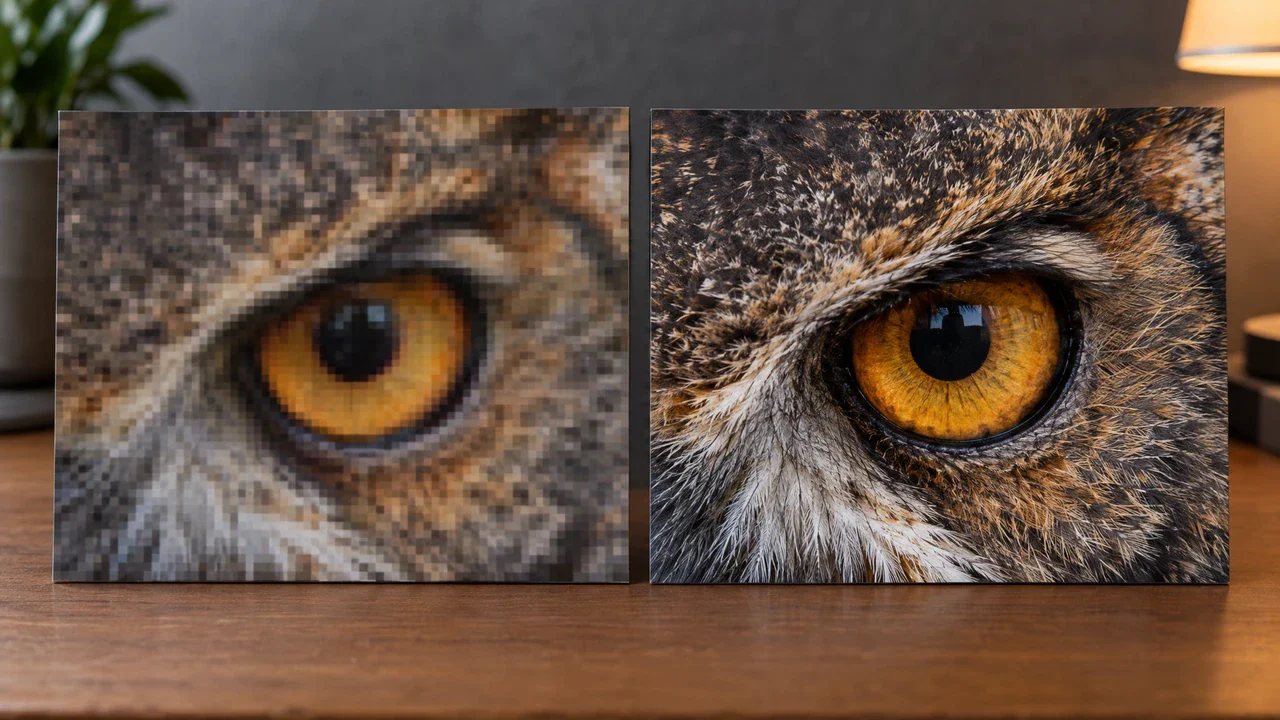
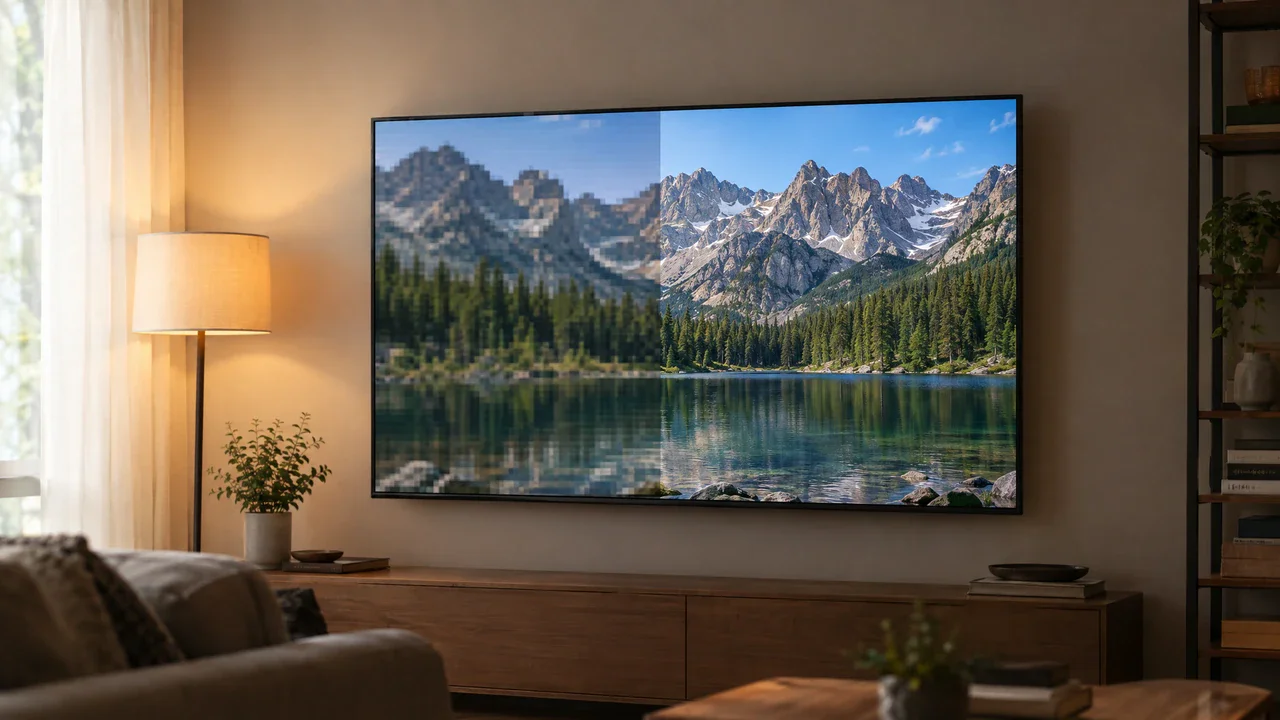
Use the video resolution upscaler when older clips, cropped footage, or small source files need a higher-resolution output. AI super resolution analyzes the frames and generates a clearer version at the selected setting. Results depend on the source: clean footage with visible edges usually gives the system more reliable information than a heavily compressed or blurred clip.

Create Now Arrow pointing right
Low-resolution video compared with a clearer AI-upscaled result on a large display

Reduce Distracting Compression Artifacts

Blockiness, ringing, and noisy edges can become more obvious when a small video is enlarged. Flova's video upscaling workflow can improve perceived clarity and reduce some visible artifacts while increasing resolution. Inspect faces, text, fine patterns, and fast movement carefully because enhancement cannot restore every detail that was absent from the original recording.

Create Now Arrow pointing right
Close-up frames showing reduced compression artifacts after AI video upscaling

Keep Enhancement in Your Creative Workflow

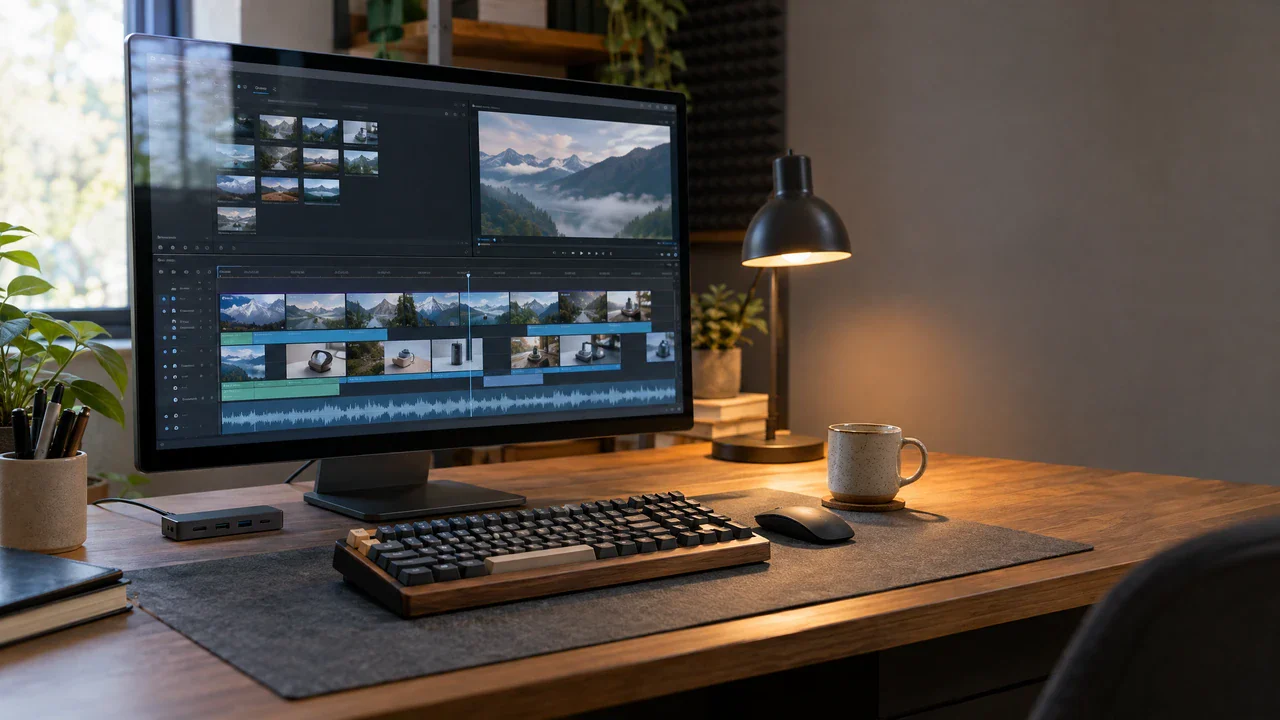
Upscaling is often one step in a larger edit. With Flova, the enhanced clip can stay connected to storyboards, generated scenes, music, narration, and timeline changes. This makes the video resolution upscaler useful when one archive shot, product clip, or creator segment needs to match a project that contains newer or higher-quality media.

Create Now Arrow pointing right
AI video project timeline combining an upscaled clip with narration and generated scenes

Avoid Publishing Unreliable Visual Details

An upscaled clip is more useful when its important details remain believable. Comparing the processed video with the source helps you catch altered faces, product labels, textures, subtitles, or scene changes before they enter the final edit. If enhancement creates false detail, you can choose another available setting or keep the cleaner original. This quality control protects the credibility of archive, product, and documentary footage.

Create Now Arrow pointing right
Side-by-side review identifying unreliable faces, product labels, and textures in upscaled video

Improve Your Video Quality with Flova Skills

Flova Skills provide reusable starting points for specific creative outcomes. Choose a workflow that fits the footage and final format, then adjust the source, prompt, settings, and surrounding edit. Available Skills and controls may change, so use the current options shown in Flova.

More Flova Skills More Flova Skills Arrow pointing right

Use an AI Video Upscaler Across Creative Projects

The same AI video upscaler can support very different source material. Start with the final viewing context, then decide whether the enhanced result is accurate enough for that use. A video resolution upscaler works best when the source and delivery goal are defined before processing.

Restore Archive and Family Footage

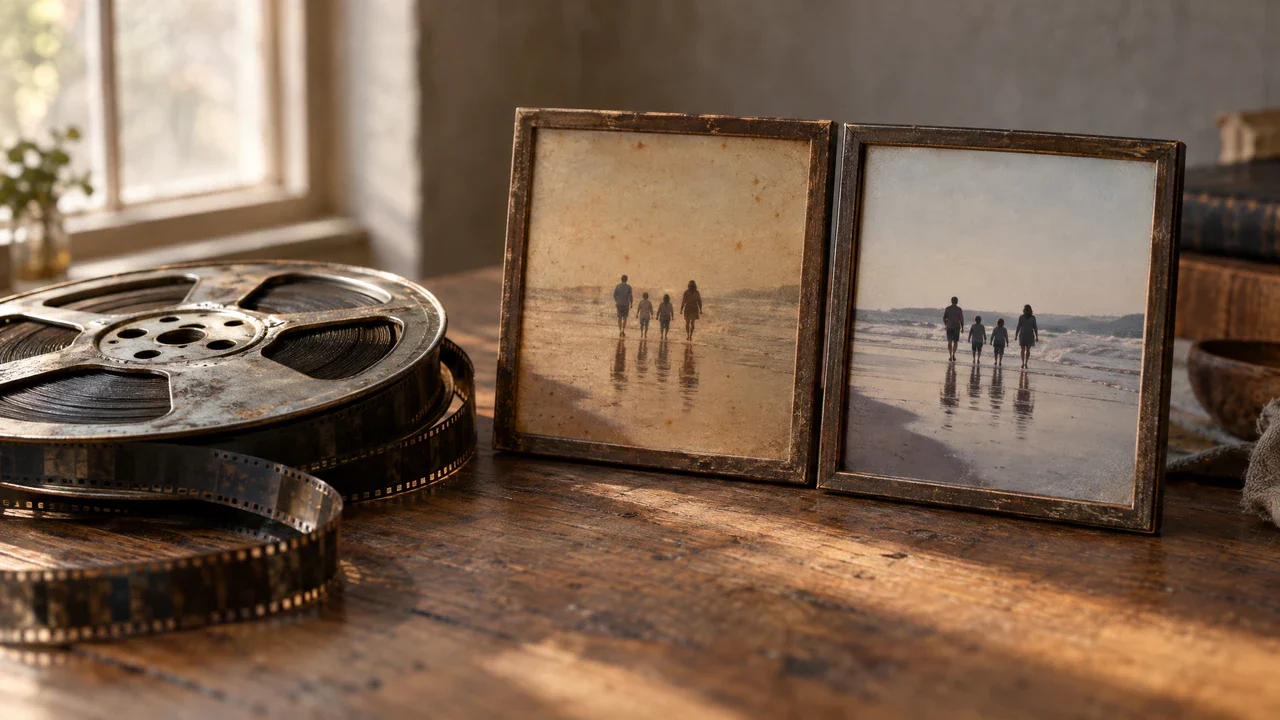
Prepare older digital video for a modern edit while preserving the original file. Upscaling may make faces, clothing, and backgrounds easier to view, but it cannot recover information that was never captured. Keep a copy of the source and avoid presenting reconstructed details as documentary evidence.

Restored family archive footage displayed beside its low-resolution source
Create Now Arrow pointing right

How to Use Our Video Resolution Upscaler

  1. Step 1: Sign In and Start a Project

    Create or open a Flova project. Generation and enhancement use credits according to the selected model, duration, resolution, and other applicable settings.

  2. Step 2: Upload the Best Available Source

    Choose the cleanest original file you have. Avoid a copy that has been repeatedly compressed, downloaded from social media, or enlarged by another tool when a better master is available.

  3. Step 3: Select Super-Resolution Settings

    Open the Video Material super-resolution controls and select from the quality and target-resolution options currently shown. Available choices can vary by page, model, source, and account.

  4. Step 4: Compare, Revise, and Export

    Preview the original and upscaled video at full size. Check motion and important details, make any needed project edits, then export the approved version.

    AI super resolution estimates detail at a higher pixel count; inferred pixels are not recovered facts. Start from the least-compressed source and choose an available target resolution for the delivery screen, not simply the largest setting. Resolution, perceived sharpness, and genuine source detail are different.

    Review the upscaled result in motion and at full size. Watch faces, hair, fabric, foliage, screens, small text, scene cuts, and fast camera moves for halos, shimmer, or invented detail. If artifacts appear, try another available setting or a better source segment before export.

Create Now Arrow pointing right

Frequently Asked Questions About Our Video Resolution Upscaler

What is a video resolution upscaler?
  • A video resolution upscaler increases the output dimensions of a video and uses processing or AI super resolution to improve perceived clarity. Flova places this enhancement inside a wider creative workflow where you can review the footage with other scenes, audio, and timeline changes.
Can the video resolution upscaler restore every missing detail?
  • No. AI can infer plausible pixels, reduce some artifacts, and make a clip easier to view, but it cannot guarantee recovery of information that was never captured. Treat faces, text, products, and evidence-sensitive footage with extra care.
Can I use the AI video upscaler for old footage?
  • Yes. Archive footage is a common use case. Begin with the cleanest master, preserve the original, and compare the enhanced version at full size. Damage, blur, interlacing, and heavy compression may require separate restoration steps.
Does video upscaling change the frame rate?
  • Resolution enhancement and frame-rate interpolation are different processes. Upscaling changes spatial resolution; interpolation creates additional frames between existing ones. Use the specific control needed for the source and review the current Flova options.
Will an AI video upscaler remove blur and compression?
  • It may reduce the appearance of some compression artifacts and improve edge clarity, but results vary. Motion blur, missed focus, severe blocking, or tiny unreadable text may remain. No setting should be described as guaranteed restoration.
How should I choose an output resolution?
  • Choose from the settings available in the current interface based on the source quality and final screen. Avoid enlarging further than the footage can support visually. Preview at the actual delivery size before approving the export.
Creator presenting a polished high-resolution video inside a cinematic Flova workspace

Upscale Your Next Video with Flova

Bring low-resolution footage into a connected Flova project, choose the currently available super-resolution settings, and inspect the enhanced result before export. The video resolution upscaler helps you prepare clearer material while keeping creative direction, editing, audio, and review in one workflow. Use the video resolution upscaler only after preserving the original source.

Create Now Arrow pointing right