Key Takeaways
- The easiest AI video generator depends on what you start with: an avatar explainer, edited footage, a social template or a generated story.
- Templates organize a message you already have, avatars present a script, and generators create new shots, so each solves a different starting problem.
- A useful first tool makes the starting material, review steps and export conditions clear.
- Test a free allowance with one real scene before budgeting a project; a free editor does not make every AI feature free.
- CapCut and Canva suit footage and template workflows, though premium assets and AI features sit on paid plans.
- Pictory has a 14-day free trial, and HeyGen Free includes three watermarked videos a month of up to one minute each.
- Flova’s AI film-maker workflow takes a visual brief through storyboard, generated shots, sound and an editable timeline, with your references kept in the same project.
At a Glance
What Makes a Video Tool Beginner-Friendly?
A beginner-friendly tool gives you a clear starting point and a manageable review process without hiding every editing control. Start from what you already have, whether that is a script, recorded footage, product photos or only an idea, because the right workflow reduces the number of new decisions you face at once.
Look for five practical traits:
- A starting structure: a template, scene plan, avatar layout or storyboard.
- A clear input: your script, picture, footage or natural-language brief.
- A review step: an opportunity to correct the draft before delivery.
- Useful guidance: prompts, examples or staged decisions that explain the next action.
- Clear trial conditions: generation credits, export access, watermarks and usage rights.
A tool becomes easier when it fits the job, so avoid learning a generation workflow just to trim a recording, or picking an avatar tool for a cinematic product reveal.
Choose Your Starting Workflow
Templates, avatars, image-to-video and guided projects each remove a different kind of work, so choose the route that matches your source material. Templates give you a layout and timing structure, and avatar tools let a digital presenter speak your script, which suits a message that is already written.
Image-to-video begins with a reference picture and a motion instruction. A guided project workflow such as Flova adds a storyboard and connected assets, and its image-to-video generator can animate those pictures when an idea needs several related shots.
Match the starting material to the workflow:
- Existing footage: use an editor such as CapCut or Descript.
- A presenter script: consider HeyGen or Synthesia.
- A short social layout: start with a Canva template or another scene-based editor.
- A visual story or product sequence: use Flova to plan the storyboard, references and generated shots together.
Keep your first project small: one message, a few scenes and a single delivery format.
How to Compare Beginner Video Workflows
Compare the steps from your input to the downloaded video, and note what the tool supplies automatically, what you can revise and which decisions remain yours. An avatar explainer asks you to inspect the script, voice and on-screen text, while a generated story asks you to inspect references, shot continuity, audio and pacing.
Use the same small brief across your shortlist and keep the result you can understand, revise and export, which matters more than the fastest preview.
Eleven Beginner-Friendly Video Options by Task
The options below cover different ways to begin, so choose by the workflow label that matches your starting material. Flova sits alongside templates, avatars, transcript editors and shot generators as the guided project option.
1. HeyGen — Avatar Explainers
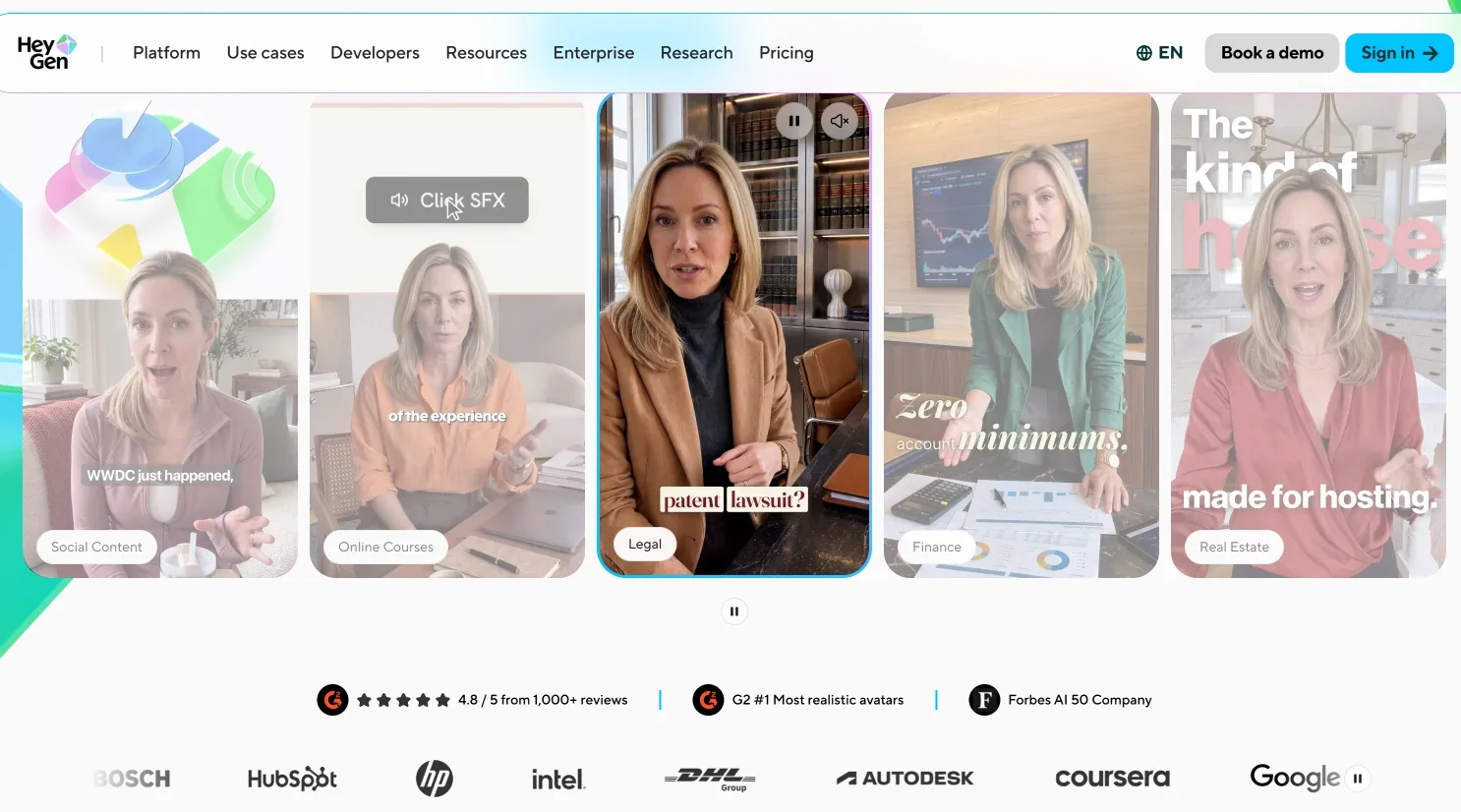
HeyGen turns a script into an avatar-led presentation: you choose a presenter, voice and layout, then review the performance and the words on screen. The Free plan includes three watermarked videos per month, up to one minute each, which is enough for one short introduction or product explanation. Creator is $29/month on monthly billing, or $24/month billed yearly, and adds 1080p export and removal of HeyGen branding.
Start with a one-minute introduction, one message and a short closing line. You can build the presentation without recording yourself on camera, but an avatar explainer is a different format from a film made from original scenes.
2. Canva — Template-Based Design
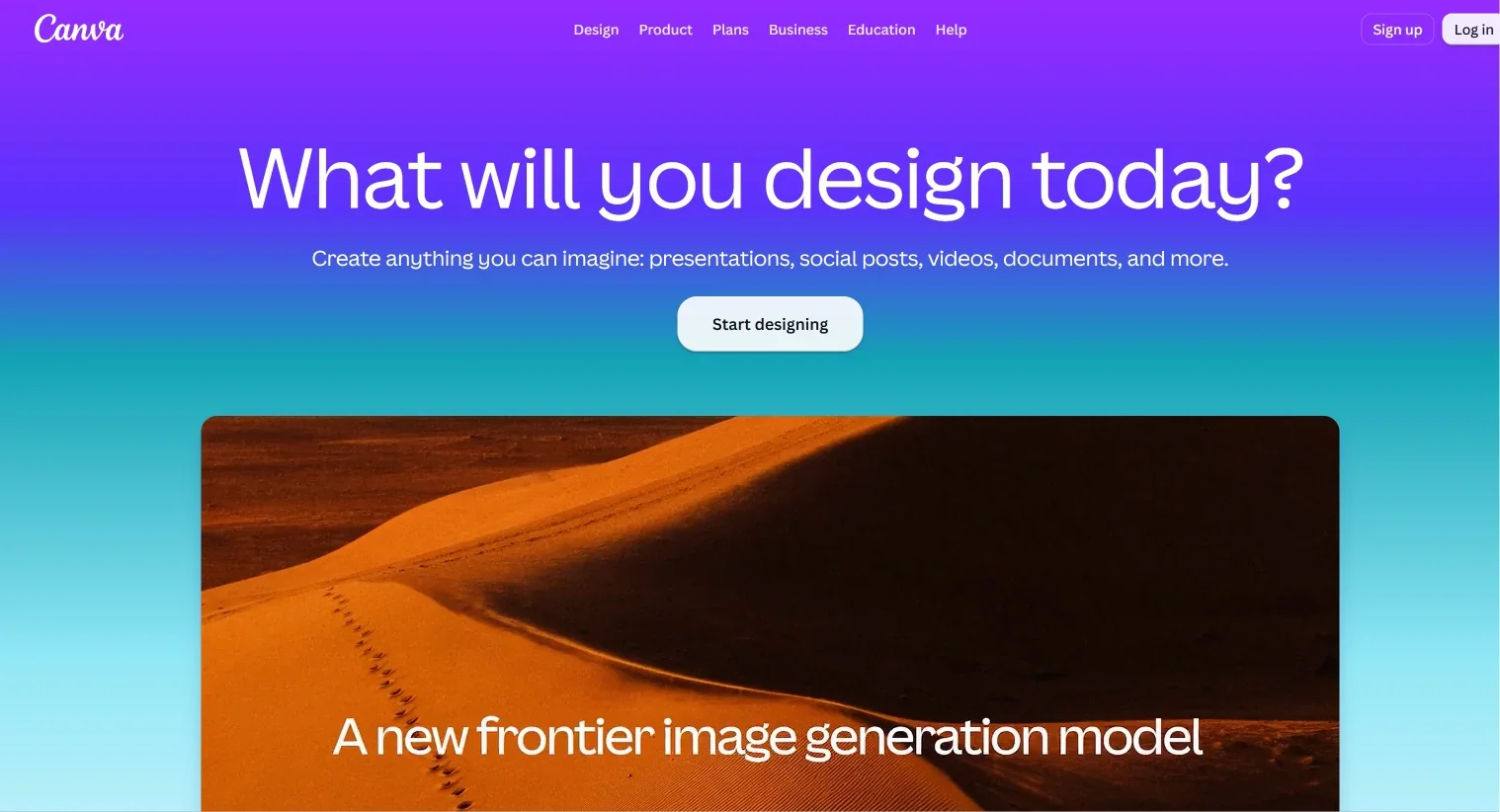
Canva suits beginners who want to adapt a visual layout with their own media, text and brand colors, especially if they already design in Canva. Its video editor and templates are separate from Create a Video Clip, the generative feature powered by Google's Veo, which Canva limits to eligible paid plans with a monthly generation allowance.
For a first project, adapt one template with your own images and a single visual style. The familiar design canvas helps you assemble social content, while premium assets and generation features may require a paid plan.
3. CapCut — Editing Your Own Footage
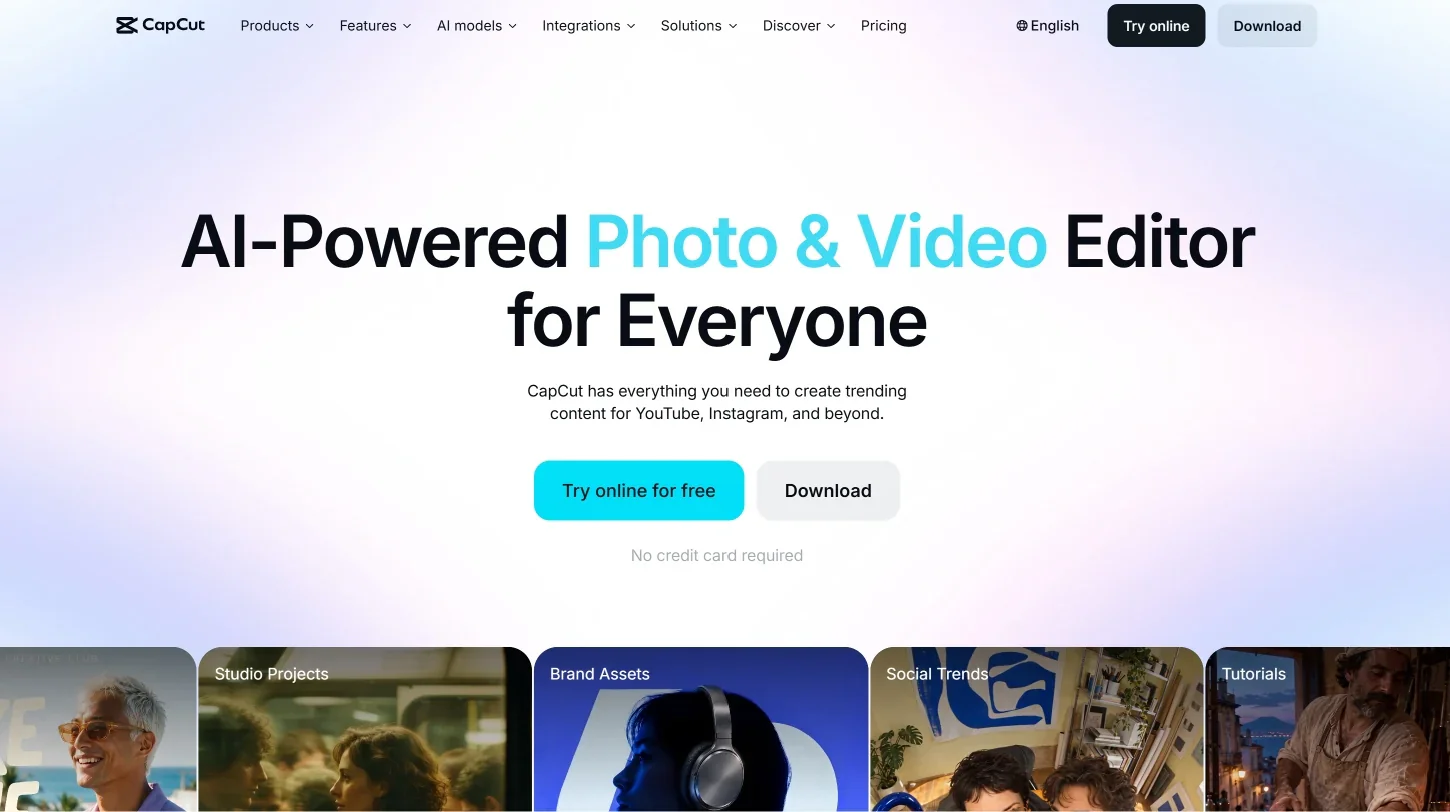
CapCut is useful when you have phone footage and need to cut clips, add text and adjust pacing, and it adds AI-assisted features to a conventional editing workflow. Start with a few clips you already own, arrange them, trim pauses and add captions where they help the viewer follow the message. The Free plan covers basic editing tools, while premium templates and monthly AI credits sit on Pro.
Edit three recorded clips into a short sequence before adding effects. This makes cuts and pacing easier to judge, and you can then add the AI-assisted features the project actually needs. Premium assets and export options vary across versions and plans.
4. InVideo AI — Brief-Led Creation
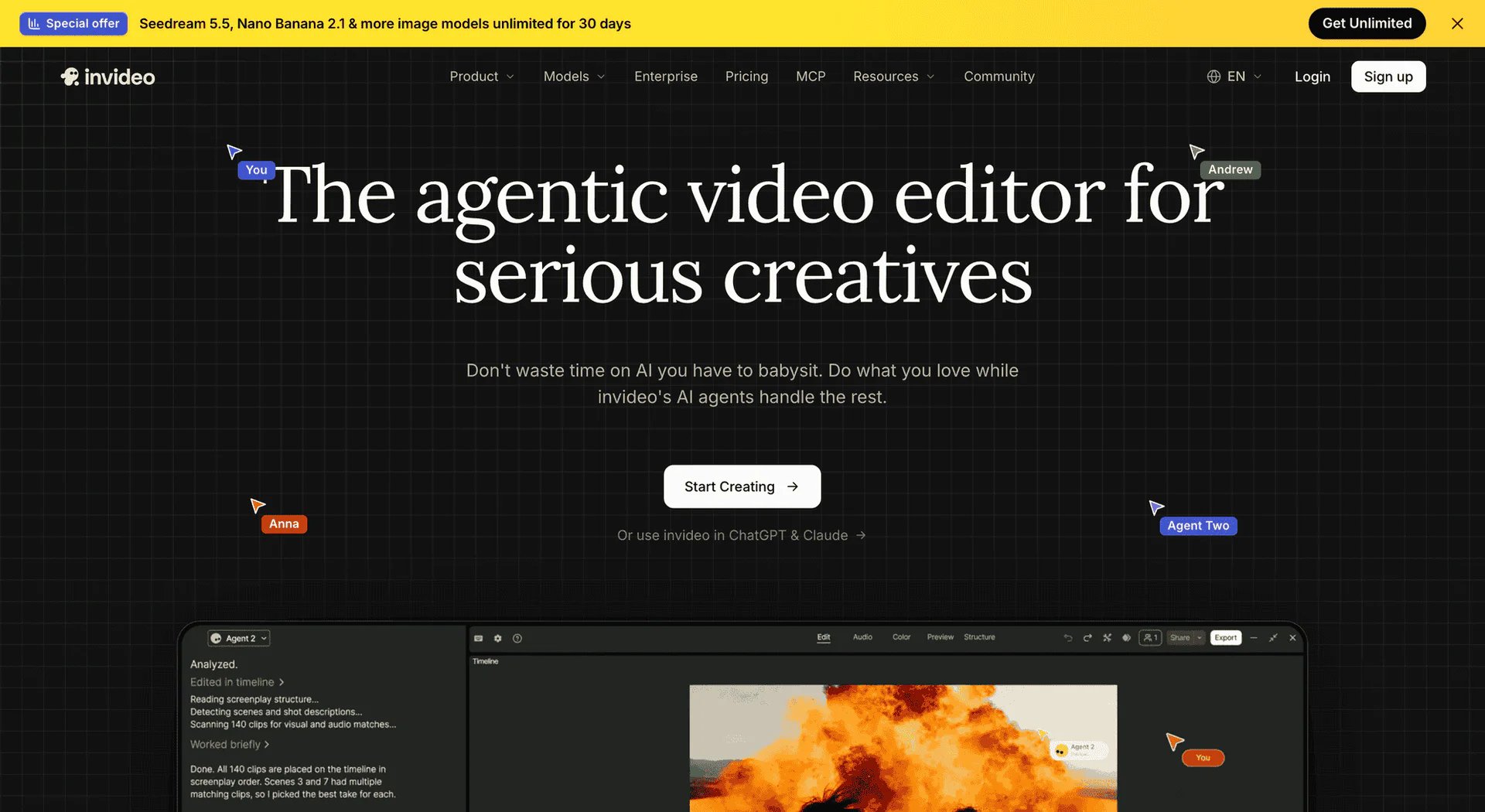
InVideo AI combines a natural-language brief with creation and editing tools, so it suits a beginner who wants to develop an idea and revise the resulting sequence. Give it a clear brief covering subject, audience, format and length, then review the scene choices and narration instead of treating the first assembled draft as ready to publish. Starter lists 400 credits per seat each month at $20 per seat on monthly billing.
A short explainer with a defined audience and three story beats is a manageable first brief. Allow credits for revised takes as well as the initial draft, because the plan is priced per seat and model usage affects consumption.
5. Descript — Editing Recorded Speech
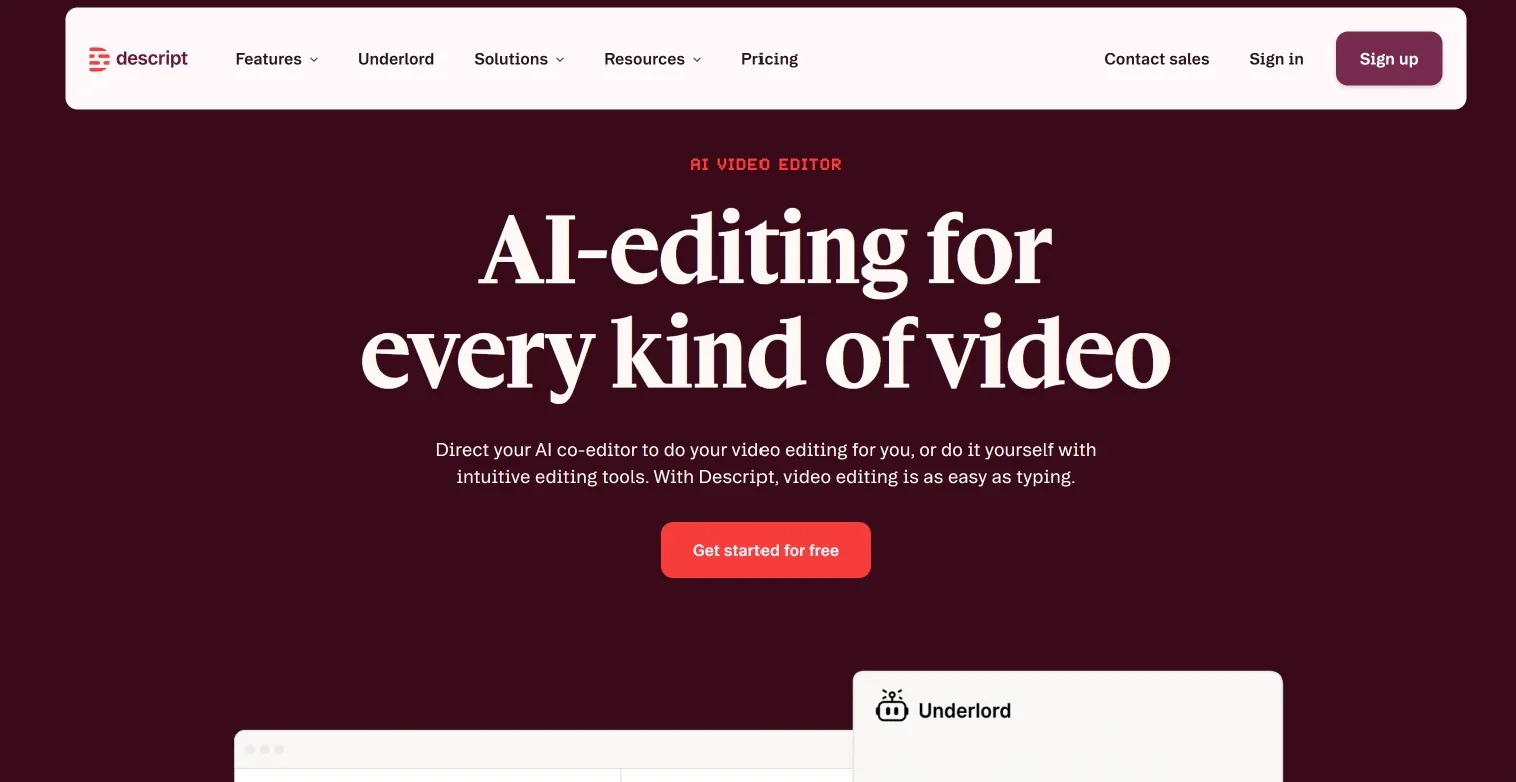
Descript converts recorded audio or video into an editable transcript, and deleting transcript text removes the matching media, which suits interviews, tutorials and podcasts. Its Remove Filler Words tool detects filler words for you to review and remove or replace, so you still decide what belongs in the edit. Hobbyist is $16 per person/month billed annually ($24 monthly) and includes watermark-free 1080p export.
Try shortening a recorded explanation while keeping its meaning intact. Editing the transcript can make spoken content easier to cut, but it does not replace shot generation or detailed visual compositing.
6. Pictory — Articles and Scripts to Scenes
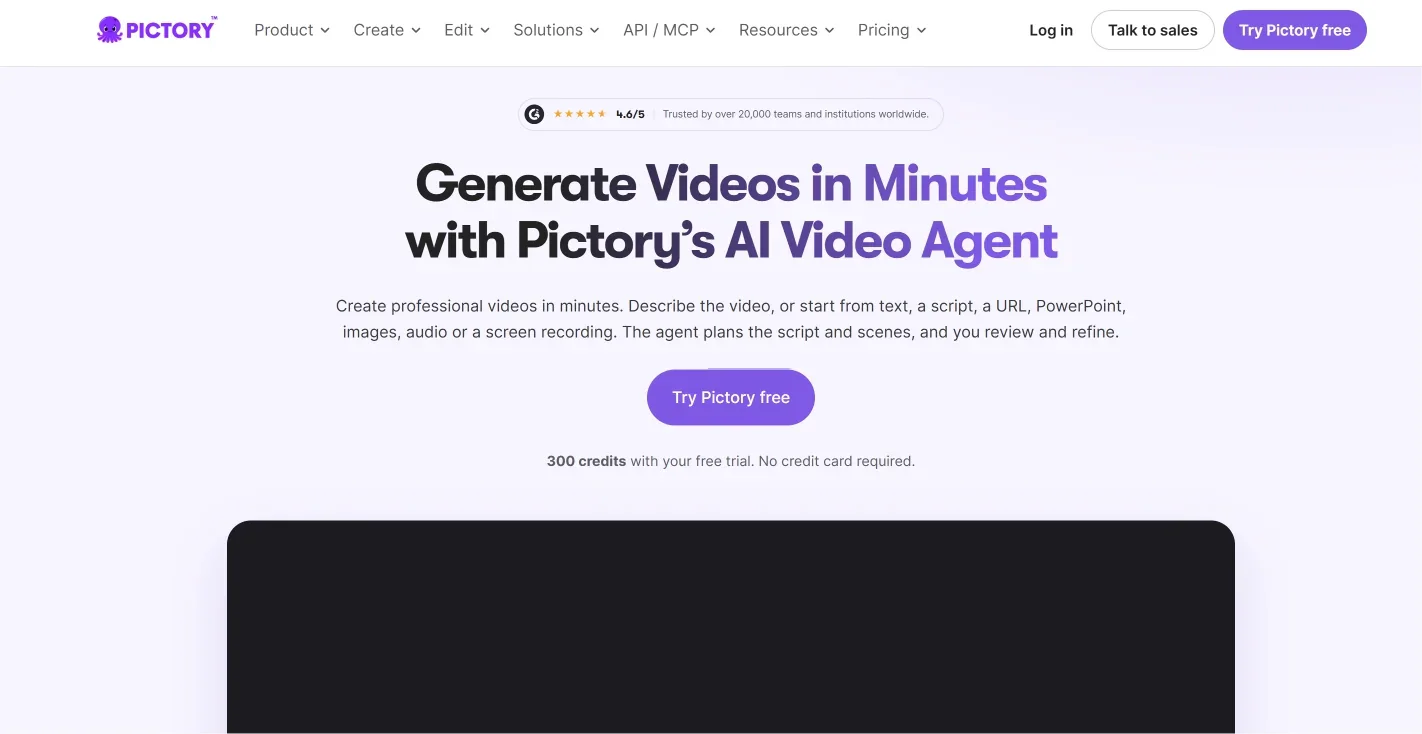
Pictory accepts a script or article source and builds a video from scenes, visuals and narration, which suits creators repurposing written material. Review whether each image or clip supports its sentence, replace generic visuals and simplify text that reads well on a page but sounds awkward aloud. The 14-day free trial includes 300 credits and watermarked downloads, and Starter is $29/month on monthly billing, or $25/month billed annually.
Condense one article section into a short spoken message before generating scenes. This gives you a clear basis for checking visual relevance and pacing. The free offer is a time-limited trial rather than a permanent free plan.
7. Fliki — Narrated Faceless Videos
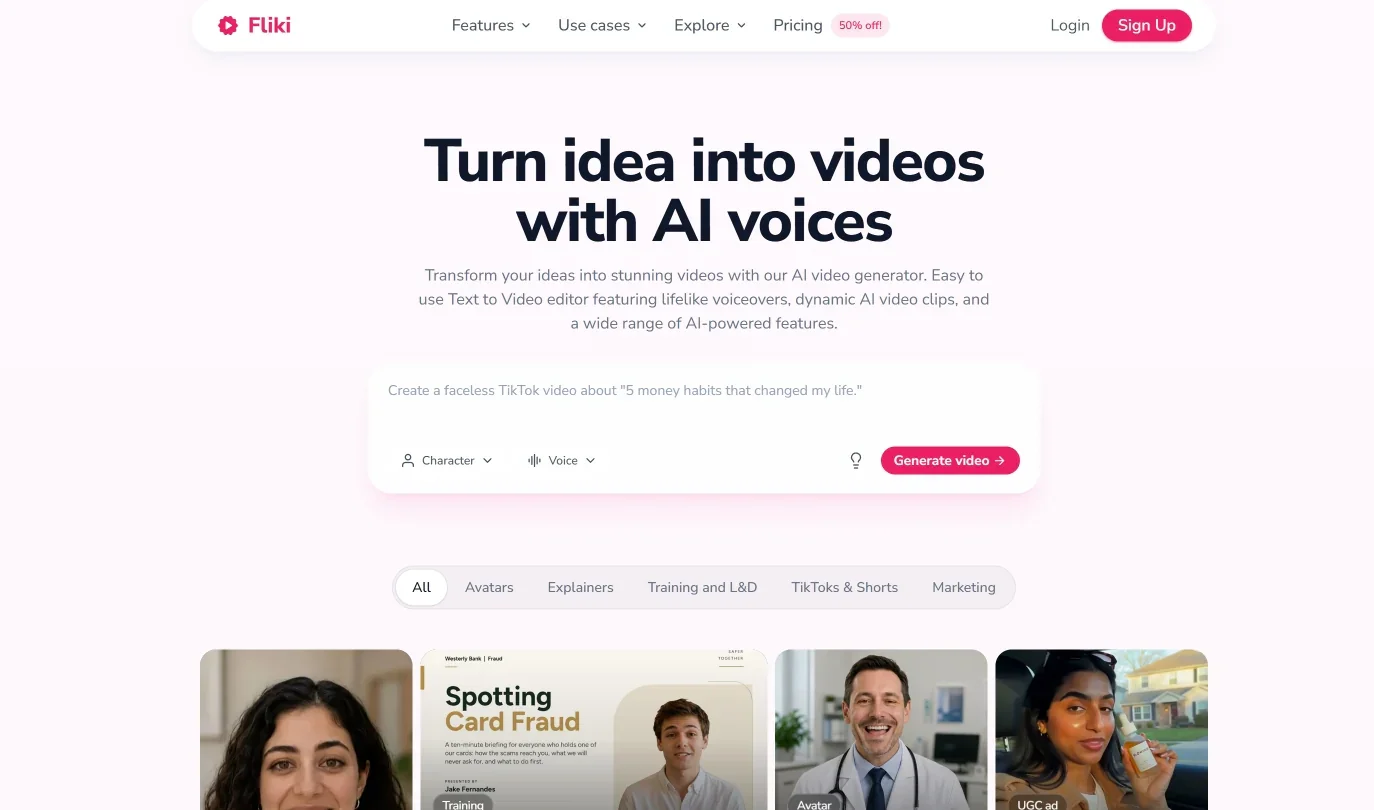
Fliki builds videos around scripts and AI voices. Its Free plan lists three credits per month, 720p output and a Fliki watermark, and credits are not the same unit as video minutes. Choose the voice and pronunciation first, then align the visuals to the narration, and listen to the complete track for names, numbers and changes in tone.
Begin with a short voiceover and a few supporting visuals, then check pronunciation and timing together. Free output carries a watermark; commercial rights are included from the paid Standard plan.
8. Synthesia — Training and Onboarding
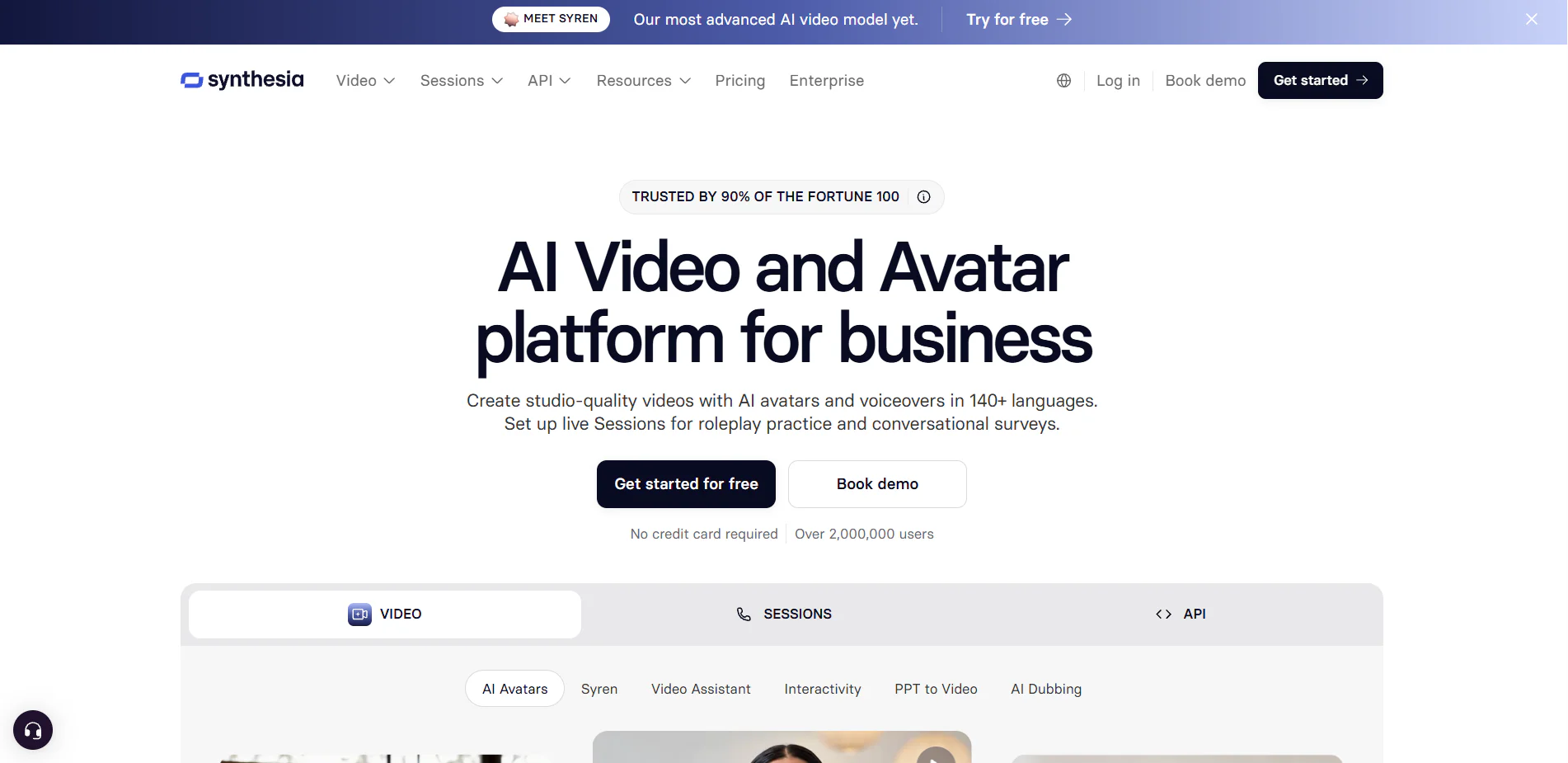
Synthesia provides avatars and structured layouts for training and explainers. Its Basic plan lists 500 credits and up to 10 minutes of video each month. Build the script around one teaching objective, then review the avatar performance, pronunciation and on-screen text before sharing.
Build a short onboarding explanation around one action for the viewer. Basic uses branded sharing, while Starter adds downloads and logo removal. Paid promotion featuring stock avatars requires Synthesia’s express consent.
9. Kling AI — Reference-Led Shots
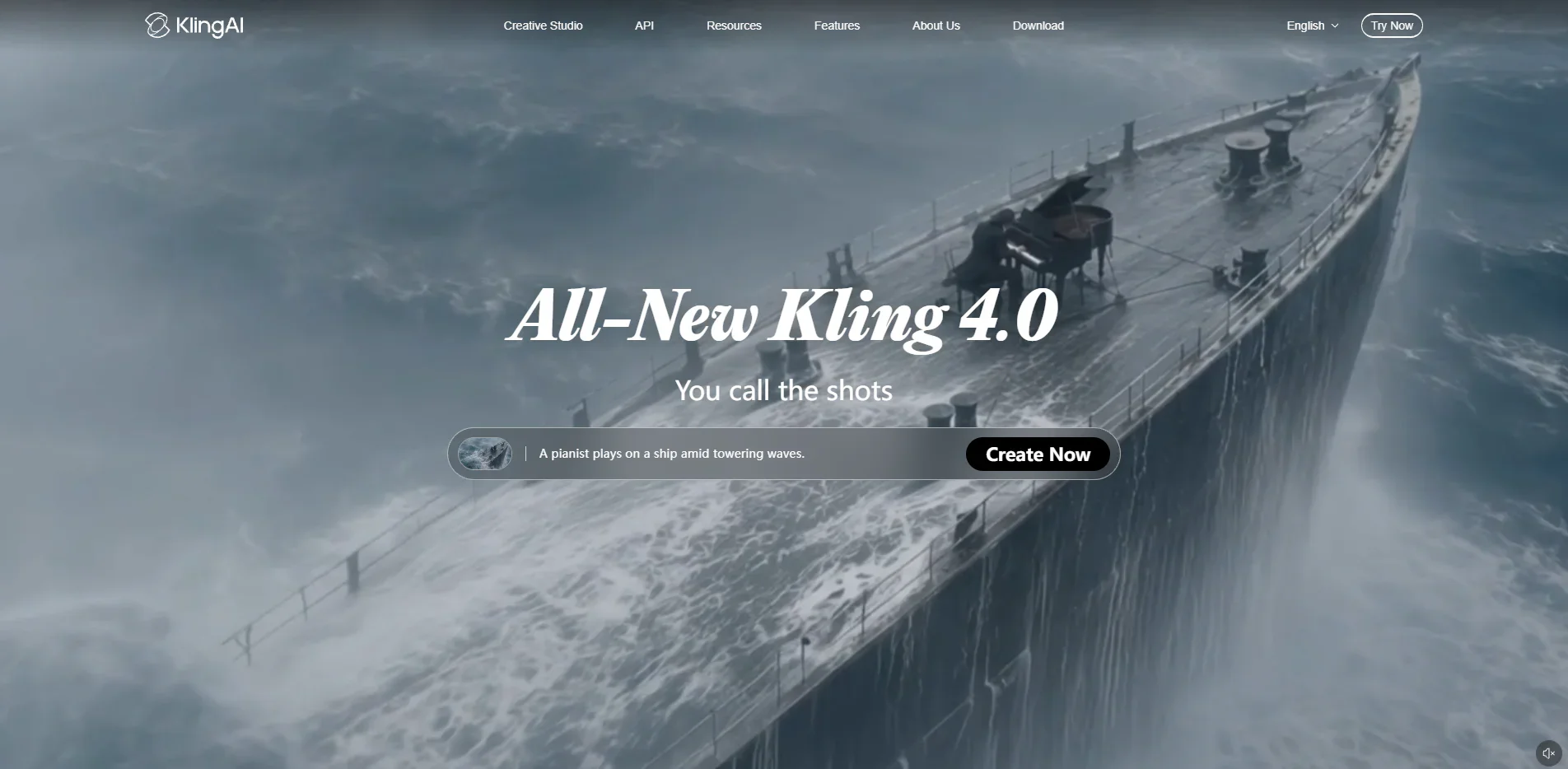
Kling AI is useful for learning how images, prompts and reference controls affect a generated shot, and Kling 4.0 is listed as its flagship model on the developer pricing page. Start with one source image and one action, such as a slow camera move around a static subject, then inspect the result for changing faces, labels and geometry.
Try one short shot with a clearly defined subject and camera move. Image and reference inputs let you explore directed generation without planning an entire film first. A finished narrated video still needs shot selection, sound and editing.
10. Runway — Learning Generative Video
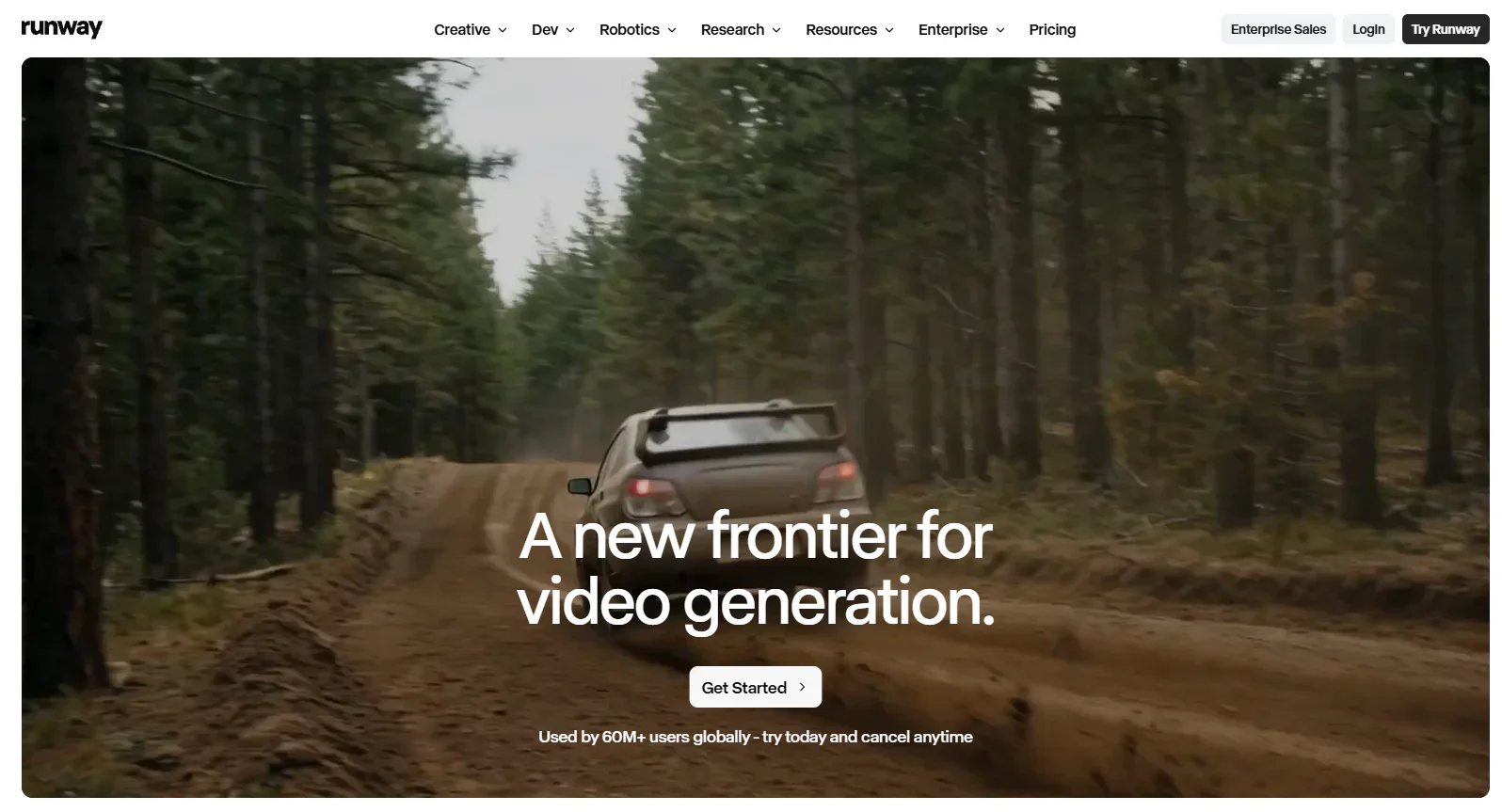
Runway offers hosted video generation and editing tools. Its Free plan includes 125 one-time credits for a small amount of supported generation, and Standard is $15/month on monthly billing or $12/month billed annually with 625 credits per month. Use a clear starting image, describe the movement you want and keep the prompt focused so you can see what to change after the first result.
Animate one approved frame, then compare two motion directions. The app and developer routes support different production needs, while model choice determines how quickly the finite trial credits are used.
11. Flova — Guided Visual Stories
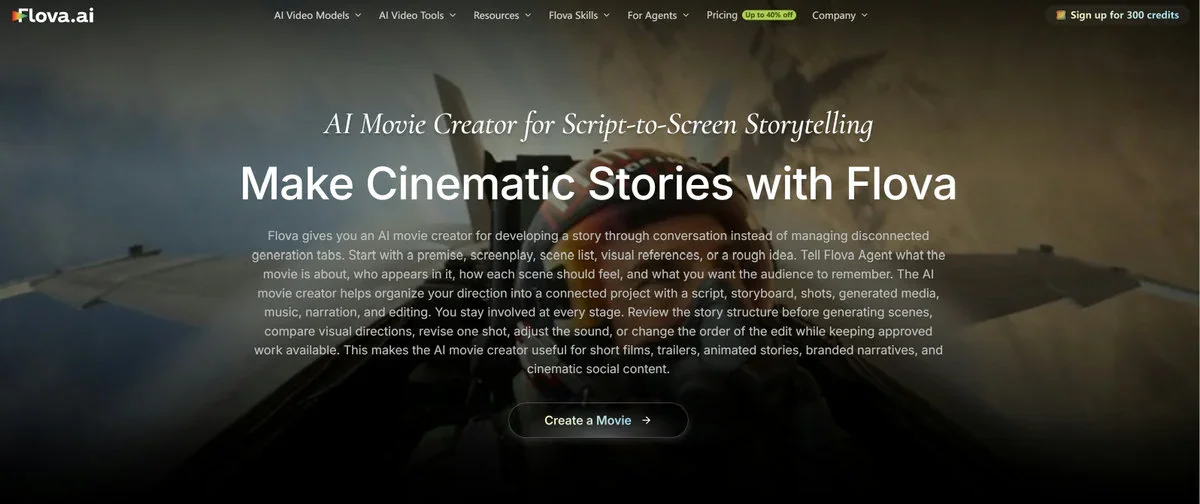
Flova suits a beginner who starts with a visual idea rather than finished footage. Describe the goal in natural language, review the storyboard and keep approved character or product references beside the shots. The workspace brings scripts, storyboards, generated video, music, narration and a timeline together. Reusable Skills give new projects a repeatable approach, and you can revise one shot while keeping approved scenes.
Starter costs $20/month on monthly billing or $17/month billed annually, with 2,000 credits per month, and Starter and higher plans include watermark-free export and commercial use. New accounts receive free signup credits to try select models, and exports from non-subscribed accounts carry a Flova watermark.
For a first project, turn one idea and a few approved pictures into a short sequence with the AI film-maker workflow. Keep the references and approved shots together as you revise. The workflow supports generated visual stories rather than replacing a full desktop editor or a template-based avatar presentation tool.
AI Video Generators for Beginners Compared: Price, Free Tier & First Task
Match the starting material to the task first. This matrix separates recording-based editors, templates, avatars and generation workflows.
Free Allowances and Your First Paid Plan
A free allowance helps when it lets you test the workflow you actually need, so separate editor access, generation credits, export settings and commercial permission. Review three things before committing to a larger project:
- Download: whether the result is exportable and carries a watermark.
- Allowance: whether it is one-time, recurring or a time-limited trial.
- Production fit: whether the tool handles one shot, an avatar scene or an assembled video.
Runway's allowance is one-time, HeyGen's Free allowance is monthly and Pictory's offer is a 14-day trial, so each measures a tool in a different way. Pay when a plan solves a real limit in your project, such as generation volume, a needed output format or the right license.
Flova gives new accounts free credits to try select models, and Starter costs $20/month, or $17/month billed annually, with 2,000 monthly credits, watermark-free export and commercial use. Your script, storyboard, references and approved shots stay in one project as you continue, and Flova pricing lists the credit cost of each model.
Make Your First AI Video in Five Steps
Start with one idea and a few scenes, define what the viewer should understand and build only the shots needed to communicate it. Follow these five steps:
1. Pick a Tool and a Starting Point
Choose a template for an existing message, an avatar for a presenter script, or Flova’s guided project workflow when you need to develop a visual sequence.
2. Write a Simple Prompt or Paste Your Script
Describe the subject, audience, visual style and delivery format. A short, specific brief is easier to review than a long list of unrelated effects.
3. Generate the First Draft
Review the scene plan before committing to final shots. In Flova, the storyboard and references help you catch a mismatch while the project is still easy to revise.
4. Review and Make Light Edits
Watch the complete sequence. Correct the scene that misses the brief, retain the approved shots and check that the cuts tell the story in the right order.
5. Add Voiceover and Captions, Then Export
Review the voiceover, music and any on-screen text. Flova exports a video file or a CapCut draft for continued editing, so add captions in an editor that provides them, because Flova does not deliver subtitle files.
Pick the Easiest AI Video Generator You Can Revise With
The easiest tool is one whose revision process makes sense to you. Social layouts need clear typography and reframing, an explainer needs a readable script, and a visual story needs consistent scenes, so identify the format first and choose the minimum workflow that can finish it.
Try changing one scene after the draft exists, because that reveals more about the working process than the speed of an initial generation. Use a real source such as an approved product image or short script rather than a provider's sample, and compare the plan with the number of revised takes you need.
Use this short decision checklist:
- Name the deliverable and its audience.
- Choose the starting material: footage, text, picture or idea.
- Try the full review-and-export path on a small example.
- Set a budget for the plan and generation revisions.
Common Beginner Mistakes and Practical Fixes
Avoid adding complexity before the first version works. These six habits help keep a small project manageable.
1. Ignoring Watermarks and Length Caps
Check one actual download early, because a preview does not show every export condition, and a watermark alone does not decide commercial rights.
2. Writing Vague Prompts
Name the subject, action, camera direction and stable details in plain language. For a first shot, choose one main movement rather than several competing effects.
3. Over-Editing Instead of Using Templates
Start from a template or storyboard, then change what the message requires. Keep one visual direction rather than redesigning each scene.
4. Picking a Tool Too Advanced for the Goal
Match the workflow to the task. Trimming an interview, creating an avatar and generating a product film require different tools.
5. Skipping Captions for Social Video
Use captions when they help viewers follow speech or watch with the sound off, and review spelling and timing before publishing.
6. Not Checking Commercial-License Rights
Use media, voices and likenesses you have permission to use. Keep source permissions separate from the platform’s license for generated output.
Frequently Asked Questions
What is the best AI video generator for beginners?
The best AI video generator for beginners is the one that matches your first deliverable: HeyGen or Synthesia for a presenter-led explanation, Canva or CapCut for templates and recorded footage, and Flova when you want to develop a visual story from a brief. Flova guides the project from storyboard through generated scenes, sound and a final edit, with Starter at $20/month or $17/month billed annually. Start with the workflow that removes the most work from your first project.
What is the easiest AI video generator for a visual story?
A guided project workflow can help when planning and generation feel unfamiliar. In Flova you describe the idea in natural language, review the storyboard and reuse approved references across scenes. You can revise one shot without redoing the rest. Start with a few shots so the review stays manageable.
What should I use for TikToks, Reels and Shorts?
Use a workflow that supports vertical composition and readable text: CapCut or Canva for assembling existing media, and Flova for creating and organizing original scenes. Reframe important subjects for 9:16 and add checked captions where they help the message.
Do free AI video tools always add a watermark?
No, watermarks depend on the tool and plan and are separate from commercial permission. HeyGen Free videos are watermarked, Fliki Free adds a Fliki watermark, and Synthesia Basic uses branded sharing. Flova's free downloads carry its watermark, while Starter and higher include watermark-free export and commercial use.
How much can I make before paying?
It differs by service. Runway includes 125 one-time credits, HeyGen Free allows three watermarked videos per month of up to one minute each, Pictory offers a 14-day trial with 300 credits, and Fliki Free includes three credits per month. Flova gives new accounts 300 signup credits to try select models rather than unlimited generation.
Can I make a video without appearing on camera?
Yes, with an avatar, narrated visuals or a generated scene sequence. HeyGen and Synthesia provide presenter workflows, Fliki builds videos around AI voiceover, and Flova lets you develop generated shots with music and narration in one project. Choose the format that fits the message rather than the one that merely avoids filming.
Can I make an AI video from just a text brief?
Yes, tools such as InVideo AI and Flova start from a written brief. InVideo AI assembles a draft with narration for you to revise, while Flova lets you review a storyboard and shot instructions before generating video. Give the subject, audience, format and length in your brief.
When is a paid plan worth it for a beginner?
A paid plan is worth it once you have tested the workflow and need something the free access cannot give you, such as watermark-free export, more credits or commercial rights. Flova Starter includes 2,000 monthly credits, watermark-free export and commercial use, and the cost of revised takes belongs in the budget alongside the first generation.