InVideo gives you a simple place to start: describe the video you want, then refine the script, voiceover, footage and captions it puts together. That can save you some of the work of building a first draft. How much time you save depends on what needs fixing afterward.
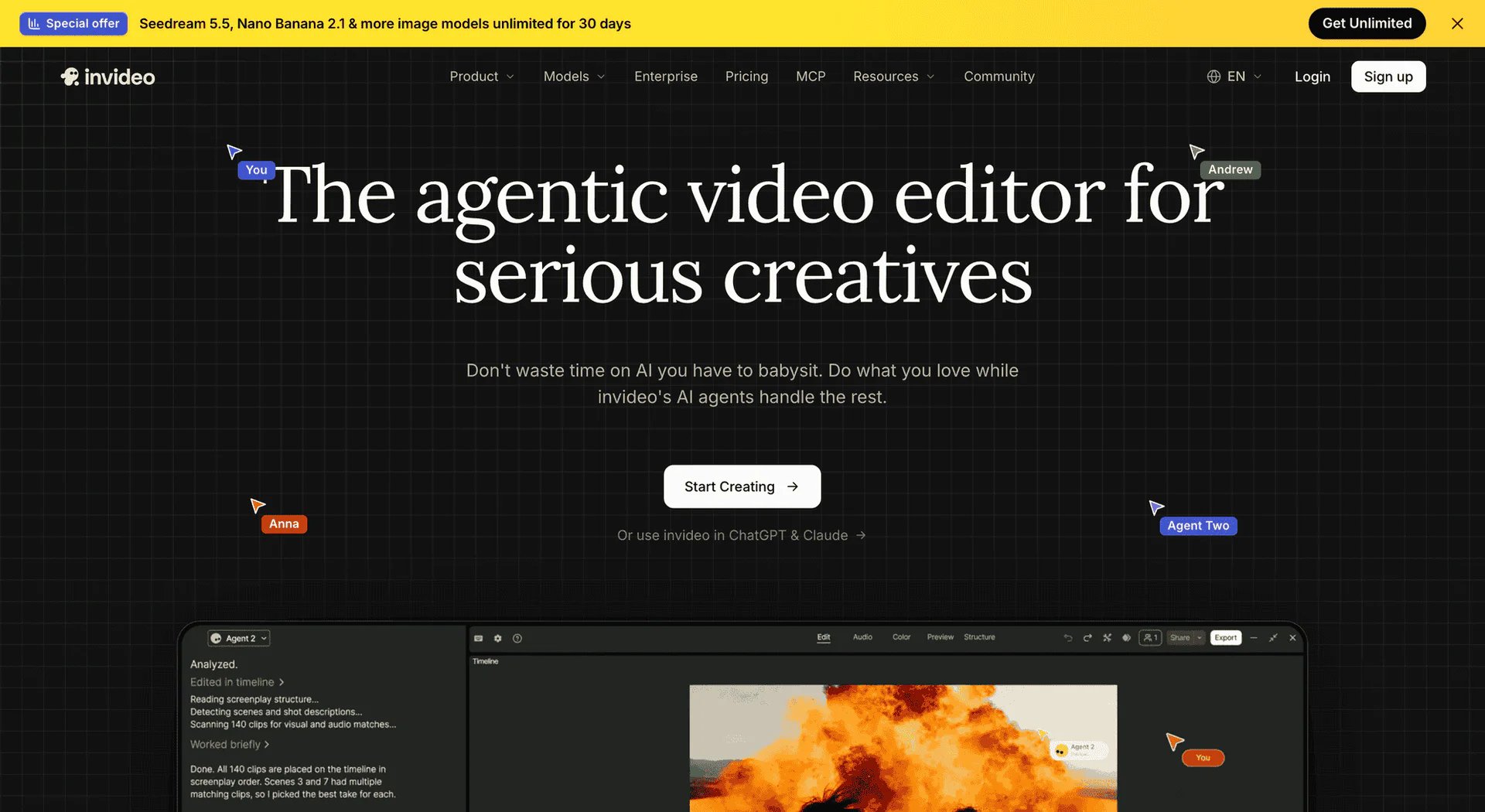
A quick draft isn’t always a cheap finished video. The footage still needs to fit the story. Revisions take time. AI work uses credits. This review looks at those trade-offs, who InVideo suits, and how to work out your cost per finished video.
The Short Version
InVideo is worth considering for short videos built around narration and stock footage. Budget for a review pass and some editing.
Its convenience is easier to see in explainers and social content. You can handle several production steps in one place, then work from a draft.
Projects with strict visual requirements need a closer look. Exact product details, shot order and timing can mean more manual work.
The key question is simple: How close is the first draft to a video you’d actually publish?
Where InVideo Can Save You Time
Getting Started Takes Less Setup
Making a video usually starts with several separate jobs. You write the script, find footage, record or generate a voiceover, then bring everything into an editor.
InVideo puts these steps into one workflow. You can describe the topic, audience, length and style, then let it help assemble the content.
That gives you something concrete to work with. You can judge the opening, review the structure and decide which visuals belong.
Still, a complete draft isn’t always a finished piece. Repeated footage or weak matches between the narration and visuals can need attention. If most of the draft needs replacing, the time savings shrink.
You Can Work on the Script, Voice and Visuals Together
Separate production steps often create extra work. The script runs too long. The voiceover feels rushed. The footage doesn’t cover what the narrator says.
InVideo lets you work on these parts within the same project. That can reduce the back-and-forth, especially for videos led by narration.
You still need to watch the result as a whole. Does the footage explain the point? Do captions cover anything important? Is the music too loud?
Having every element in place is a useful start. Making them work together still takes judgment.
Repeatable Formats Need Less Explanation
A recurring series gives you a clearer brief. The audience, structure and style may stay much the same each week.
An explainer might follow a simple pattern: ask a question, explain the answer, then give an example. A product video might start with a use case, then show the relevant features.
These formats reduce the amount you need to explain each time. They don’t remove the need to review each result. A new topic can still bring weaker footage choices or awkward pacing.
Get one format working before increasing your output. That makes it easier to see how much editing each video needs.
Where You’ll Still Need to Step In
Relevant Footage Isn’t Always Accurate Footage
A clip can match the general topic without helping explain it.
Office footage can suggest “work,” but it won’t show someone how to use a specific app. An attractive product shot may not show the item you actually sell.
Automatic footage choices can support the mood while missing the point. This matters more when your video explains a process or shows a real product.
Prepare essential footage in advance. Be clear about which assets must appear and what must stay unchanged.
Clear Instructions Can Still Need Corrections
“Make it more polished” is easy to say. It’s harder to turn into a precise edit.
Try requests such as:
- “Cut the opening to five seconds.”
- “Use my uploaded product close-up in the second scene.”
- “Remove the repeated office clip.”
Specific instructions reduce ambiguity. They also make the result easier to check. They don’t guarantee that every detail will come out right.
A project with several requirements may need a few focused passes. Approve the script and scene order first, then move into generation. If something goes wrong, you’ll have a clearer idea of what needs changing.
Some Fixes Are Easier on the Timeline
You don’t have to make every change through chat. InVideo also has a timeline for trimming, splitting and rearranging clips.
For a small, clear change, direct editing gives you control over the result. Asking the agent takes fewer manual steps, but you’ll need to check its interpretation.
Under the current rules, manual timeline edits don’t use credits. Agent work and AI media generation do.
Use both options. A simple cut doesn’t need to become another AI request.
How Much Does InVideo Cost in 2026?
The public pricing page showed these base plans on November 15, 2026:
Prices are in US dollars, per seat. The annual prices included a promotion when checked. They work out to $120, $360 and $900 for a year, before any applicable taxes. Offers can vary by region and account, so check the total at checkout.
Three details matter when you compare plans.
First, an annual monthly rate isn’t a monthly payment. You’re paying for a full year upfront. That makes more sense once you know you’ll keep using the tool.
Second, unused monthly credits don’t roll over. A lower price per credit won’t help much if you leave most of the allowance unused.
Third, credit use varies by model and task. A credit allowance doesn’t translate into a fixed number of finished videos.
What’s the Real Cost per Video?
There are two useful numbers to track: the credits a project uses and the money you spend on the videos you finish.
Start with the Project’s Credit Usage
Use this formula:
Allocated project cost = total project credits × plan cost per credit
On the monthly plans above, Starter works out to $0.05 per credit. Plus and Max work out to $0.03.
Suppose a project uses 100 credits from start to finish:
The 100-credit figure is an example. It isn’t a standard charge for a particular video length.
Count revisions too. If the first version uses 80 credits and later changes use 40, the project costs 120 credits.
Then Look at What You Actually Paid
Credit costs help you compare projects. Your subscription bill tells you whether the plan is good value.
Actual spend per finished video = subscription and extra-credit spending ÷ usable videos completed
Suppose you pay $20 for a month:
- Finish two usable videos, and you’ve spent $10 per video.
- Finish five usable videos, and you’ve spent $4 per video.
Unused credits can raise your effective cost, even when individual projects use little. That’s why your publishing schedule matters.
Include abandoned projects in your spending too. Their costs don’t disappear just because you never exported the result.
Include Your Editing Time
The platform fee is only part of the cost. You may also spend time checking facts, correcting captions, replacing footage and preparing the final version.
Suppose a video needs 45 minutes of work. At an internal rate of $30 an hour, that adds $22.50 in labor.
That isn’t an InVideo charge. It still matters when you compare workflows.
If you’re weighing InVideo against a freelancer, compare the same deliverable. Include the time you spend turning an AI draft into a finished video.
How Can You Keep Costs Under Control?
A clearer brief can reduce avoidable attempts. You’ll still need some room for corrections.
Decide what the video should say, who it’s for and what you want viewers to do next. Prepare essential assets. Identify details the AI should leave unchanged.
After the first draft, decide what kind of problem you’re fixing.
A weak structure may call for a script change. One poor shot may need a replacement. A timing issue may only need a quick timeline edit.
Keep a simple project log:
After a few typical projects, you’ll have a better budget. You’ll know which formats need less work and which requests lead to more revisions.
When Should You Consider Another Tool?
If InVideo’s main convenience doesn’t solve your biggest problem, compare a few other workflows.
Flova AI is worth a closer look if you want more control over how your story unfolds. Its storyboard workflow lets you shape each scene and revise individual shots within the same project. You can also use reference images to guide character appearance and visual style. For stories with recurring characters, these controls can make Flova a better fit than InVideo’s more automated approach.
With Flova AI, focus on how you build a story through a storyboard. Check how references and revisions help preserve character details across shots. If narrative continuity matters to you, those steps deserve as much attention as generation speed.
Here’s the same story made with InVideo and Flova.
Is InVideo Worth Paying For?
InVideo’s main value is helping you reach a first draft sooner. That convenience may be worth paying for if you’re happy to handle the final checks and edits.
If you expect a publishable result from one request, leave room for a different outcome. Revisions can take more time and credits than you planned.
The more your project depends on exact shots, product details and careful pacing, the more attention you should give the editing process. Getting started quickly helps. Being able to finish efficiently matters just as much.
Take one everyday project through the full process before choosing a larger plan or paying annually. Track the credits, the corrections and the time spent.
The best-value plan is the one that lets you finish the content you need at a cost you’re comfortable paying.
FAQs
Can You Use InVideo for Free?
InVideo has a free tier. Check the features and allowance shown when you sign up. Free editing and exports don’t mean AI generation comes with the same free access.
Do Unused Monthly Credits Roll Over?
No. Unused monthly credits don’t carry into the next month. Extra credits may have separate expiry rules, so check those when you buy them.
Does Every Edit Use Credits?
No. Manual timeline actions, such as trimming and rearranging clips, don’t use credits. Agent work and new AI images, video or audio can use credits.
Can You Cancel and Get a Refund?
Canceling stops renewal; it doesn’t automatically refund an existing payment. The terms checked for this article allow a refund request within seven days of purchase or renewal. You must not have used credits or premium features during that period.
Unused parts of a subscription generally aren’t refunded. Applicable law and the rules of your purchase channel may affect the terms.