

Import into CapCut
Import an editing draft exported from Flova into CapCut to continue refining your edit.
Before you begin
- Export an editing draft from your project and download the ZIP.
- Have CapCut installed, and make sure you can reach the files on this computer.
You can hand the import to a local Agent that can read and write files on this computer, or copy it yourself. Both routes give the same result; pick whichever fits what you have.
Ask a local Agent to import it
This means a local Agent that can read and write files on this computer, not the Flova chat on the right side of a project.
- Extract the file downloaded from Flova and find the project folder prefixed with
CapCut_. - Send everything inside that folder, together with the text below, to your local Agent.
Locate the local draft root directory currently used by CapCut on this computer, and open it in Finder/File Explorer.Locating:1. Identify the operating system, the installed software, and its version.2. Check the default directory, any custom draft path in the software configuration, and the existing draft structure to confirm the com.lveditor.draft directory actually in use; do not judge by folder name alone.3. If several candidates exist, explain how you decided. If it is still unclear, locate it through the software settings or by creating a temporary draft.4. If you cannot access the local file system, give me the manual steps for this operating system.Importing:1. In the archive or folder I provided, find the project folder that directly contains draft_info.json, and copy the whole folder into the draft root.2. Do not overwrite or modify other projects; stop and ask me if a folder with the same name already exists.3. Before changing any draft file, confirm CapCut has fully quit; if it is still running, remind me to save my work first.4. Using the existing local drafts, confirm the timestamp fields and units, and set the new project's modified time to the actual import time; do not use a future time.5. If this version uses a root index such as root_meta_info.json: - create a backup before modifying it; - only add or update the record for this project; - keep the project ID, name, actual path, and modified time consistent; - preserve other records and unknown fields; - stop if you cannot confirm the index structure — do not guess.Verifying:1. Set the home sorting to "by modified time, newest first" and go by the order actually displayed.2. Reopen the software and confirm the new project is first in the local draft list.3. Open the project and check that the timeline and local media load correctly.4. Report back: the draft root, the imported project path, the index backup location, the sort state, and the result of opening the project.5. If UI verification is not possible, state explicitly: "Imported; first-position sorting not yet verified."Import manually
-
Open CapCut and find Settings → Draft → Save to; go by the path the software displays.
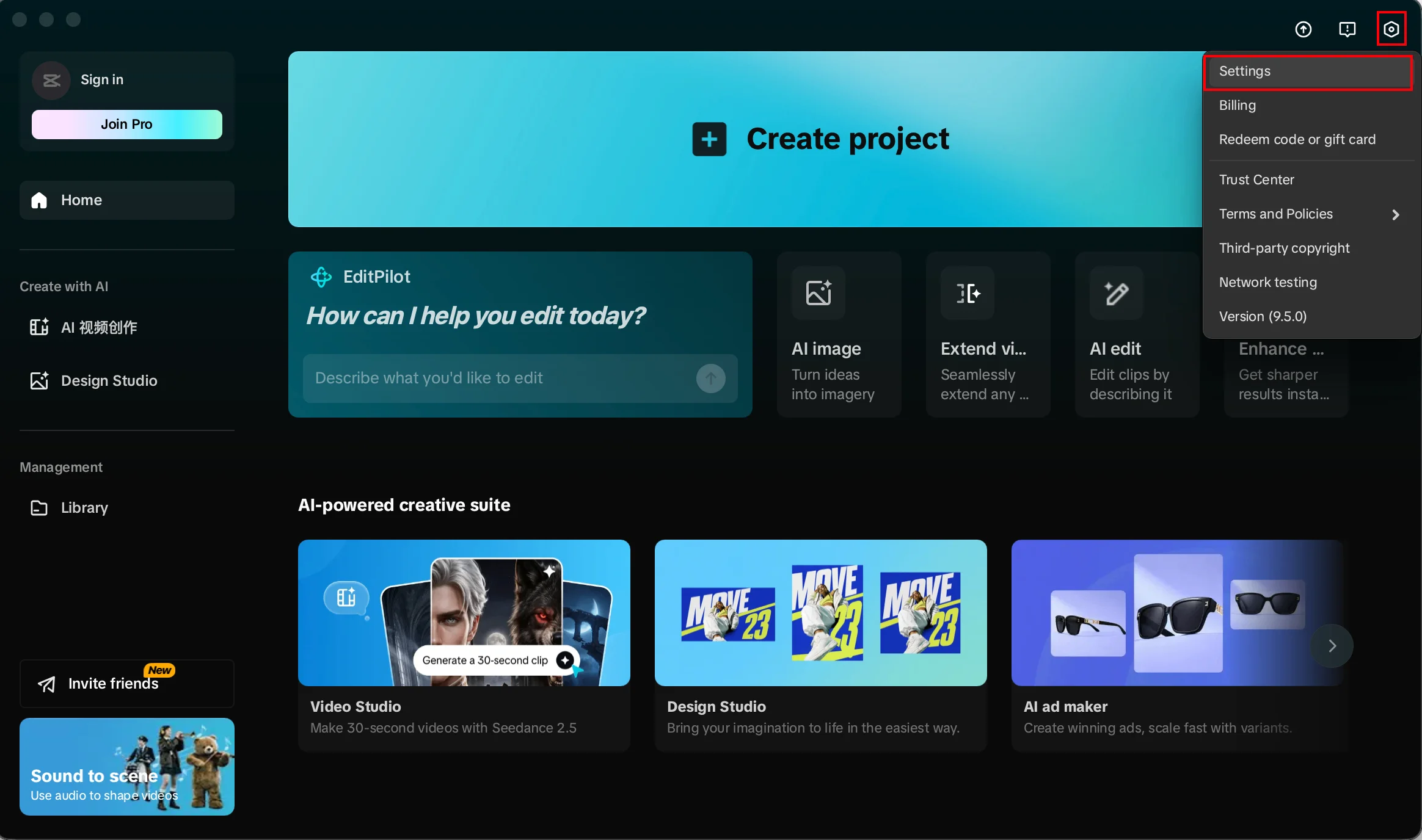
Open the editing software settings first 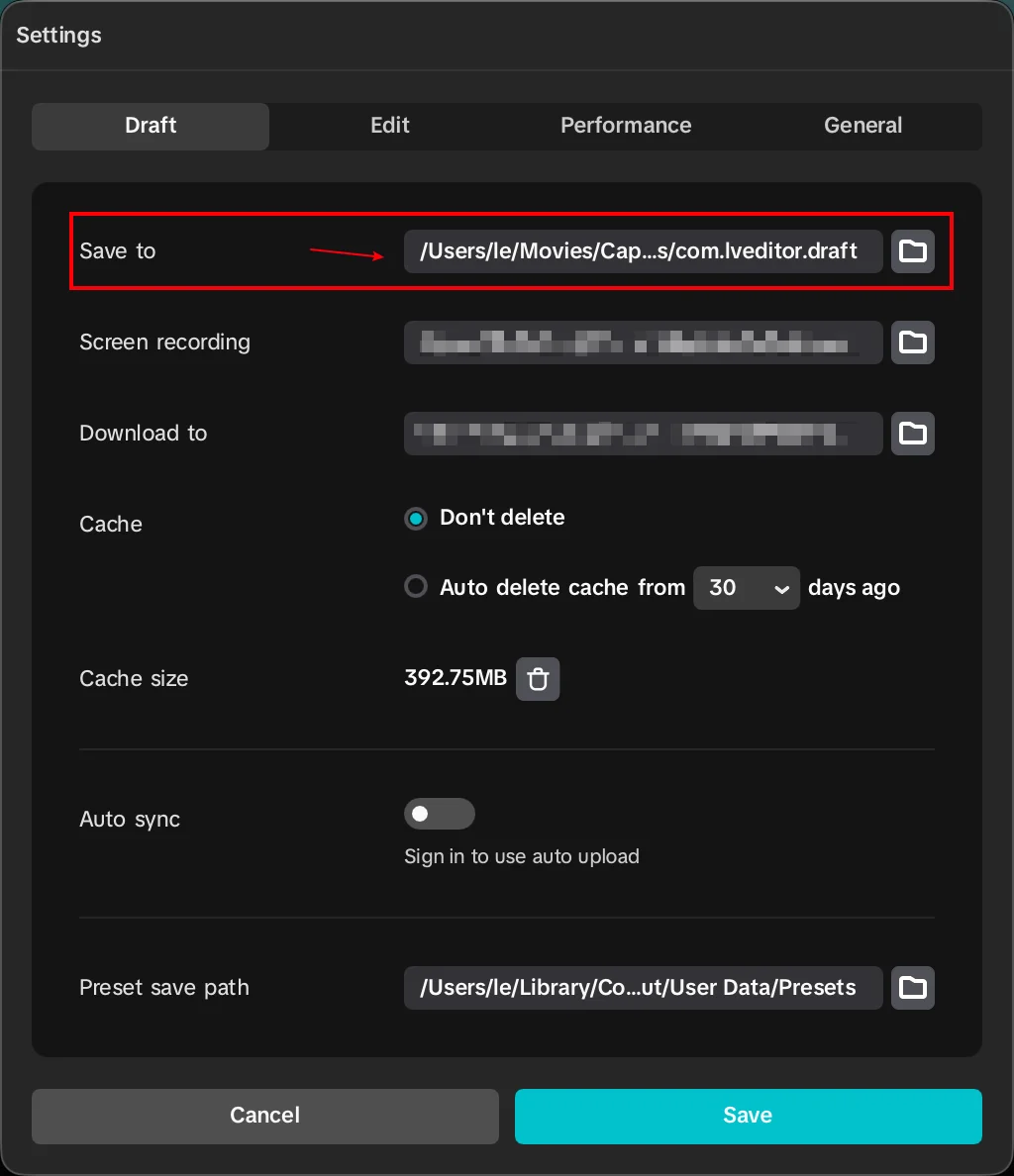
Confirm the current draft save location -
Copy that folder path: on Windows paste it into the File Explorer address bar; on macOS press
⌘⇧Gin Finder and paste. If the path cannot be copied, follow it folder by folder.Do not open this path from inside CapCut — open it in File Explorer or Finder.
-
Save your current work and fully quit CapCut before changing the draft directory.
-
Extract the file downloaded from Flova and copy the whole project folder, together with its media, into the draft root. Do not overwrite an existing draft with the same name.
-
Reopen CapCut and check that the project appears on the home screen, with the timeline and media loading correctly.
If the draft does not appear, check the directory level first, then confirm the software version is compatible. Common default locations are below; the actual location is still whatever the software settings show:
- Windows
- CapCut:
%LOCALAPPDATA%\CapCut\User Data\Projects\com.lveditor.draft
- CapCut:
- macOS
- CapCut:
~/Movies/CapCut/User Data/Projects/com.lveditor.draft
- CapCut:
Tips
- Fully quit CapCut before copying a draft, so its draft index is not written while in use.
- When you exported several edits at once, confirm you are in the folder for the right edit before copying.
- After importing, play the project through and confirm the timeline and local media load before you continue editing.
Limitations
- The draft directory structure and index files can change between CapCut versions. If you cannot confirm the current structure, do not rewrite the index file by hand.
- What you import is a draft project. Later changes in CapCut are not synced back to the Flova project.