AI animation generators can turn a prompt, still image, existing clip, or character asset into moving video; some tools also help assemble several scenes. For a short generated shot, consider Runway or Luma; for reference-led clips, Pika; for a supplied character animated from a motion reference, Viggle. Animaker and Vyond suit editable explainers, while Synthesia suits avatar-presented videos. Flova is worth evaluating when a multi-scene project needs connected planning, storyboards, assets, and timeline assembly. These recommendations reflect documented workflow fit, not matched performance tests. The numbered order is for navigation, not a ranking of visual quality, speed, consistency, ease of use, or value.
Flova appears first because its official documentation describes an integrated path for multi-scene work: agent-led planning, scripts and shot lists, editable storyboards, asset and media generation, media-to-shot binding, timeline assembly, reusable Skills, and reference reuse. That placement reflects the documented workflow sequence—not a claim that Flova is the best overall, fastest, or highest-quality option.
What Does 'AI for Animation' Actually Mean?
AI animation generators create or assist motion from prompts, still images, footage, or editable characters. Some also help assemble scenes into a finished video.
The field splits into 4 distinct categories:
Text-to-animation turns a written prompt into a moving scene, as documented for Runway Gen-4.5.
Image-to-video animates a still image; Adobe Firefly documents image-guided video generation.
2D and character tools provide editable scenes, characters, and actions, as Animaker documents.
Motion transfer and lip-sync apply source movement or speech to a character; Viggle documents image-plus-motion-reference animation.
These workflows can overlap. Controls and availability vary by model and plan.
AI may assist scripting, storyboarding, generation, editing, and sound. Human review remains necessary for creative fit, accuracy, accessibility, and rights.
How We Evaluated These AI Animation Generators
This documentation-led comparison assesses published workflows, controls, and plan limits—not matched hands-on results. “Best for” labels are editorial judgments; quality, speed, ease of use, and consistency require a representative test.
We compared five practical selection criteria:
Style range — documented formats and workflows, not a judgment of visual quality.
Character controls — published reference, motion, avatar, or lip-sync options; output fidelity still needs testing.
Export — stated resolution, format, watermark, and delivery terms, which may vary by plan.
Templates — documented libraries, presets, and editable scenes; check fit for your brief.
Ease of use — the documented starting task, not a measured beginner-experience score.
Prices, credits, availability, and usage rights change. Recheck the current plan and terms before purchase or commercial publication.
“Best for” means documented workflow fit, not a tested performance award.
The Best AI Animation Generators, Ranked
The ten entries below are arranged by documented workflow fit. Their numbers are navigation labels, not a quality ranking.
Each entry includes a best-for verdict, a documented workflow summary, and a caveat to help readers self-select.
1. Flova AI
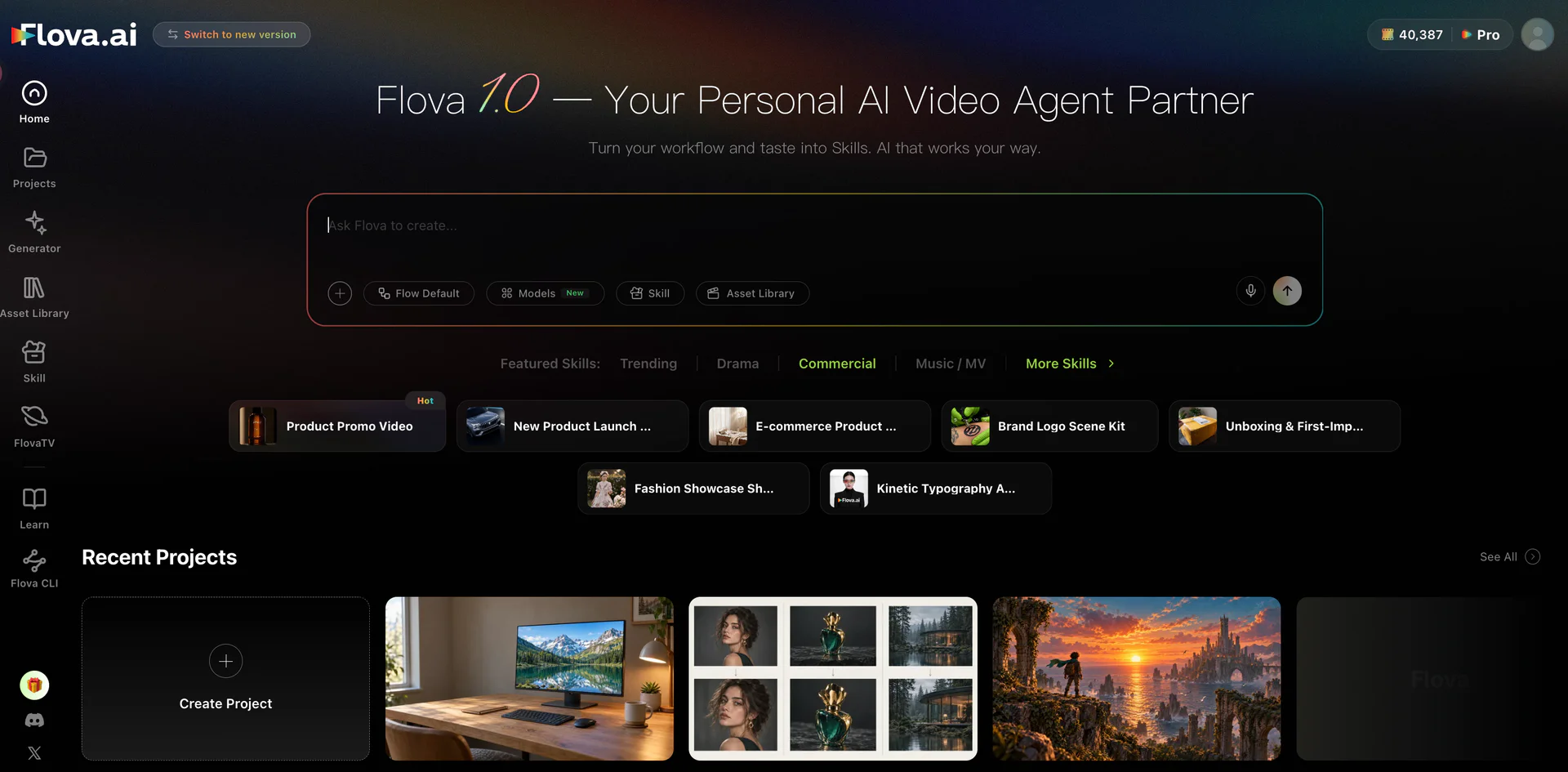
Flova is placed first for documented workflow fit, not because it has been assigned a performance score. Its official documentation describes an Agent-led project flow that can start from a prompt, script, or reference assets; plan scripts and shot lists; design and edit storyboards; generate image, video, music, and voice media; associate media with storyboard elements or shots; and assemble an editing timeline. The same documentation describes project-level context, outside-asset import, reusable Skills, and user review or editing of project content.
For a four-scene product story, Flova’s documented sequence lets a creator move from a script and shot list to an editable storyboard, associate chosen media with individual shots, and assemble the sequence on a timeline. Keeping those stages in one project may be useful when shots must be reviewed and revised together. This describes workflow coverage—not a measured advantage in visual quality, character consistency, speed, or ease of use.
Flova currently advertises up to 300 sign-up credits: 100 credited immediately and 200 as a creation bonus. That promotion is subject to terms and may change. Its subscription documentation says plan terms can vary by account and other conditions. Free final downloads have a watermark; watermark-free export and commercial use require an eligible paid plan. Confirm the selected plan and terms before commercial publication.
Best for: Integrated multi-scene animation planning and story workflows.
Skip it if: You are seeking a single clip or a known model-specific visual output; compare the selected model and account terms.
2. Runway ML
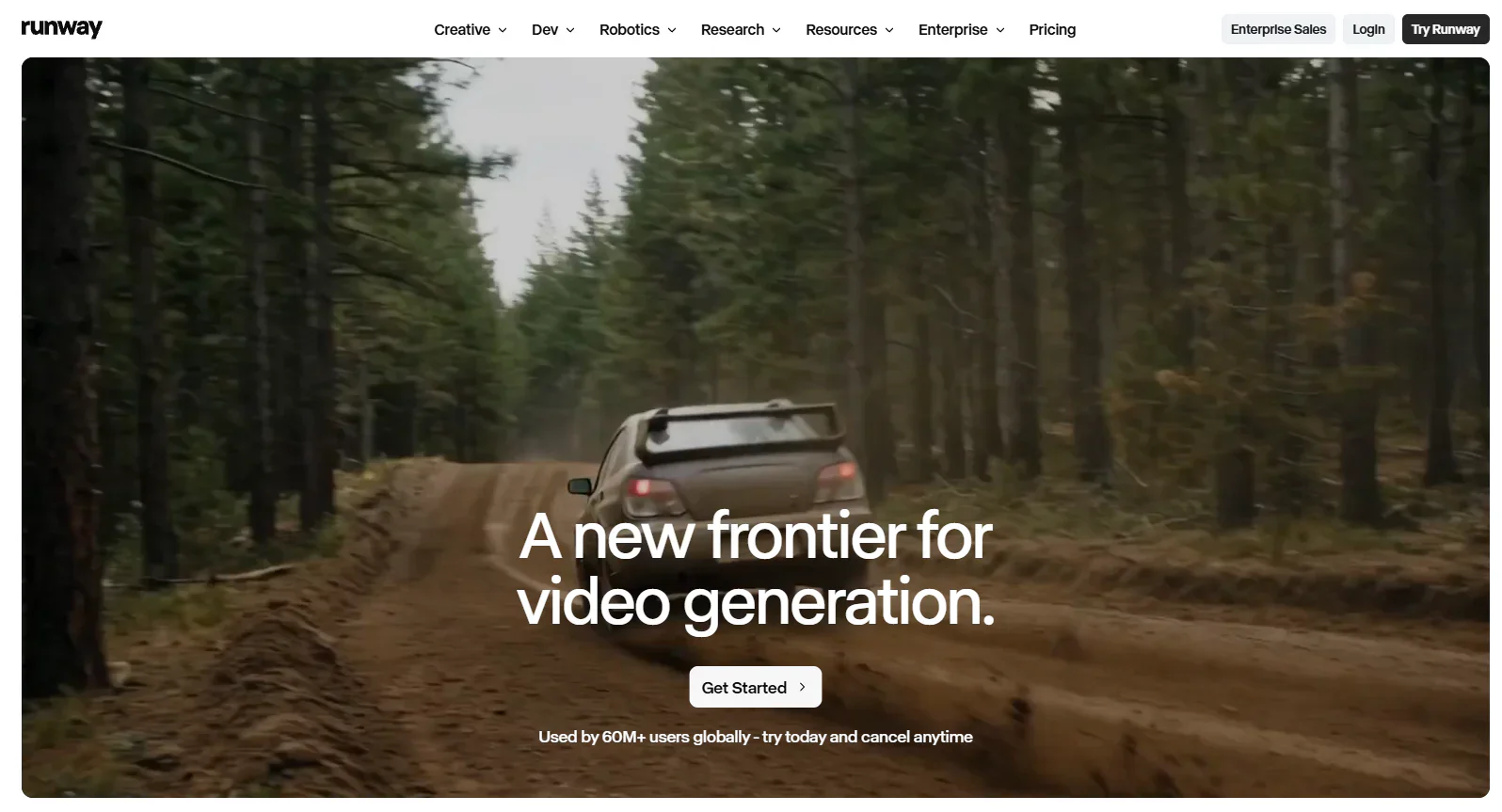
Runway’s Gen-4.5 guide documents web-based text-to-video and image-to-video generation for Standard and higher plans. It describes 2–10-second, 720p clips and prompt guidance for visible content, motion, and camera direction. Its longer-video guidance describes building longer work from short clips, then trimming and arranging material in Runway’s tools or a local editor.
Runway also documents a visual-development path in which Gen-4 References can be used to develop an image before animation. Treat this as an iterative image-to-video workflow, not a guarantee of multi-shot character consistency. The Free plan currently lists 125 one-time, non-renewing credits and watermarked video; model access and paid-plan terms should be checked before use.
Best for: Prompt- or image-led short-shot creation with an iterative assembly workflow.
Skip it if: You need a documented, end-to-end multi-scene planning workspace rather than a short-shot generation and assembly process.
3. Pika Labs
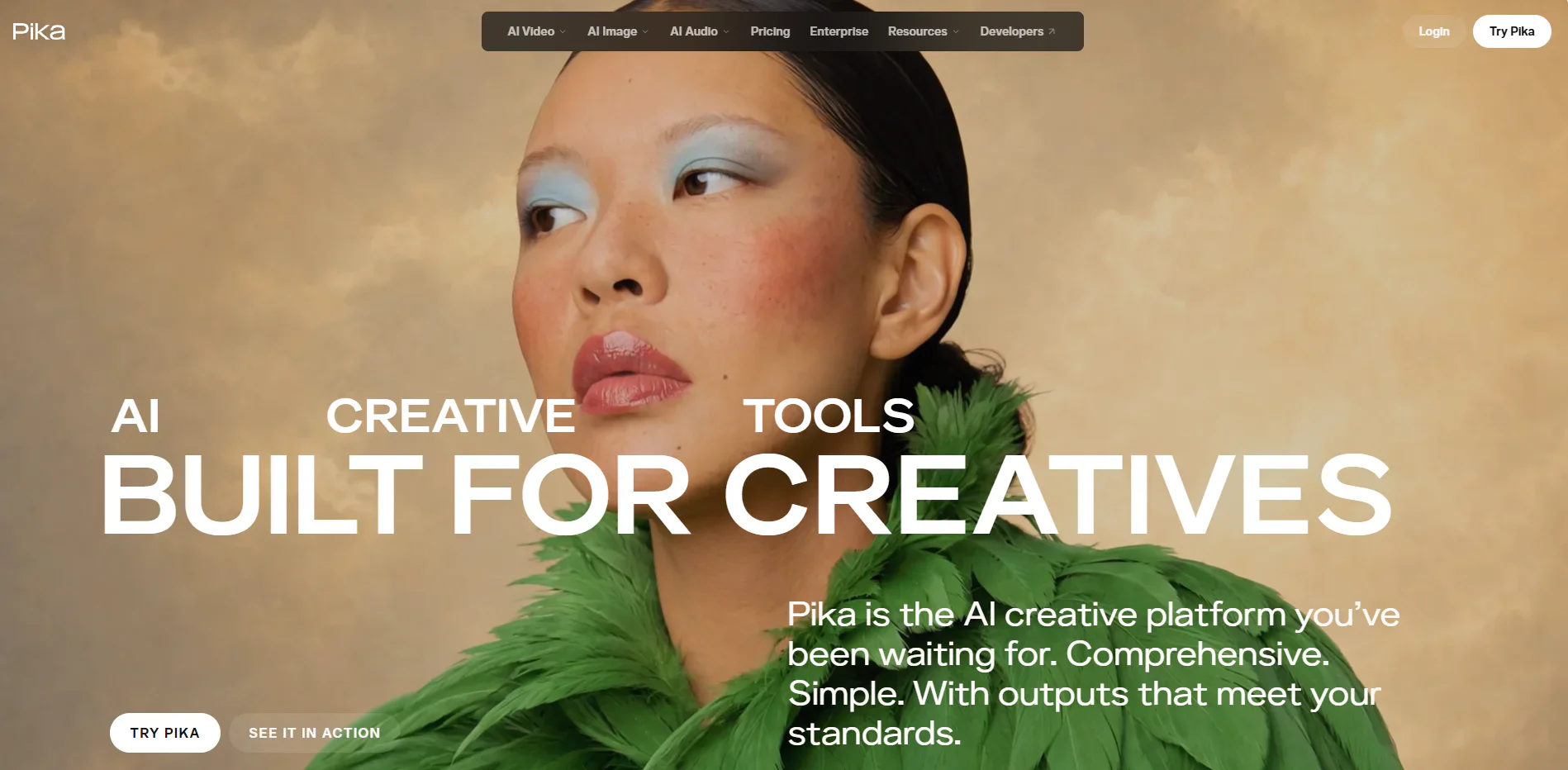
Pika’s Video Studio presents a reference-led workflow in which users can attach visual and audio references, mention named assets in a prompt, and work toward short clips or provider-described multi-shot video. Its documented Pika 2.5 image-to-video API accepts a source image and an optional motion prompt, with model-specific 5- or 10-second MP4 outputs at 720p or 1080p.
Current Pika pricing lists Free at zero monthly credits with packs only. It is marked no-watermark, but it does not include a commercial license; current commercial-license inclusion begins at Creator. Duration, resolution, and output options depend on the selected model or workflow, so verify the live configuration rather than applying a platform-wide specification.
Best for: Reference-led stylized clips and experiments where the selected Pika workflow matches the brief.
Skip it if: You need commercial-license inclusion on the Free or Starter tier, or you need a documented guarantee of visual continuity.
4. Adobe Firefly
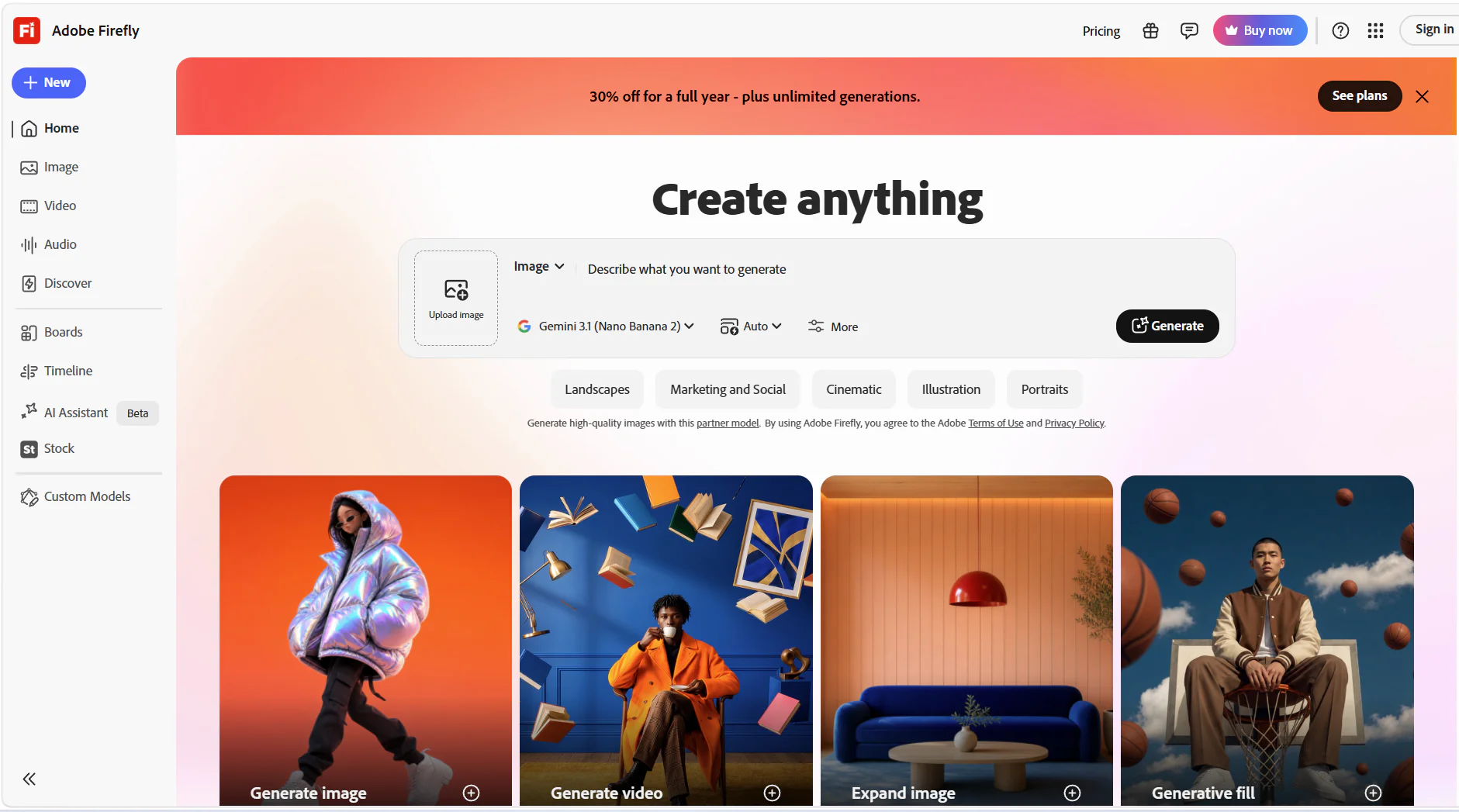
Adobe Firefly’s Generate Video documentation describes text-prompted clips that can use a first image, last image, or both as guidance. It also documents opening a generated clip in Firefly Video Editor (beta) or Premiere desktop.
Adobe says its current Firefly generative AI models are trained on licensed content, including Adobe Stock, and public-domain content where copyright has expired; it also says Firefly-model outputs can be used in commercial projects. Those are provider statements, not a blanket clearance of a particular project. Confirm rights to inputs, the selected model, applicable plan, and current Firefly terms before publication.
Best for: Adobe-centered workflows that need image-guided video and a documented handoff to Firefly Video Editor or Premiere.
Skip it if: You need a fixed, evergreen free-video entitlement or a universal rights-clearance claim.
5. Animaker
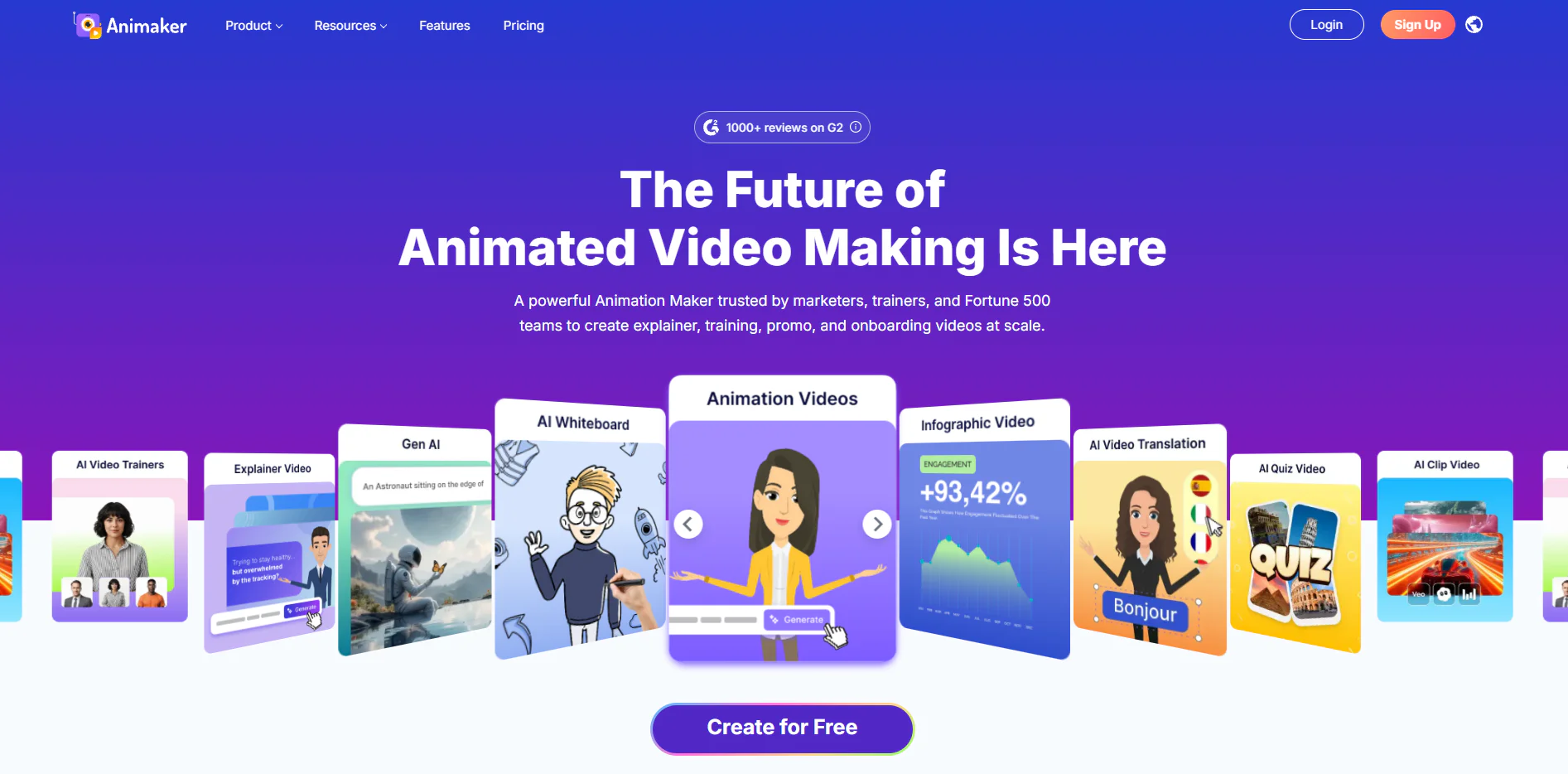
Animaker describes a template-or-blank-project workflow for animated videos, with editable scenes, characters, backgrounds, media, text, music, download, and sharing. Its feature documentation lists Character Builder, auto lip-sync, movement and action controls, effects, transitions, whiteboard animation, and templates. Its AI features can start from a prompt and then be refined in the editor.
A Free plan is available, but Animaker’s Terms restrict Free-plan use to personal, non-commercial purposes. The pricing FAQ states that Free exports carry a watermark and paid plans beginning with Basic are watermark-free. Monetization and third-party resale are plan-specific; confirm the current plan and terms for the intended use.
Best for: Editable, template-led animated explainers and character scenes.
Skip it if: You need the Free plan for commercial or revenue-generating distribution.
6. DomoAI
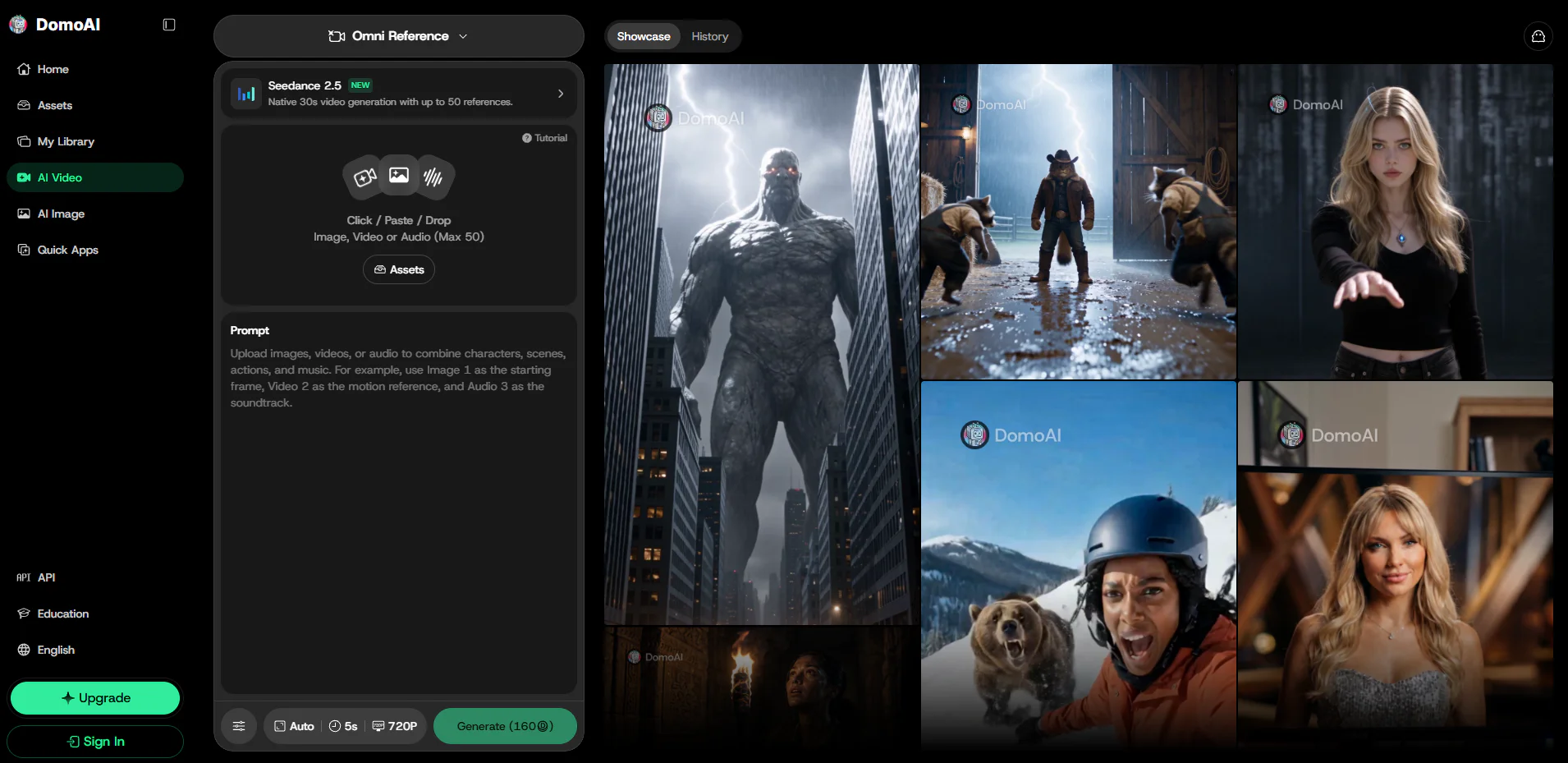
DomoAI’s Video-to-Video guide documents uploaded MP4, MOV, or AVI footage that can be styled with anime presets or text- and reference-image-led direction. It also describes image-to-video, image generation, image editing, Frames to Video, Character to Video, and Talking Avatar tools. The provider says the Video-to-Video workflow is designed to preserve source motion and audio; review each result before publication.
The current pricing page should be checked for active credits and plans. DomoAI’s Video-to-Video Help Center says free-plan outputs include a watermark by default, while paid plans are advertised as watermark-free. Its Terms say output belongs to the user and may be used commercially subject to applicable laws and third-party rights; that is not a guarantee of rights clearance.
Best for: Footage-first anime or stylized video transformation with preset or reference direction.
Skip it if: You need a published guarantee that styling will preserve every face, character, or motion detail.
7. Viggle AI
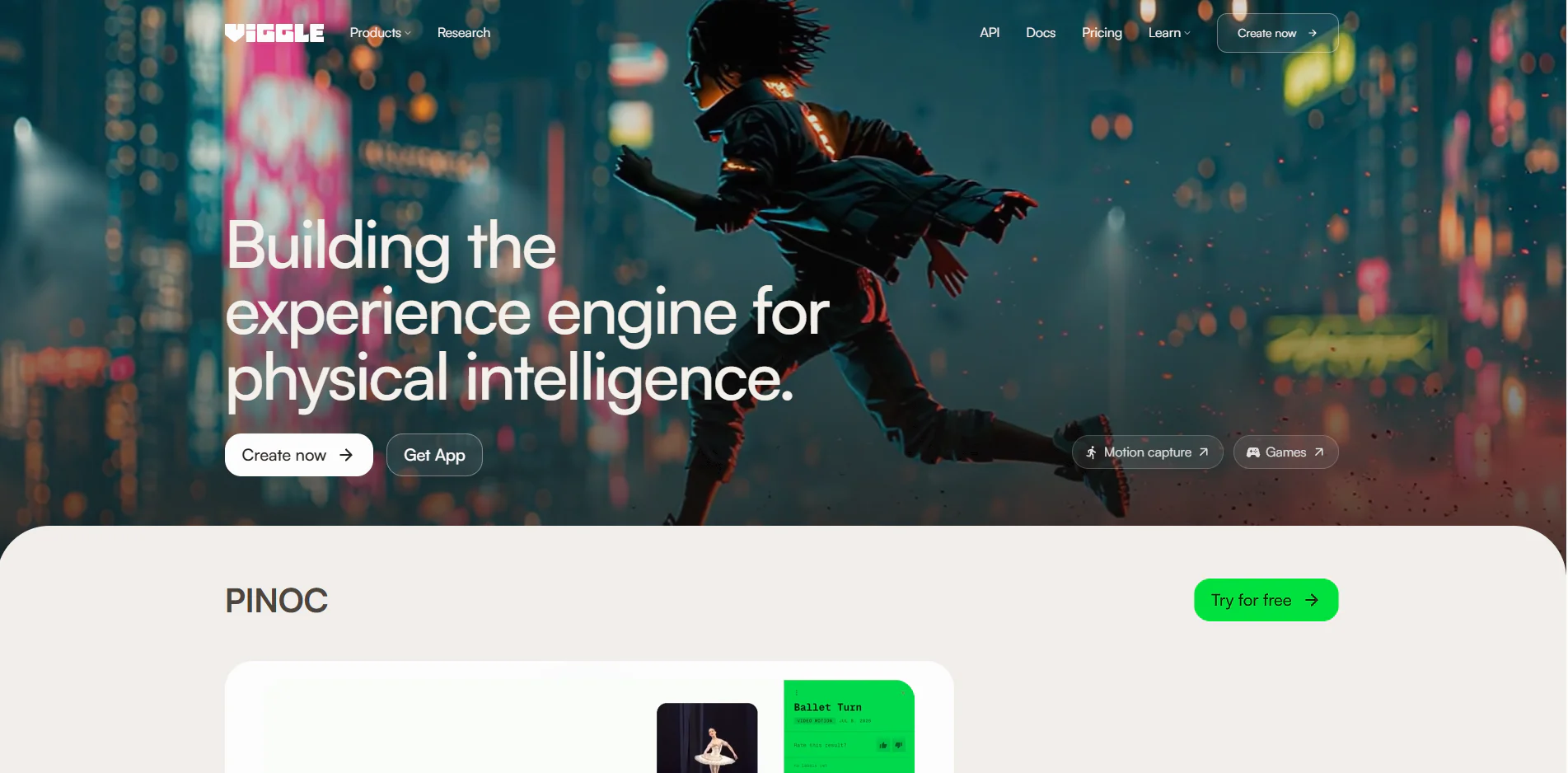
Viggle’s Mix workflow pairs an uploaded character image with a motion template or a user-supplied motion/reference video. Its documentation also describes an optional Character Refine step for generating multi-angle references from one uploaded character image. That makes it a defined-motion choice rather than a prompt-only animation workflow.
The current Viggle pricing page lists the Free plan at five free videos per day and one generation at a time. It explicitly lists no-watermark output for Pro, Live, and Max, but does not expressly state the Free plan’s watermark status. Viggle also provides a web interface and official iOS and Android listings; do not assume feature parity across those surfaces.
Best for: Animating a supplied character image with a chosen motion template or reference video.
Skip it if: You need a documented Free-plan watermark status, platform-parity assurance, or a long-form narrative-production workflow.
8. Synthesia
Synthesia documents a script-to-video workflow that can begin with a script, prompt, document, link, or PowerPoint input. Users select an avatar and voice, edit scenes, then generate an avatar-led video. Its AI Dubbing documentation describes transcript or script review and optional lip-sync; rendered work should still be reviewed before publication.
The current Basic plan is free, requires no card, is watermarked, and displays 1,200 credits per month with up to 10 video minutes per month. Synthesia’s plan terms, avatar rights, paid-promotion restrictions, and enterprise controls are tiered. In particular, consult its video licensing guidance before using stock or synthetic avatars in a campaign.
Best for: Script-led, avatar-presented training, onboarding, enablement, and internal-communications videos.
Skip it if: The brief depends primarily on footage-led physical demonstration or broad scene-by-scene character animation.
9. Vyond
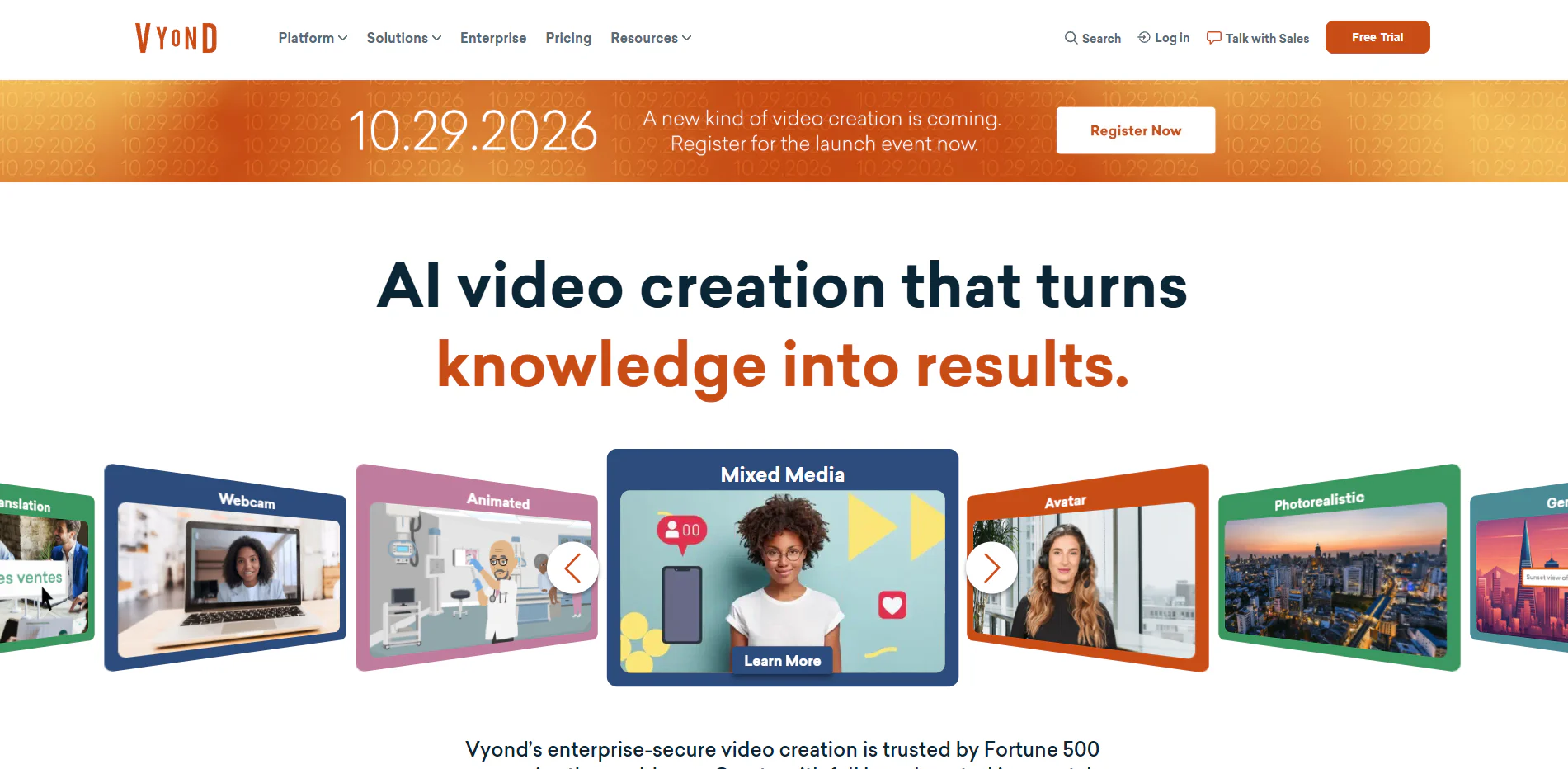
Vyond Studio documents a business-oriented animated-video workflow using templates, characters, props, backgrounds, actions, and scenes. Users can start from scratch, from a template, or from a script, document, or prompt. Its Business Friendly assets are described for corporate or office contexts.
For team workflows, Brand Kit and Shared Spaces are documented for Enterprise and Agency. Video Approval is Enterprise-only and beta. Vyond’s free trial permits up to three watermarked videos and no video downloads, according to its trial guidance. Commercial use and transfers to another business have separate terms.
Best for: Business-oriented animated explainers where templates and documented team-governance features fit the account plan.
Skip it if: You need a free downloadable export tier or governance features without an Enterprise or Agency plan.
10. Luma Ray3.2
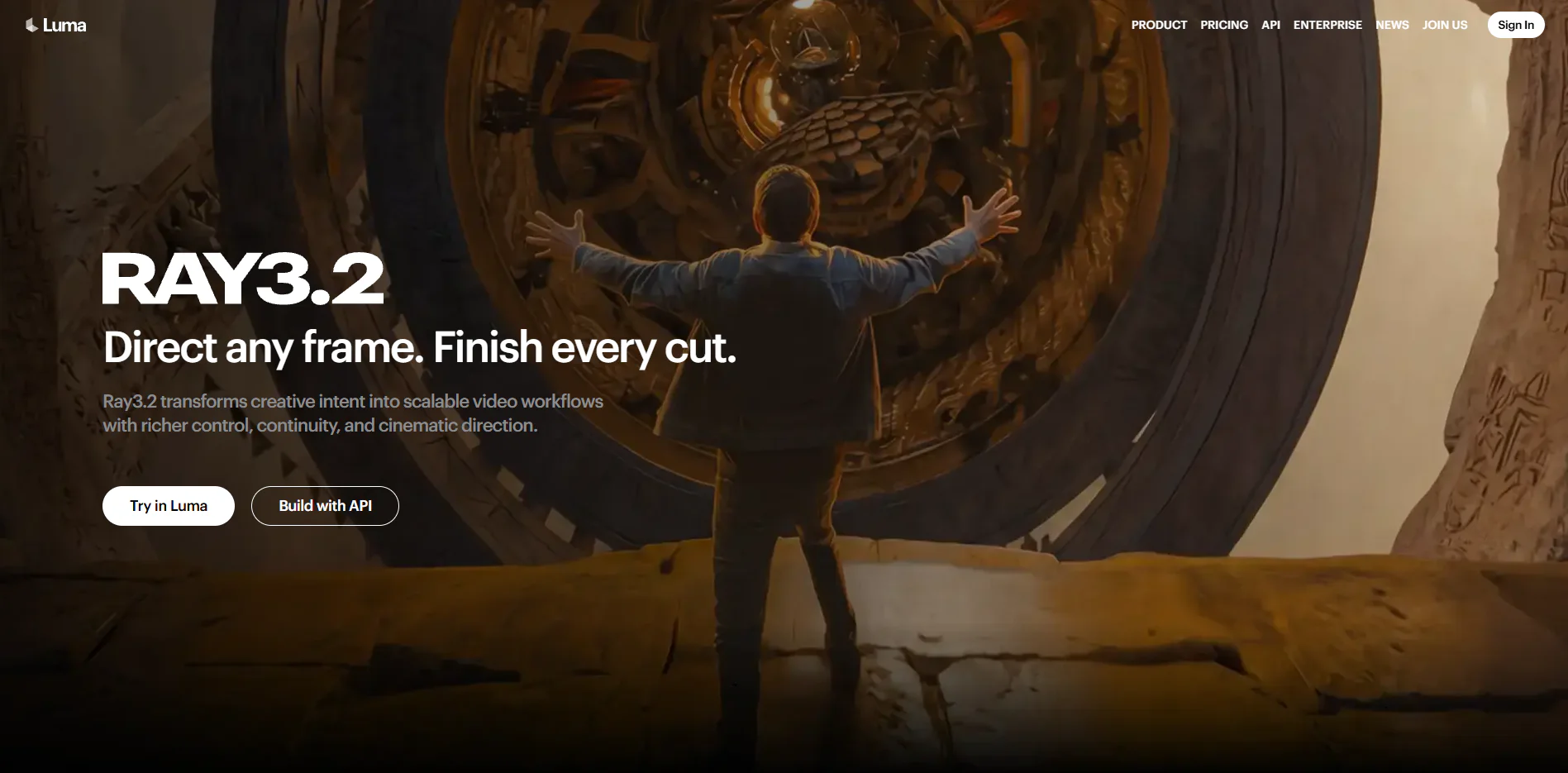
Luma’s Ray3.2 generation guide documents text-to-video, image-to-video with start and end anchors, multi-keyframe image-to-video, extension, and related editing or reframing paths. In the documented API flow, Ray3.2 supports 5- and 10-second clips, up to 1080p, and 1–64 guide images for multi-keyframe generation under specified constraints.
Luma positions Ray3.2 for cinematic direction and production workflows; that is provider positioning rather than an independent quality ranking. The current app pricing page lists Plus, Pro, and Ultra plans, while Luma’s terms condition commercial use on output created during an active paid subscription that permits commercial use. Luma invites users to try the app free, but verify the current signup terms for any free Ray3.2 entitlement.
Best for: Keyframe-guided AI-video direction, existing-video editing, and configurable delivery options within Ray3.2’s documented constraints.
Skip it if: You need a fixed free-credit, free-duration, or universal commercial-use promise.
AI Animation Generators Compared: Pricing, Free Tiers & Best For
The table below consolidates provider-published workflow and plan language. It does not contain hands-on verdicts or performance rankings. Prices, credits, models, rights, and availability are time-sensitive, so use the linked page to verify the plan that applies to your account.
Free vs Paid AI Animation Generators: What's Actually Free?
Free access is not the same as a usable free production plan. Check four separate conditions before choosing a tool: recurring credits, downloadable output, watermark status, and permission for the intended commercial use. A restricted trial can be useful for evaluating a workflow even when its output cannot be published.
Animaker’s Free plan is watermarked and restricted to personal, non-commercial use. Adobe Firefly uses plan- and feature-dependent generative credits and availability; verify the account and geography. Pika’s Free plan currently has zero monthly credits and supports packs only; it is listed as no-watermark but without a commercial license. Viggle’s Free plan currently lists five videos per day and one generation at a time, while its pricing table does not expressly state the Free-plan watermark status.
Runway lists 125 one-time Free credits and watermarked video. Synthesia Basic is watermarked and plan-limited. Vyond’s trial is watermarked and does not allow downloads. Luma invites users to try the app free, but its public plan page does not establish a durable free Ray3.2 entitlement. Flova has a Free tier; Free final downloads have a watermark, and watermark-free export and commercial use require an eligible paid plan.
There are 4 honest free-tier verdicts across the roster:
Animaker — free, watermarked; personal, non-commercial evaluation and drafts only.
Adobe Firefly — access and credits depend on the plan, feature, geography, and account; confirm live terms before planning a sequence.
Pika Labs — Free is no-watermark but has zero monthly credits and no commercial license; packs may be available.
Viggle AI — free, five videos per day and one generation at a time; the current pricing table does not expressly state Free-plan watermark status.
Paid access may add credits, higher-resolution options, exports, storage, concurrency, commercial licensing, or governance controls, but those benefits do not apply uniformly across providers or plans. Verify the selected plan’s current terms rather than assuming that a paid upgrade removes every limitation.
Key Features to Evaluate in an AI Animation Tool
The 5 criteria above—animation style range, character and lip-sync control, export resolution, template availability, and learning curve—remain useful questions. The important distinction is that provider documentation can describe controls and plan terms, while project-specific quality and efficiency require an evaluation using your own brief, assets, selected plan, and review process.
Animation Style Range
Use the published workflow to narrow the field before comparing results. DomoAI documents stylization of supplied footage; Animaker documents editable 2D and character-scene tools; Runway and Luma document text- and image-led generative video; and Synthesia documents avatar-presented video. These descriptions indicate available paths, not a universal quality hierarchy.
Character Animation and Lip-Sync Control
Ask what the product actually documents: a motion template, a reference video, an avatar, an audio workflow, or an editable character scene. Viggle documents image-plus-motion-reference work, while Synthesia documents avatar speech synchronization and optional dubbing lip-sync. Neither description guarantees exact likeness, phoneme accuracy, or identity continuity. Review a rendered output, obtain necessary consent and input rights, and use the provider’s current policy before publishing.
Export Resolution and Quality
Resolution is a documented delivery setting, not a proxy for perceived quality. Luma’s Ray3.2 API guide lists 360p, 540p, 720p, and 1080p options subject to configuration constraints; Runway’s Gen-4.5 guide lists 720p output. Other products set resolution, downloadable exports, watermarks, or file options by plan. Confirm the current model, plan, and export settings before choosing a tool for a delivery specification.
Templates and Production Speed
Templates can provide a repeatable starting point for explainers, onboarding videos, and social formats. Animaker and Vyond document template-led scene creation, while Flova documents reusable Skills for repeatable project instructions. Documentation cannot establish how fast a team will finish a video; that depends on the brief, revisions, approvals, assets, and the selected plan.
Learning Curve
A prompt-first, image-first, template-first, avatar-first, or storyboard-first start changes what a new user must learn. For example, Flova’s Quick Start describes an Agent and project workflow, whereas Vyond Studio documents templates and scenes. There is no documentation-based basis for declaring a universal easiest tool. Test a representative task with the actual intended account and workflow.
Which AI Animation Tool Is Right for Your Use Case?
Choose by the asset you start with and the deliverable you need. For a multi-scene story that requires a shot plan, storyboard, asset selection, and assembly, investigate Flova’s documented project workflow. For an individual prompt- or image-led shot, compare Runway and Luma; if visual or audio references drive a short clip, inspect Pika’s current workflow. DomoAI is relevant when the starting point is footage to stylize, while Viggle pairs a character image with chosen motion. These are different production paths, not a quality ranking.
For 2D explainers and marketing scenes, Animaker and Vyond document template, character, scene, and asset workflows. Their rights and team controls differ by plan. For avatar-led training, onboarding, and internal communication, Synthesia documents a script-to-avatar path. For Adobe-centered creative work, Firefly documents image-guided generation and a handoff to Firefly Video Editor or Premiere. Pika is a fit to investigate when its current reference-led or selected-model workflow matches the brief and its plan terms fit the intended use.
Before committing, test one representative scene or short sequence using your actual brief, source assets, selected model, account plan, and delivery requirements. Record the inputs, revisions, export settings, rights constraints, and final output; if character continuity matters, compare the same reference character across three scenes. This article does not report such a test, so it cannot establish which product is fastest, easiest, most realistic, or most consistent.
Is AI Replacing Animators? Where AI Fits in the Workflow
AI animation generators can support ideation, storyboarding, asset exploration, short-shot generation, footage stylization, avatar-led communication, and scene assembly. The tools in this guide document different portions of that process: Flova documents planning through timeline assembly; Runway and Luma document generated-shot workflows; Animaker and Vyond document editable scenes; and Synthesia documents script-to-avatar video.
That documentation does not establish whether AI replaces a particular role or reduces headcount. Finished work still benefits from human direction, editorial judgment, subject-matter review, brand review, accessibility checks, and review of rights to inputs and intended uses. Providers themselves commonly place obligations on users to review content and comply with applicable terms and third-party rights.
A practical use of AI is to make a draft or a controlled production component available for review. The right workflow retains a human approval step before publication and does not assume that a generated clip is factually accurate, rights-cleared, visually consistent, or suitable for a particular audience without review.
Frequently Asked Questions
What is the best AI animation tool right now?
This guide does not name a universal best tool because it contains no independent performance test or cross-provider score. Choose by workflow: Flova for documented multi-scene planning and assembly; Runway or Luma for documented generative-shot controls; Animaker or Vyond for editable explainer scenes; and Synthesia for avatar-led script video. Verify the live account terms and run a representative test.
Is there a genuinely free AI animation tool worth using?
Several providers have free access, but their conditions differ. Pika is currently no-watermark on Free but provides zero monthly credits and no commercial license; Viggle lists five free videos per day; Runway lists 125 one-time credits and watermarked video; and Synthesia has a watermarked Basic plan. Determine whether you need downloadable output, ongoing credits, watermark removal, and commercial permission before deciding that a free tier fits the project.
Which AI tool is best for 2D and explainer-style animation?
There is no independent best claim in this guide. Animaker documents character-building, scene animation, actions, effects, and templates, while Vyond documents business-oriented templates, characters, props, and scenes. Compare their current plan rights, asset libraries, export terms, and team controls against the brief.
Can AI turn a still image into an animated video?
Yes. Runway, Pika, Adobe Firefly, and Luma Ray3.2 each document image-to-video or image-guided video workflows. The source image, prompt, chosen model, plan, and settings affect the available path; review the result rather than assuming a consistent outcome.
Which AI animation tool is easiest for complete beginners?
The documentation reviewed here does not support a universal easiest designation. A template-first tool such as Animaker or Vyond may suit a creator who prefers editable scenes. An Agent- and storyboard-first workflow such as Flova may suit a creator planning a multi-scene project. Test the actual starting workflow with your own brief.
How good is AI animation quality in 2026, and what are its limits?
This article does not report an independent quality benchmark. Official documentation can establish available controls—such as Luma’s image anchors and multi-keyframes or Firefly’s first/last frames—but not how a particular result will perform against another tool. Review generated footage for the specific project’s visual, factual, accessibility, brand, and rights requirements.
Will AI replace animators?
No conclusion about workforce replacement follows from the product documentation reviewed here. AI can assist stages of an animation or video workflow, but directing, writing, design, review, editorial choices, client approval, and rights decisions remain project responsibilities. Treat generated material as work that requires appropriate human review before it is published.